How to Sync Dashcam Footage for Your Daily Commute
How to Sync Dashcam Footage for Your Daily Commute

TL;DR:
- Syncing dashcam footage daily ensures reliable evidence and legal credibility through secure transfer and verification. Using high-endurance SD cards, appropriate transfer methods, and embedded GPS data helps prevent data loss and enhances proof strength. Sticking to organized routines, timely replacements, and offline storage maximizes footage integrity and accessibility for insurance and legal needs.
Syncing dashcam footage is defined as the process of transferring, organizing, and verifying video recorded during daily drives onto a secure storage device or computer. For commuters, this practice is the difference between having usable evidence after an incident and losing it to an overwritten SD card. GPS metadata embedding, SHA-256 file integrity verification, and 5G Wi-Fi transfer are the three technical pillars that make daily dashcam video sync reliable and legally credible. Whether you drive 10 minutes or 90 minutes each way, a consistent sync routine protects you from insurance disputes, hit-and-run scenarios, and false claims.
What equipment do you need to sync dashcam footage daily?

The right hardware makes or breaks your daily sync workflow. A dashcam with dual-band Wi-Fi is the baseline requirement for commuters who want wireless transfer options. 5G Wi-Fi enables transfer speeds of up to 30MB/s, which means a full hour of 1080p footage moves to your phone or laptop in minutes rather than half an hour.
Storage media matters just as much as the dashcam itself. Standard SD cards are not built for the constant write cycles that daily recording demands. High-endurance SD cards rated for surveillance are specifically designed to handle these loads without silent failure. A cheap card may appear to record normally while producing zero-byte files in the background.
On the software side, your options fall into three categories:
- Mobile apps: Pair directly with your dashcam over Wi-Fi for on-the-go transfer and quick clip review. DriveSight, for example, handles local storage, background recording, and evidence export entirely on your Android device.
- Desktop applications: Open-source tools like Trip Viewer support multi-channel synchronized playback with GPS, speed, and heading data embedded automatically. This is the best option for reviewing multi-camera setups.
- SD card readers: A USB-C or USB-A card reader connects your SD card directly to a laptop or phone for the fastest possible transfer without Wi-Fi dependency.
Pro Tip: Buy a dedicated high-speed SD card reader and leave it plugged into your laptop. The moment you walk in the door, pull the card and drop it in. The transfer starts immediately with zero setup.
Your dashcam storage strategy should account for how much footage you generate per week and whether you need cloud redundancy or prefer fully local control.
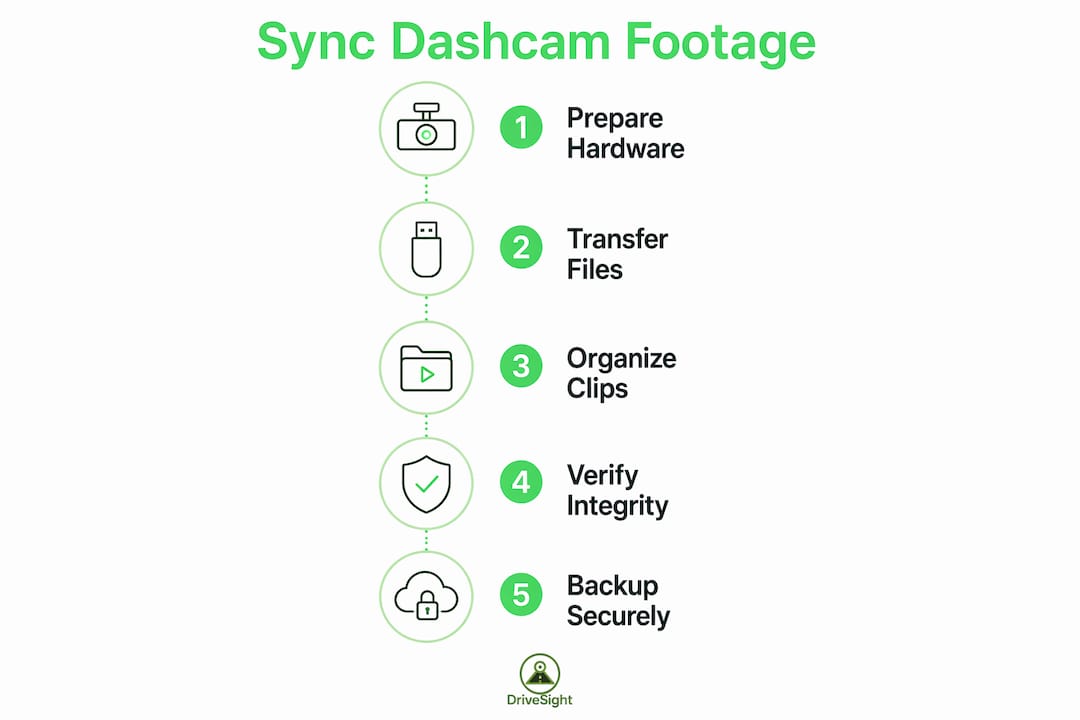
How to sync dashcam footage: step-by-step methods
Three reliable methods cover the full range of commuter setups. Choose based on your dashcam’s connectivity and how much time you have after each drive.
Method 1: Wi-Fi transfer
- Park and leave the dashcam powered on or connected to a USB power bank.
- Open your dashcam’s companion app on your phone and connect to the dashcam’s Wi-Fi hotspot.
- Select the clips from today’s commute and initiate the transfer.
- Wait for the progress bar to complete. Do not close the app or let your phone screen lock mid-transfer.
- Verify that each file plays back correctly before clearing space on the SD card.
Wi-Fi transfer is convenient but has a real limitation. Over-the-air transfers run 5 to 10 times slower than direct hardware connections. On a heavy commute day with multiple camera angles, this adds up fast.
Method 2: Direct USB-C or SD card transfer
- Power off the dashcam completely before removing the SD card. This prevents file corruption.
- Insert the card into a USB-C card reader connected to your laptop or phone.
- Copy the entire session folder to a dated folder on your local drive (for example, “2026-06-15 AM Commute”).
- Run a file integrity check using a tool that supports SHA-256 hashing before deleting anything from the card.
- Format the SD card using the dashcam’s built-in format function, not your computer’s file manager.
Pro Tip: Always format the SD card from inside the dashcam menu, not from Windows Explorer or macOS Finder. Dashcams write proprietary file allocation tables that a computer format will overwrite incorrectly.
Method 3: Desktop app organization
Once footage lands on your computer, use a desktop viewer that supports multi-part clip stitching to avoid gaps. Dashcams segment recordings into 1 to 3 minute clips automatically. Without stitching, reviewing a 40-minute commute means opening dozens of individual files. A good viewer assembles them into a single timeline with GPS overlay.
For multi-camera systems, sync the front and rear channels by timestamp before reviewing. Most desktop tools align channels automatically when GPS metadata is present. If your dashcam does not embed GPS data natively, check the role of GPS in dashcam apps to understand what you are missing from an evidence standpoint.
Best practices for managing daily commute dashcam footage
Organized footage is recoverable footage. A triage approach keeps your archive clean and your most important clips protected.
- Review and tag on the same day. Watch the day’s footage within 24 hours. Flag any clips showing hard braking, near misses, or aggressive drivers. Rename those files with a descriptive label before they get buried.
- Group by trip. Store morning and evening commute clips in separate dated folders. This makes retrieval fast when an insurer or attorney asks for footage from a specific date and time.
- Verify file integrity before wiping. A SHA-256 hash verification confirms that every transferred file is an exact copy of the original. Run this check before formatting the SD card. It takes two minutes and prevents the nightmare of discovering a corrupt transfer after the card is already cleared.
- Embed GPS metadata. GPS speed and timestamp data embedded in dashcam footage is significantly harder to dispute than video alone. This metadata forms the credible foundation for insurance claims and legal proceedings. Read more about how this data supports rear-end collision proof.
- Replace SD cards on schedule. Daily write cycles degrade SD cards within 6 to 12 months. Budget for a replacement card every year if you record every commute.
The table below summarizes storage method trade-offs for daily commuters:
| Storage method | Speed | Privacy | Cost | Best for |
|---|---|---|---|---|
| Local SD card | Fast | High | Low | All commuters |
| USB-C card reader | Very fast | High | Low | High-volume users |
| Wi-Fi to phone | Moderate | High | None | Casual daily sync |
| Cloud backup | Slow (upload) | Lower | Subscription | Fleet or shared vehicles |
Privacy-conscious commuters consistently prefer local and offline methods. Cloud-connected dashcams carry subscription costs and expose footage to third-party servers. For personal commute documentation, local storage with a disciplined sync routine delivers better control at lower cost.
Troubleshooting and advanced tips for daily dashcam syncing
Most syncing problems fall into four categories: slow transfers, file format errors, fragmented clips, and incomplete transfers.
- Slow Wi-Fi transfers: Switch to a USB-C card reader. Direct hardware connections are consistently faster and eliminate the Wi-Fi timeout errors that interrupt large file moves.
- Codec incompatibilities: Some dashcams record in H.265 (HEVC), which older media players cannot decode. Install a codec pack like K-Lite on Windows or use VLC, which handles HEVC natively on all platforms.
- Fragmented clip review: Use synchronized playback software that stitches 1 to 3 minute segments into a continuous timeline. Reviewing individual clips manually is error-prone and slow.
- Incomplete transfers: Always confirm file sizes match between source and destination before clearing the SD card. A transferred file that is smaller than the original is a corrupted file.
- Privacy during syncing: For commuters who want zero cloud exposure, 100% offline evidence collection via direct USB-C connection keeps footage entirely on your own hardware. No account login, no upload, no third-party access.
Incorrect file naming is the most overlooked syncing mistake. When clips are named only by the dashcam’s default sequence numbers, finding footage from a specific incident three weeks later becomes a manual search through hundreds of files. Rename flagged clips immediately after transfer using a date-time-event format, such as “2026-06-15-0742-tailgate-I95.” This takes 10 seconds and saves hours later.
For multi-camera setups, check your Wi-Fi and remote dashcam viewing options to understand how wireless sync handles simultaneous front, rear, and interior channels. Some dashcam apps handle this automatically. Others require manual channel selection, which slows the process considerably.
Pro Tip: Run your card reader transfer in the background while you do something else. The transfer itself is passive. What costs time is the review step, so batch your clip review to once per day rather than after every single drive.
Key Takeaways
Syncing dashcam footage daily requires the right hardware, a consistent transfer method, and a file management routine that preserves GPS metadata and verifies integrity before any SD card is cleared.
| Point | Details |
|---|---|
| Use high-endurance SD cards | Surveillance-rated cards prevent silent write failures within 6–12 months of daily use. |
| Match transfer method to volume | USB-C card readers outperform Wi-Fi for large daily files; use Wi-Fi only for quick spot checks. |
| Verify before deleting | SHA-256 hash checks confirm file integrity before you format the SD card. |
| Embed GPS metadata | Speed and timestamp data make dashcam footage significantly harder to dispute in insurance claims. |
| Organize by trip and date | Date-stamped folders with labeled flagged clips cut retrieval time from hours to seconds. |
What I’ve learned from syncing dashcam footage every day
The biggest mistake I see commuters make is treating syncing as optional. They record every drive faithfully, then lose the footage because the SD card overwrites it before they transfer anything. The recording habit is only half the job.
My personal routine is simple: card reader, dated folder, SHA-256 check, done. The whole process takes under five minutes for a standard commute day. The only time I use Wi-Fi transfer is when I need a specific clip immediately and cannot wait to pull the card.
On the GPS metadata question, I feel strongly that commuters underestimate this. Video alone shows what happened. GPS metadata proves when, where, and how fast. That combination is what actually wins insurance disputes. If your current setup does not embed GPS data, fixing that should be your first upgrade, not resolution or frame rate.
The wired versus wireless debate is real but simple. Wireless is convenient. Wired is reliable. For daily commute footage that you may need as legal evidence, reliability wins. Save wireless for the days when you just want to quickly check that morning’s footage on your phone before heading inside.
One more thing: replace your SD card on a schedule, not when it fails. By the time a card fails visibly, you have probably already lost footage. A surveillance-rated card costs less than $20. That is cheap insurance for the documentation you are building every single day.
— Cyberlab Automation
DriveSight makes daily dashcam footage management straightforward
Commuters who use their Android phone as a dashcam get a significant advantage in the sync and management workflow. DriveSight turns any Android device into a full-featured dashcam with local storage, background recording, and built-in evidence export.
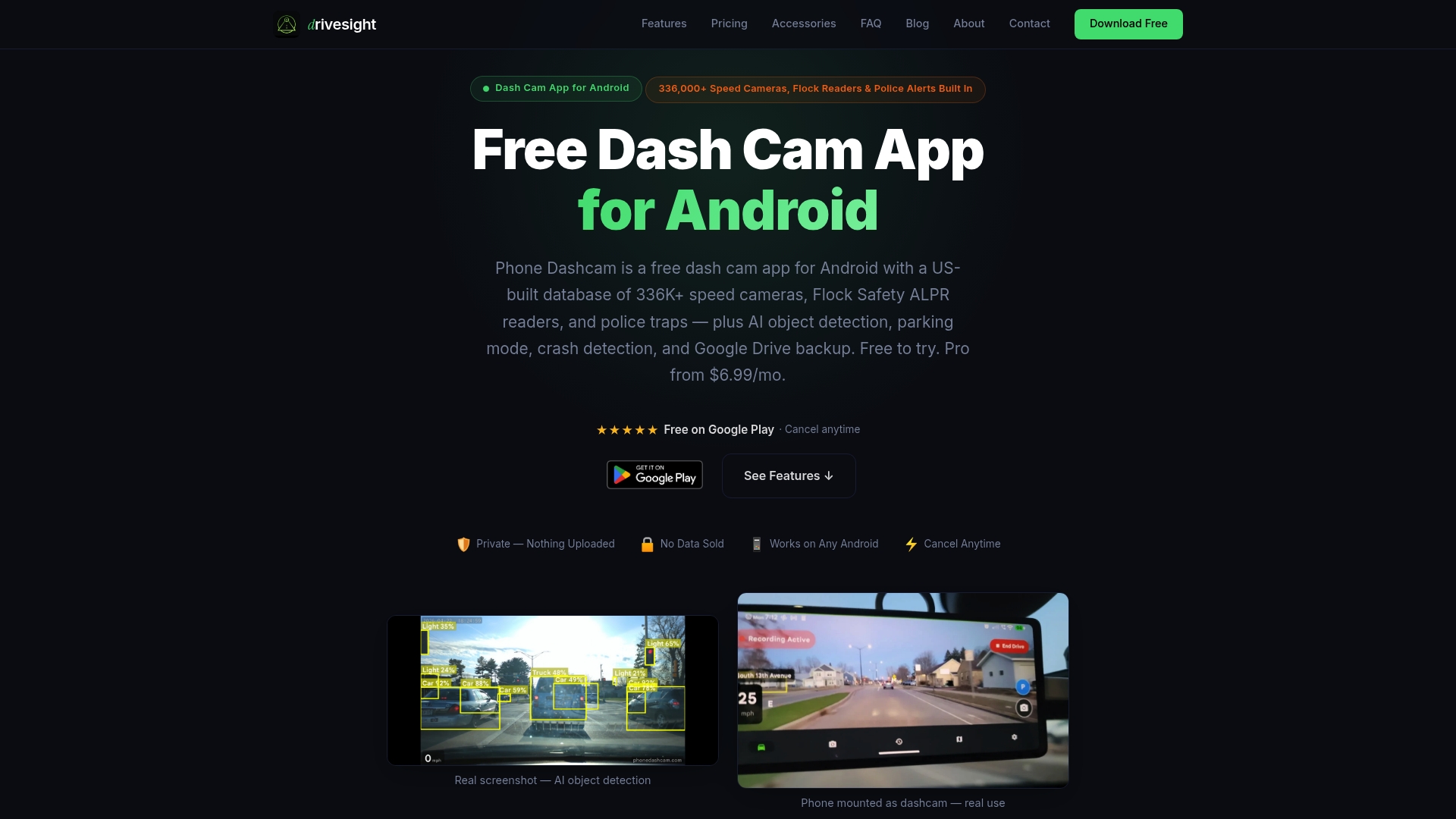
The DriveSight app handles footage storage directly on your device, with no subscription required and no footage leaving your phone without your action. GPS metadata embeds automatically into every recording. Crash detection saves and locks clips before they can be overwritten. For commuters who want a clean, private, and reliable daily dashcam video sync solution without buying dedicated hardware, DriveSight is the practical starting point. Download it free for Android and see how it fits your commute routine.
FAQ
What is the fastest way to sync dashcam footage daily?
A dedicated USB-C SD card reader connected directly to your laptop or phone is the fastest method. Over-the-air Wi-Fi transfers run 5 to 10 times slower than direct hardware connections.
How do I keep dashcam footage organized for insurance claims?
Store clips in dated folders grouped by trip, tag any incident clips with a descriptive name immediately after transfer, and embed GPS metadata so speed and location data accompany every file.
How often should I replace my dashcam’s SD card?
Replace surveillance-rated SD cards every 6 to 12 months under daily recording loads. Daily write cycles degrade standard cards faster, often causing silent failures before any visible error appears.
Can I sync dashcam footage without uploading to the cloud?
Yes. Direct USB-C transfer and SD card readers keep footage entirely on your own hardware. Apps that support 100% offline playback and export provide full evidence access without any cloud upload.
Does GPS metadata really matter for dashcam evidence?
GPS speed and timestamp data embedded in dashcam footage is significantly harder to dispute than video alone. This metadata forms the credible foundation for insurance claims and legal proceedings.
Recommended
- How to Create a Time-Lapse from Your Dashcam Clips
- How Dashcam Captures Hyperlapse Road Footage
- Road Trip Dashcam Footage Tips for Memorable Drives
- How to enable dashcam parking mode for commuters
Get Phone Dashcam free
Loop recording, crash detection, GPS tracking, and AI object detection — all in your phone. No new hardware required.
Download Phone Dashcam