How to Manage Dashcam Storage on Your Android Phone
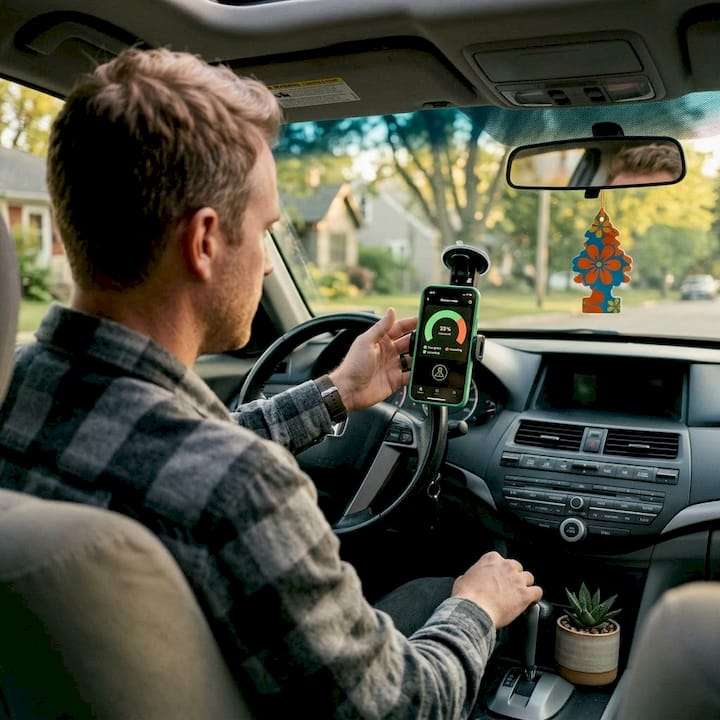
You’re driving home when a car cuts you off and causes a minor collision. You reach for your phone to review the dashcam footage, only to find the storage was full, and the recording stopped an hour ago. That scenario plays out more often than most drivers realize, and it’s entirely preventable. Repurposing an old Android phone as a dashcam is one of the most cost-effective moves you can make for road security, but without the right storage strategy, you risk losing the very footage you’re counting on when it matters most.
Table of Contents
- Key criteria for effective dashcam storage on Android
- Best practices for configuring storage on old Android phones
- Comparison of commercial dashcam apps and storage efficiency
- How to maintain dashcam evidence safely over time
- Why smart storage beats brute force: hard-won lessons from dashcam users
- Enhance your dashcam setup with the right app
- Frequently asked questions
Key Takeaways
| Point | Details |
|---|---|
| Manage protected files | Regularly export and delete locked/event clips to prevent storage overload and lost evidence. |
| Schedule routine backups | Back up important footage to cloud or computer weekly to keep evidence safe and storage available. |
| Use loop recording wisely | Understand loop recording’s edge cases and always format storage after saving critical clips. |
| Pick efficient apps | Choose dashcam apps with smart storage cleanup, notifications, and export tools for best results. |
Key criteria for effective dashcam storage on Android
Before diving into the specific storage strategies, it’s crucial to understand what actually makes a dashcam solution effective for long-term evidence capture.
Storage capacity is the obvious starting point, but it’s only part of the picture. A 128GB SD card sounds generous until you realize that recording in 1080p at a standard bitrate can consume roughly 1.5 to 2GB per hour. At that rate, continuous recording fills even a large card in a matter of days without active management.
Key factors to evaluate for your dashcam storage setup:
- Available internal storage or SD card capacity: Old Android phones often have limited internal memory, so a high-quality microSD card is usually essential.
- Loop recording behavior: Most dashcam apps overwrite the oldest footage when storage is full, which keeps recording continuous but can delete older footage you haven’t reviewed.
- Event and locked file accumulation: Impact events, manual locks, and crash detections create protected files that loop recording cannot overwrite.
- Backup frequency: Without regular exports to cloud or a computer, protected files pile up until there’s no writable space left.
- Storage health monitoring: Older phones and frequently written SD cards degrade faster; checking storage health monthly matters.
The hidden risk most drivers overlook is the interaction between loop recording and locked files. As noted in research on dashcam behavior, loop recording stops working if protected clips fill up memory, which means your camera can silently stop recording new footage even though it appears to be running. This is arguably the biggest storage failure mode for dashcam users.
Look at the dashcam storage features available on modern Android apps to understand exactly what tools you have to manage this risk before it becomes a real problem on the road.
Pro Tip: Before any long road trip or extended driving session, open your dashcam app and confirm available storage. A quick 30-second check can prevent the frustration of missing footage from an unexpected incident hundreds of miles from home.
Best practices for configuring storage on old Android phones
Now that you know the critical storage criteria, let’s walk through how to actually put them into action on your old phone.
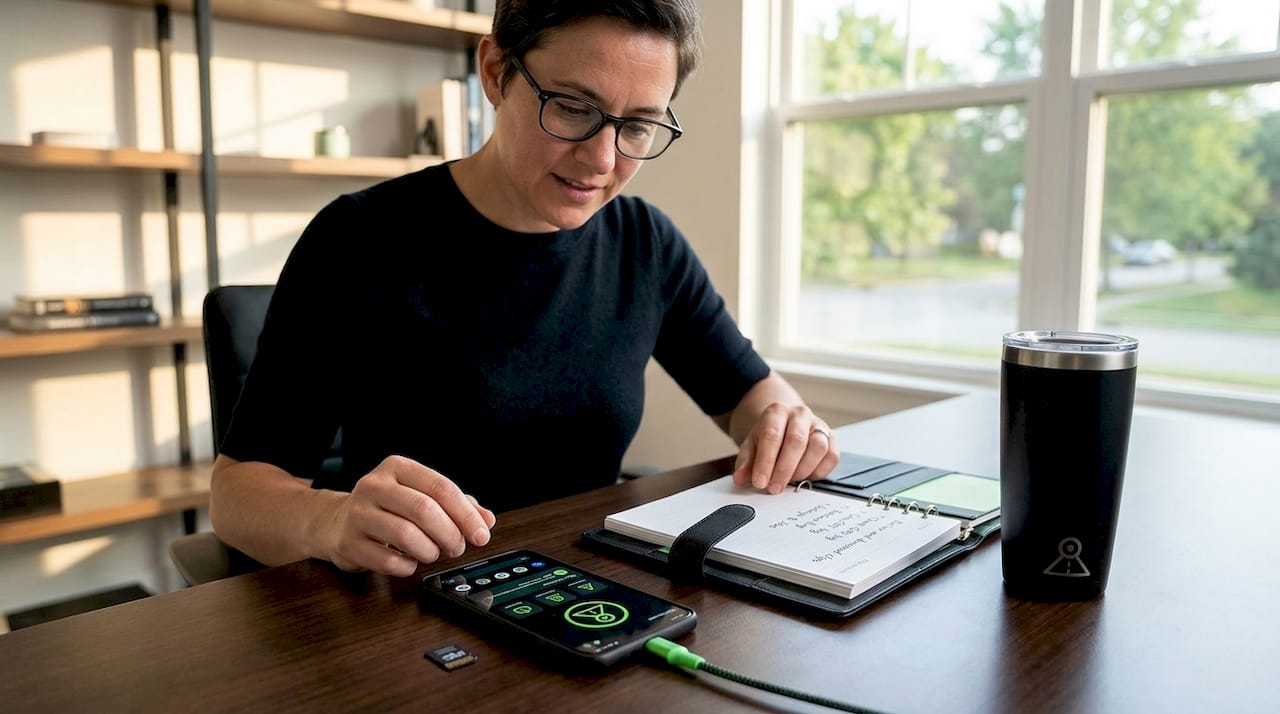
Configuring storage correctly from the start saves you significant trouble later. Old phones repurposed as dashcams often run with constraints that newer hardware doesn’t face, including slower write speeds, limited RAM, and aging SD card slots. That means your configuration choices carry more weight.
Follow these steps to configure your Android dashcam storage properly:
-
Choose the right video resolution. 1080p at 15 to 20 Mbps is the practical sweet spot for most drivers. Going above that generates footage quality your insurance company doesn’t need while eating storage far faster. Drop to 720p only if your phone’s processor struggles to maintain smooth recording.
-
Set your loop recording segment length. Most dashcam apps allow you to choose segment lengths of 1, 3, or 5 minutes. Shorter segments give the app more granular control over what gets overwritten and what gets kept after an event trigger.
-
Establish a hard cap on locked file storage. Some apps let you allocate a specific percentage of total storage for locked event clips. Set this to no more than 30 to 40 percent of total capacity so loop recording always has writable space.
-
Export locked files on a regular schedule. Once or twice a week, connect your phone to a computer or let cloud backup run, then review and clear your protected clips folder. This single habit prevents the majority of “memory full” failures.
-
Format your SD card monthly, not just delete files. Formatting performs a deeper clean that file deletion doesn’t accomplish and helps maintain write speeds on cards that have been heavily used.
“Loop recording sometimes fails if protected clips fill up memory; regular export and card formatting are key for uninterrupted recording.” This isn’t a theoretical concern. It’s a documented failure mode that catches drivers off guard, often right after an incident they desperately need footage of.
When comparing your options, it helps to understand how loop recording compares to alternatives like continuous cloud sync or tiered recording modes, each of which handles storage pressure differently. For deeper setup guides and configuration walkthroughs, the dashcam setup guides cover a wide range of Android phone models and app scenarios.
Pro Tip: After formatting your SD card, run a quick 15-minute test recording and then review the footage. Formatting occasionally surfaces card errors that only show up during active writes, and catching that early saves you from a failed recording session later.
Comparison of commercial dashcam apps and storage efficiency
With your storage configuration set, you’ll want to choose an app that supports and enhances these best practices.
Not all Android dashcam apps handle storage management with the same sophistication. Some apps provide basic loop recording with no visibility into locked file accumulation. Others offer automatic cleanup tools, cloud backup integration, and storage health alerts that make the whole process nearly hands-free.
| Feature | Basic apps | Mid-tier apps | Advanced apps (e.g., DriveSight) |
|---|---|---|---|
| Loop recording | Yes | Yes | Yes, with segment control |
| Locked file cap | No | Sometimes | Yes, configurable |
| Auto cloud backup | No | Limited | Yes, event-triggered |
| Storage alerts | No | Basic | Real-time notifications |
| Multi-camera support | No | Rarely | Yes, dual camera |
| Automatic cleanup | No | No | Yes |
| On-device AI processing | No | No | Yes |
The storage alert feature deserves special attention. An app that notifies you when locked files are consuming more than a set percentage of your storage is proactive in a way that basic apps simply aren’t. You don’t have to remember to check; the app tells you when action is needed.
Additional storage-related features to prioritize when choosing a dashcam app:
- Automatic export triggers: Some apps automatically upload event clips to cloud storage when you connect to Wi-Fi at home, requiring no manual action from you.
- Intelligent overwrite controls: Advanced apps can differentiate between standard footage and high-priority event footage, applying different retention rules to each category.
- Storage usage dashboards: Visibility into how your total storage is being consumed, broken down by file type, helps you make informed decisions without guessing.
As documented in practical dashcam testing, loop recording can stop when too many protected clips accumulate, which is a problem across most commercial dashcam apps that lack active monitoring. Choosing an app with built-in safeguards directly addresses this vulnerability.
The AI storage features in more advanced apps go further, using on-device intelligence to flag only genuinely significant events for locking rather than triggering on every minor bump. This dramatically reduces unnecessary file locking. For setups using both front and rear cameras, understanding dual camera storage behavior is critical because two simultaneous streams double your storage consumption and require more aggressive management policies.
How to maintain dashcam evidence safely over time
After choosing and configuring your app, let’s focus on keeping your footage safe and organized long-term.
A good initial configuration only carries you so far. Storage management is an ongoing practice, not a one-time setup. Drivers who treat it as a set-and-forget system eventually run into the exact problem they were trying to avoid.
Recommended evidence retention schedule based on driving profile:
| Driver type | Backup frequency | Formatting schedule | Cloud sync |
|---|---|---|---|
| Daily commuter | Weekly | Monthly | Auto on home Wi-Fi |
| Ride-share/delivery | Every 2 to 3 days | Every 2 to 3 weeks | Event-triggered |
| Long-haul traveler | Daily during trips | Post-trip | Manual + cloud |
| Occasional driver | Monthly | Every 3 months | On-demand |
The right schedule depends on how much footage you generate and how high-risk your typical driving environment is. A delivery driver covering 200 miles a day in dense urban traffic generates far more event clips than someone commuting 10 miles on low-traffic roads.
Here’s a practical process for long-term evidence management:
-
Set up Wi-Fi auto-sync at home. Configure your dashcam app to automatically upload event clips to cloud storage every time the phone connects to your home network. This happens overnight without requiring any effort from you.
-
Review your locked files folder weekly. Spend five minutes each week opening the app, reviewing any locked clips from the past seven days, and deciding what to keep in long-term storage versus what to delete after confirming it’s no longer needed.
-
Export before formatting. Always export any clips you want to keep before running a format. A simple folder structure on your computer labeled by date and incident type makes retrieval straightforward months later.
-
Run a full format after any significant incident. After an incident where you’ve already saved and exported the relevant footage, formatting the card clears fragmentation and resets write performance, which is particularly important on older, slower cards.
-
Test your backup system quarterly. Confirm your cloud sync is actually working by checking the upload history. Silent backup failures are more common than most users expect, especially after app updates.
According to consistent guidance on dashcam management, regular backup and formatting after preserving important clips is the most reliable way to prevent memory full errors and footage loss over time.
For drivers who want to get the most out of their footage, learning how to handle exporting dashcam clips efficiently saves time and ensures you’re preserving the right material. If your primary concern is incidents that happen while the vehicle is parked, specific strategies for backup during parking incidents apply different retention logic to motion-triggered clips versus continuous recording.
Why smart storage beats brute force: hard-won lessons from dashcam users
Bringing all these practices together, it’s worth asking: what actually makes for reliable dashcam storage in the real world?
We’ve seen drivers invest in 256GB cards, believing bigger storage means fewer problems. It doesn’t. Without active management, a larger card just means more protected files accumulate before the camera stops recording. The core problem isn’t capacity; it’s the behavior of locked files interacting with loop recording.
The most common mistake we observe is a driver who goes six weeks without exporting event clips. By that point, the locked files folder is consuming 80 percent of available storage. Loop recording is still appearing to function on the app’s dashboard, but it has almost no writable space left. One moderate pothole triggers an event lock, and now the card is effectively full. The next incident, which might be the one that actually matters legally, goes completely unrecorded.
This is exactly what the research describes: loop recording’s hidden flaw only becomes obvious when a critical incident fails to save due to a full card, which is the worst possible time to discover the problem.
Proactive management, even a simple weekly five-minute routine, eliminates this risk almost entirely. It’s not complicated. It just requires treating your dashcam as an active tool rather than a passive device you mount and forget.
We also recommend going beyond standard loop recording configuration by exploring in-depth dashcam management options that give you granular control over exactly how your storage behaves under different recording conditions. Knowing your system’s behavior at the 80 percent full mark, the 95 percent mark, and the exact moment a card fails is the kind of knowledge that separates drivers who reliably capture evidence from those who don’t.
Enhance your dashcam setup with the right app
If you’re ready to put these best practices to work, the right tools can make all the difference.
We built DriveSight specifically for drivers who want to repurpose an old Android phone into a capable, intelligent dashcam without spending money on hardware they don’t need. The app handles automatic event locking, storage health monitoring, Wi-Fi cloud sync, and real-time storage alerts so the management burden stays low.
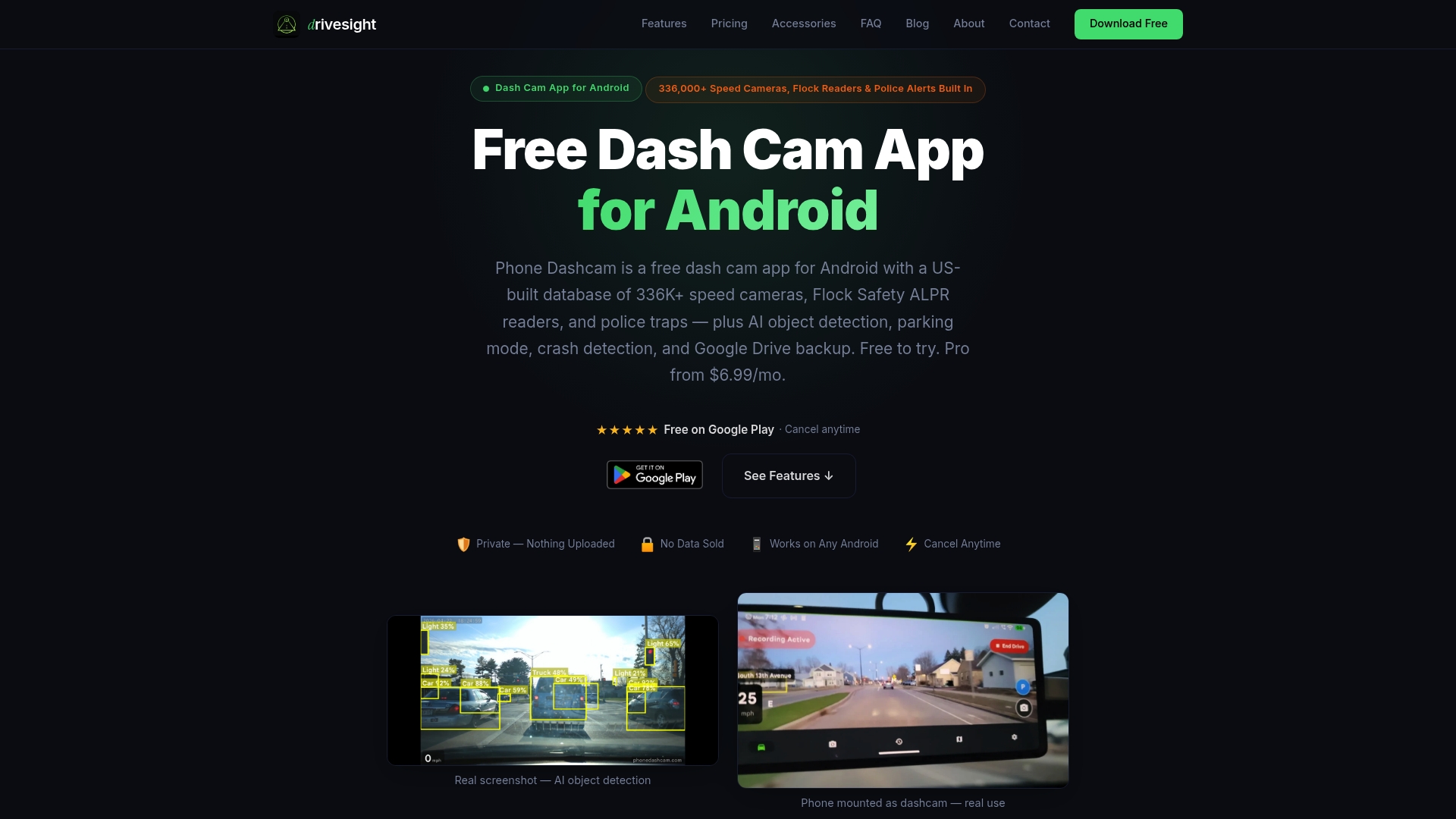
The free version covers the core dashcam recording features, and the premium tier unlocks AI and cloud features including on-device AI event detection, dual camera support, automatic cloud backup, and a 336,000-entry database of US speed and traffic cameras for live road alerts. Whether you’re a daily commuter, a ride-share driver, or someone who simply wants reliable evidence coverage, DriveSight gives you the storage management tools this article describes, built directly into the app.
Frequently asked questions
What happens if dashcam memory gets full?
If your dashcam memory fills up, it may stop recording entirely or display a “memory full” alert, meaning new footage is lost until you clear space. Loop recording stops or alerts “memory full” when protected files haven’t been backed up and cleared regularly.
How often should I format my dashcam storage?
Format your dashcam storage monthly or immediately after saving and exporting any important clips from a recent incident. Periodic formatting after exporting important clips is the most reliable way to prevent locked file buildup and maintain continuous recording performance.
What is the best storage size for Android dashcam use?
Aim for at least 64GB, though 128GB or larger is better for multi-camera setups or long-distance travel, as long as you consistently back up and clear protected files to keep the active recording space available.
Do event or locked clips get deleted by loop recording?
Event and locked clips are protected from overwrite by loop recording, but if too many accumulate without being exported, they fill all available storage. As documented, locked clips that accumulate prevent loop recording from freeing space, causing the camera to stop capturing new footage entirely.
How can I back up dashcam footage automatically?
Use a dashcam app that supports automatic Wi-Fi cloud upload so event clips sync to the cloud every time your phone connects to your home network, requiring no manual steps from you on a regular basis.
Recommended
- DriveSight vs Dash Cam Travel — Which Android Dashcam App Is Better in 2026?
- Dual Camera Dashcam Android — Record Front and Rear Simultaneously (2026)
- Best Dash Cam App for Android in 2026: Why Your Phone Beats a $300 Dashcam
- DriveSight vs Droid Dashcam — Which Android Dashcam App Is Better?
Get DriveSight free
Loop recording, crash detection, GPS tracking, and AI object detection — all in your phone. No new hardware required.
Download DriveSight