Make a Time-Lapse Video from Your Dashcam Footage

Yes, DriveSight has a built-in time-lapse creator — no desktop software needed. Open any saved clip in the Clips tab, tap "Create Time-Lapse", choose 4x, 8x, or 16x speed, and the app re-encodes the video entirely on your phone. The compressed file is saved alongside the original automatically.
Most dashcam footage is not particularly interesting to watch at full speed. A 45-minute commute is a 45-minute commute. But condense that same drive into 3 minutes at 16x speed and you get something worth keeping — a flowing, compressed view of the whole journey with every turn and merge visible in a fraction of the time.
DriveSight now includes a built-in time-lapse creator. Open any saved clip, pick a speed, and the app re-encodes the video entirely on your phone. No desktop software, no cloud upload, no third-party app.
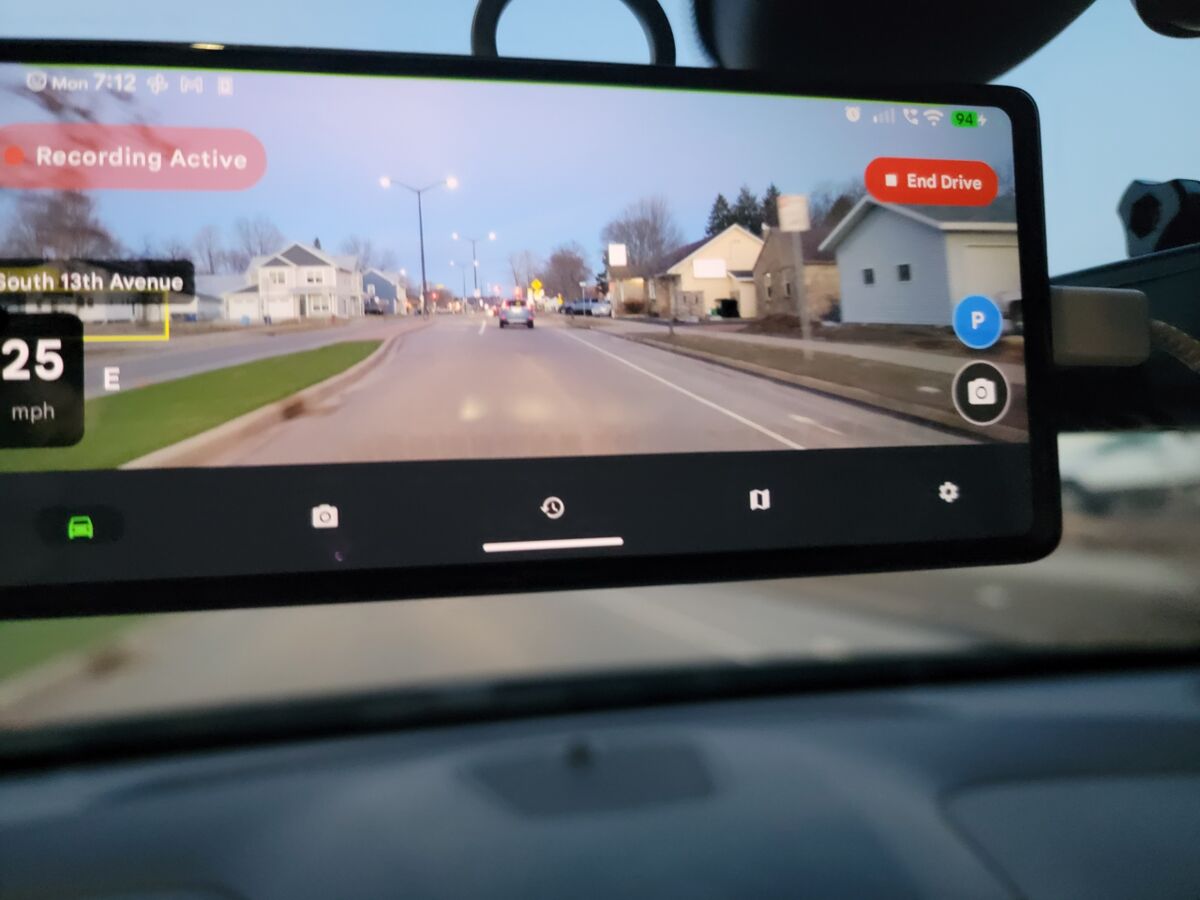
Saved dashcam clips can now be converted to time-lapse directly in the app
How to Use It
-
Open the Clips tab
Tap Clips at the bottom of the app. All your saved and locked clips are listed here, grouped by date.
-
Tap a video clip to expand it
Tap any clip in the list. The card expands to show the timestamp, file size, location, and action buttons.
-
Tap "Create Time-Lapse"
The amber Create Time-Lapse button appears at the bottom of the expanded card. It only shows for video clips — not photos.
-
Choose your speed: 4x, 8x, or 16x
Pick a speed multiplier based on how much you want to compress the clip. See the table below for what each speed does to clip length.
-
Tap Create and wait for processing
A progress bar shows the re-encoding status. When it finishes, the time-lapse opens automatically in your video player. The file is saved alongside the original clip with the speed appended to the filename.
Speed Reference
| Original Clip Length | 4x Speed | 8x Speed | 16x Speed |
|---|---|---|---|
| 5 minutes | 1 min 15 sec | 37 seconds | 19 seconds |
| 20 minutes | 5 minutes | 2 min 30 sec | 1 min 15 sec |
| 45 minutes | 11 min 15 sec | 5 min 37 sec | 2 min 48 sec |
| 2 hours | 30 minutes | 15 minutes | 7 min 30 sec |
Which speed to pick: 4x works well for short clips under 10 minutes where you want to see detail. 8x is the most versatile — it makes a 20-minute drive watchable in under 3 minutes. 16x is best for very long clips like road trips or full-day parking footage where you just want to scan for events.
How the Processing Works
On-Device Re-Encoding with Media3 Transformer
The time-lapse is created using Android's Media3 Transformer library, which applies a SpeedChangeEffect to the video during re-encoding. The entire process runs locally on your phone using hardware-accelerated video codecs.
Processing time depends on your phone's hardware and the clip length. A 10-minute clip at 8x typically takes 60-90 seconds to process on a mid-range Android phone from the last 3 years. Flagship phones with dedicated video encode hardware will be faster.
The output file is saved as MP4 in the same folder as the original clip. If the original was named clip_2026-04-04.mp4, the 8x time-lapse is saved as clip_2026-04-04_8x.mp4. The original clip is not modified.
Audio Is Removed
Time-lapse output has no audio track. Road noise and cabin audio at 8x or 16x speed is not useful and would sound like high-pitched scrambled noise anyway. The re-encoder drops the audio stream entirely, which also reduces the output file size.
What to Use It For
Long Road Trips
A 4-hour drive through scenic country compresses to 15 minutes at 16x. The motion of the landscape, changes in light, and the flow of the road all still come through clearly at that speed. It is a reasonable way to share a drive that nobody would watch at full length.
Parking Surveillance Review
If parking mode ran for 8 hours overnight, you have 8 hours of footage to check. At 16x that is 30 minutes of video. Scan through it quickly to verify nothing happened, or to find the moment something did.
Daily Commute Archive
A 45-minute daily commute at 8x becomes a 5-minute clip. If you keep selected commute recordings as a record of road conditions, near-misses, or notable events over time, time-lapse makes those archives actually scannable.
Frequently Asked Questions
Does creating a time-lapse delete the original clip?
No. The original clip is preserved. The time-lapse is saved as a separate file with the speed appended to the filename. You can keep both, share the time-lapse, and delete either independently.
Can I share the time-lapse directly after creating it?
Yes. When processing completes, the video opens in your default video player. From there you can share it through any app on your phone. You can also find it in your file manager and share it from there.
How large is the output file?
Smaller than the original. At 8x speed, a clip that was 500MB produces a time-lapse around 60-80MB. The file size scales with the compressed duration, not the original.
Does it work on older phones?
The feature requires Android 6.0 or higher and a phone with hardware video encoder support, which covers essentially all Android phones made after 2016. Processing will be slower on older hardware but it will work.
Is this a Pro feature?
Yes. Time-lapse creation requires a DriveSight Pro subscription. The free version includes continuous recording, crash detection, GPS speedometer, parking mode, and Google Drive backup.
Start recording
DriveSight is free on Google Play. Mount your phone, start a drive, and your clips are waiting in the Clips tab when you need them.
Download DriveSight Free