Remote Dashcam Viewing Over WiFi — A Driver's Primer

Most drivers assume the role of WiFi in remote dashcam viewing works the same way home internet does. Connect once, watch footage from anywhere, get alerts on your phone while you’re at work. That assumption leads to real frustration. Dashcam WiFi is actually a localized hotspot, not an internet connection, and understanding that distinction changes everything about how you use it. This guide breaks down exactly what dashcam WiFi does, what it cannot do, and how to get the most out of it for your daily security and convenience.
Table of Contents
- Key takeaways
- The role of WiFi in remote dashcam viewing
- How dashcam WiFi actually works
- What WiFi-enabled dashcams actually let you do
- WiFi versus LTE: understanding the real difference
- Common misconceptions about dashcam WiFi
- Getting the most out of your dashcam’s WiFi features
- My take on where dashcam WiFi is heading
- Take your dashcam further with Phonedashcam
- FAQ
Key takeaways
| Point | Details |
|---|---|
| WiFi is a local connection | Dashcam WiFi connects your phone directly to the camera within 5 to 15 meters, not to the internet. |
| Recording never needs WiFi | Your dashcam records continuously to an SD card regardless of whether WiFi is active. |
| WiFi simplifies footage access | You can download clips, preview footage, and adjust settings wirelessly without removing the SD card. |
| LTE dashcams go further | Cellular-connected dashcams provide true remote access from anywhere, but at a higher cost and subscription fee. |
| Keep WiFi off while driving | Activate WiFi only when parked and stationary to save power and avoid distraction. |
The role of WiFi in remote dashcam viewing
WiFi is the feature that makes your dashcam genuinely usable day to day. Without it, accessing footage means pulling the SD card, finding a card reader, and transferring files manually. With it, you open an app on your phone while standing next to your car and your footage is right there. That convenience is the real point.
But the word “remote” is where confusion begins. When manufacturers market “remote viewing,” they mean remote relative to the dashcam itself, not remote as in watching footage from your living room. WiFi eliminates SD card removal for routine footage management, which is genuinely useful. It does not mean you can pull up live video from across town.
Understanding this distinction lets you set your dashcam up correctly, use the right apps, and avoid the frustration of expecting features the hardware was never designed to provide.
How dashcam WiFi actually works
Your dashcam broadcasts its own small wireless network when you activate the WiFi feature. Your smartphone connects to that network directly, the same way two devices connect over Bluetooth but with broader data throughput. There is no router involved, no internet service provider, and no cloud server in the middle.
Here is what actually happens technically:
- The dashcam creates a peer-to-peer hotspot with a specific SSID and password
- Your phone connects to that SSID, disconnecting from your home or cellular network temporarily
- The dashcam’s companion app communicates directly with the camera over this local connection
- You can browse files, stream a live preview, change settings, or download clips to your phone’s storage
- The connection range is typically 5 to 15 meters, so you need to be near the vehicle
The speed of this connection matters too. Older dashcams use 2.4GHz WiFi, which is slower and more prone to interference. Newer models with 5GHz WiFi download up to 3x faster than their 2.4GHz counterparts, which makes a real difference when you’re pulling a five-minute 4K clip after an incident.
Pro Tip: When your phone connects to the dashcam’s WiFi hotspot, you lose regular internet access on that device. Use a second phone or tablet to search for information while downloading footage on your primary device.
What WiFi-enabled dashcams actually let you do
The practical benefits of wifi connectivity for dashcams are more useful than most drivers realize, even with the range limitation.
- Wireless footage download. Pull specific clips directly to your phone without touching the SD card. After a fender bender, you can have shareable video evidence on your phone within two minutes.
- Live preview for camera alignment. View live video feeds and download clips while setting up your camera angle after installation or repositioning. No more guessing whether your camera is aimed correctly.
- Remote settings adjustment. Change resolution, sensitivity, loop recording length, and date/time stamps through the companion app without physically reaching the unit.
- Quick sharing for insurance and authorities. Send a clip directly from your phone to an insurance adjuster or file it with a police report on the spot.
Pro Tip: Right after any incident, activate dashcam WiFi before you start your engine or move the vehicle. Download the relevant clip immediately. Dashcams overwrite older footage on loop, so acting fast protects the evidence.
The importance of WiFi for dashcams becomes most obvious in parking lot incidents. Someone clips your bumper while you’re in a store. You come out, notice the damage, and can immediately pull the last 30 minutes of parking footage to your phone. No laptop required.
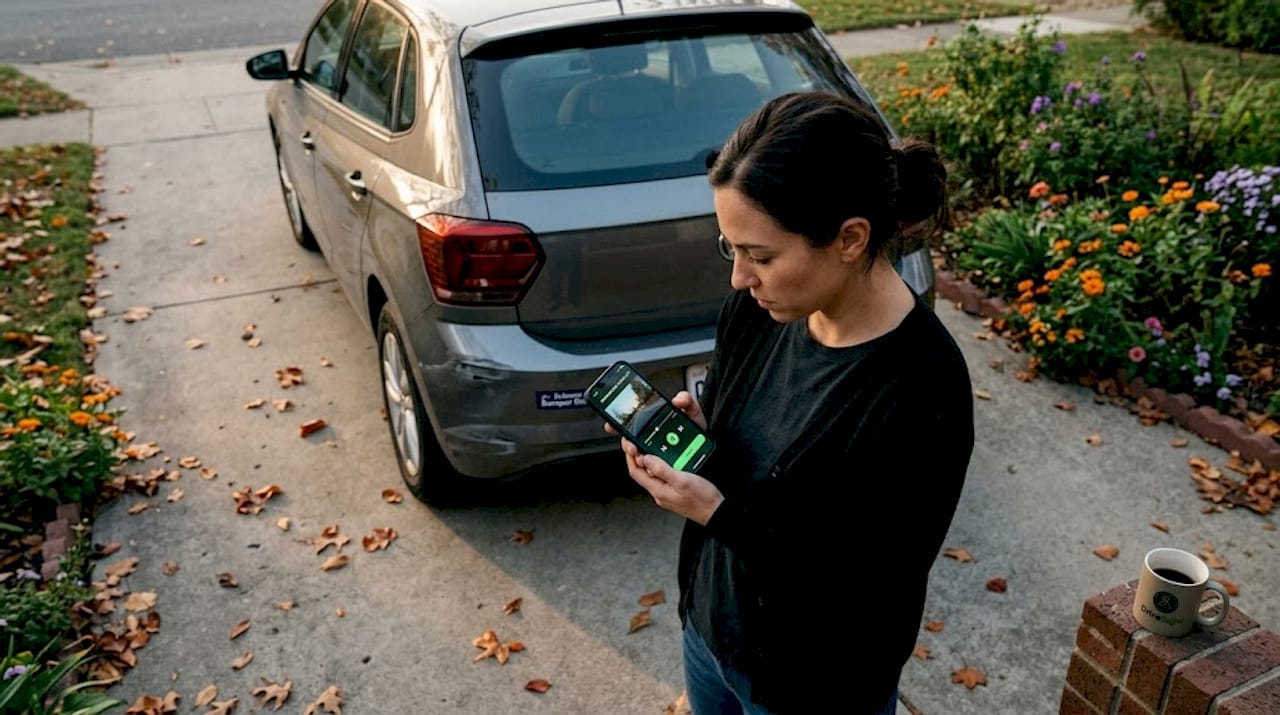
You can also manage dashcam storage strategies more efficiently through WiFi apps, since most let you filter footage by date, flag important clips, and delete unwanted files wirelessly.
WiFi versus LTE: understanding the real difference
This is the comparison most drivers need before buying a dashcam. WiFi and LTE serve genuinely different purposes, and the price gap reflects that.
| Feature | WiFi dashcam | 4G LTE dashcam |
|---|---|---|
| Remote access range | 5 to 15 meters from vehicle | Anywhere with cellular coverage |
| Internet required | No | Yes, cellular data plan required |
| Real-time alerts | Not supported | Supported, with cloud notification |
| Live view while away | Not possible | Possible through cloud portal |
| Cloud footage upload | Requires hotspot or home WiFi | Automatic, continuous |
| Monthly cost | None beyond dashcam price | Subscription fee, typically $10 to $30/month |
| Best for | Personal vehicles, daily convenience | Fleets, parents monitoring teen drivers, high-value vehicles |
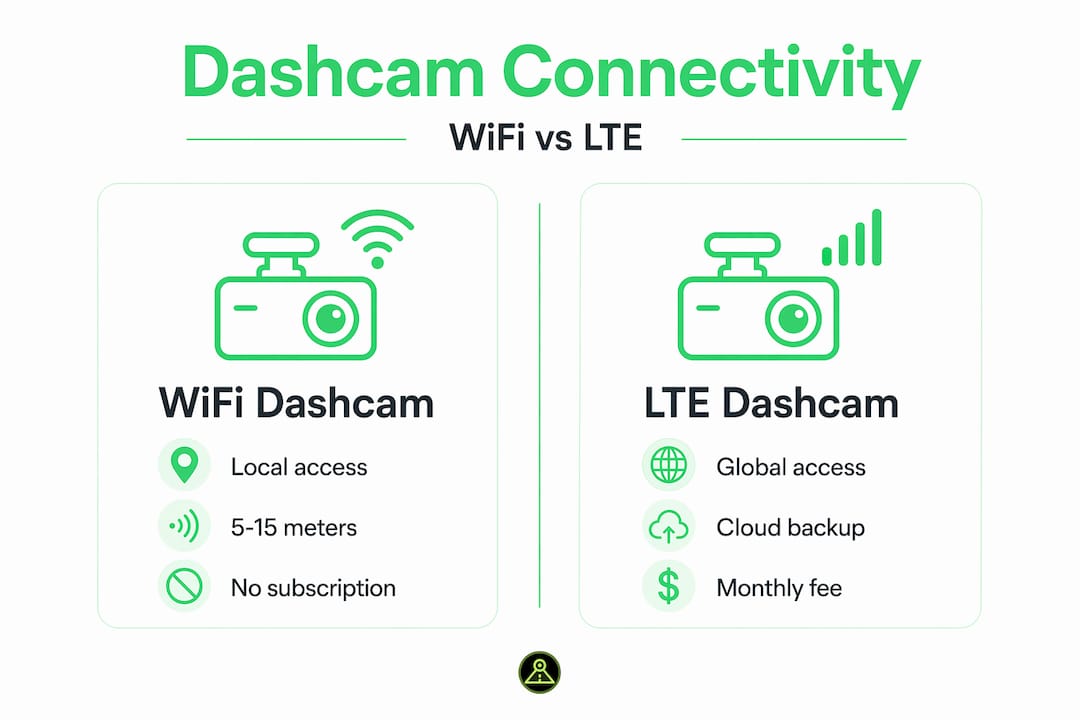
Event footage via LTE is accessible in cloud portals within minutes of an incident, which is a meaningful capability gap compared to WiFi. If you want to check whether your teenager arrived safely or monitor a fleet vehicle, LTE is the only option that actually delivers.
That said, LTE dashcams cost more upfront, require ongoing subscription fees, and depend on cellular coverage. For the majority of personal vehicle owners who just want reliable recording and convenient footage access after incidents, WiFi delivers everything they need at a fraction of the cost.
Fleet vehicle services operations increasingly favor LTE solutions paired with telematics because the combination allows dashcam video linked with telematics data for full incident context in one portal. That level of integration is overkill for a daily commuter but genuinely valuable for commercial operators.
Common misconceptions about dashcam WiFi
How wifi impacts dashcam viewing is often misunderstood, and those misunderstandings lead to poor purchasing decisions and missed functionality. Here are the most frequent ones worth clearing up:
-
“My dashcam needs WiFi to record.” False. Core dashcam recording is fully independent of WiFi. The camera records continuously to a local SD card whether WiFi is on or off, and whether your phone is nearby or not.
-
“WiFi means I can watch live footage from anywhere.” Not with a standard WiFi dashcam. You need to be within range of the camera’s hotspot. True remote access from any location requires a cellular connection through an LTE-equipped model.
-
“I should leave dashcam WiFi on all the time.” There is no benefit to running WiFi while driving. WiFi should only be active when you’re stationary and accessing footage or changing settings. Leaving it on drains power and creates a minor distraction risk.
-
“WiFi-enabled means cloud backup is automatic.” Cloud-connected features require a WiFi hotspot or cellular connection to function. Standard dashcam WiFi is device-to-device only and does not push footage to any cloud server.
-
“Any app will connect to my dashcam.” Most dashcams only work with their manufacturer’s companion app. Third-party apps rarely support direct dashcam WiFi connections. Always use the dedicated app for your specific dashcam model.
Clearing up these points saves you from buying the wrong product for your needs and helps you use what you already have more effectively.
Getting the most out of your dashcam’s WiFi features
Knowing what WiFi does is one thing. Using it well in real situations is another. Here’s how to put wifi streaming for dashcam footage to practical use:
-
Download the companion app before you need it. Set up the dashcam-to-phone WiFi connection in a parked, low-pressure situation. Learn the interface before an incident forces you to figure it out under stress.
-
Set a strong WiFi password on your dashcam. Most dashcams ship with a default password. Change it through the settings menu to prevent neighbors or people in nearby parking lots from accessing your footage.
-
Use WiFi to verify your camera angle after any repositioning. Whenever you move the dashcam or clean the windshield, reconnect via WiFi and check the live preview. Small changes in mounting angle can cut off important road area from the frame.
-
Download and back up flagged clips immediately after any incident. Loop recording will eventually overwrite footage that is not protected. Use the WiFi connection to download critical clips to your phone and then upload them to a cloud storage service manually.
-
Adjust settings seasonally. Parking mode sensitivity, recording resolution, and night vision settings may need adjusting between summer and winter. WiFi makes these changes fast without needing to remove the unit.
-
Combine WiFi access with a dual front and rear setup for complete coverage. Most companion apps show feeds from both cameras simultaneously, so you can verify alignment and download relevant clips from either channel.
Pro Tip: After downloading footage via WiFi, immediately rename the file with the date, time, and a brief description before storing it. This makes retrieval far faster when you need it weeks later for insurance or legal purposes.
Remote dashcam access through WiFi is most powerful when you treat it as a deliberate tool rather than a passive feature. Activate it with purpose, download what matters, and keep the rest of your workflow simple.
My take on where dashcam WiFi is heading
I’ve followed dashcam technology closely for years, and the pattern I keep seeing is that users almost always underestimate what WiFi actually offers and overestimate what it promises. The frustration is understandable. “WiFi” carries years of association with internet connectivity, and the marketing language around dashcams doesn’t always help.
What I’ve found is that WiFi remains genuinely valuable even as LTE dashcams become more affordable. The reason is simplicity. No subscription, no ongoing data cost, no dependency on cellular coverage in a parking garage or rural area. For the vast majority of drivers who use dashcam footage reactively after an incident, local WiFi access is exactly what they need.
Where I see the real growth is in integration. The line between dashcam footage and telematics data is blurring fast. Telematics integration is driving innovation in accident prevention in ways that will eventually filter down to consumer devices. Within a few years, I expect even mid-range personal dashcams to offer automatic incident detection with WiFi-triggered local backup to a nearby phone, without requiring a paid cellular plan.
My advice: match the technology to your actual usage pattern. If you want to verify your parked car is safe and download clips easily, WiFi is sufficient and cost-effective. If you’re managing a fleet or monitoring a vehicle you’re not riding in, invest in LTE. Most drivers need far less than they think, and far more than they’re currently using.
— Cyberlab
Take your dashcam further with Phonedashcam
If you want to experience how WiFi-enabled dashcam access works at its best, the Phonedashcam app turns your Android smartphone into a full-featured dashcam with built-in remote viewing capabilities. No dedicated hardware required.
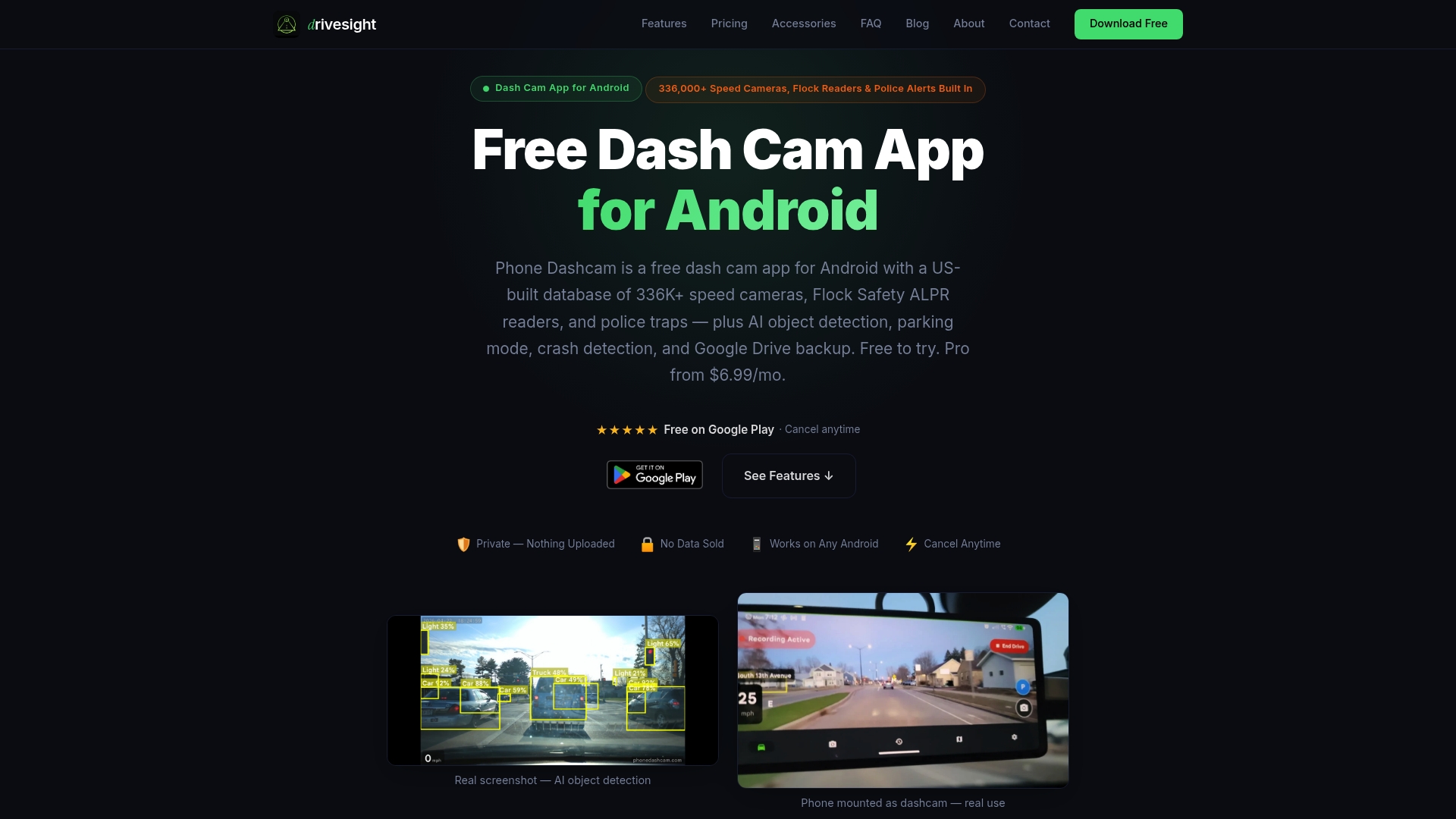
Phonedashcam supports live preview, wireless footage access, cloud backup, AI-powered crash detection, and real-time alerts for over 336,000 speed cameras and police traps across the US. The remote viewer feature lets you access footage and monitor your vehicle directly from the app. Whether you’re a daily commuter, a ride-share driver, or someone who wants reliable parking lot security, Phonedashcam gives you the tools to protect yourself and your vehicle, starting for free on any Android phone.
FAQ
Does dashcam WiFi work without an internet connection?
Yes. Dashcam WiFi creates a direct device-to-device connection between the camera and your smartphone, requiring no internet or cellular service to function.
Can I view my dashcam footage remotely from anywhere?
Not with a standard WiFi dashcam. WiFi range is limited to roughly 5 to 15 meters from the vehicle. Viewing footage from a remote location requires a 4G LTE dashcam with a cloud subscription.
Should I leave dashcam WiFi on while driving?
No. There is no benefit to running WiFi while the vehicle is in motion. Activate it only when parked to access footage or adjust settings, and turn it off before driving to conserve power.
Will my dashcam stop recording if WiFi is off?
No. Dashcam recording operates entirely independently of WiFi connectivity. The camera records continuously to an SD card regardless of whether WiFi is activated or a phone is connected.
What is the difference between dashcam WiFi and cloud backup?
Dashcam WiFi connects your phone directly to the camera for local file access. Cloud backup requires either a cellular-equipped dashcam or a connection to a WiFi hotspot to upload footage to an external server automatically.
Recommended
- How a Dashcam Protects You During Remote Area Travel
- Phone Dashcam Remote Viewer
- Set up a dual front and rear Android dashcam
- Phone Dashcam Features in 2026: AI Detection, Parking Mode, Cloud Backup and More
Get Phone Dashcam free
Loop recording, crash detection, GPS tracking, and AI object detection — all in your phone. No new hardware required.
Download Phone Dashcam