How Dashcam Footage Becomes Travel Content in 2026
How Dashcam Footage Becomes Travel Content in 2026
TL;DR:
- Proper dashcam workflow ensures valuable footage is protected and available for both safety and travel content. Lock clips immediately, transfer and back up files, and edit duplicates without altering originals to maintain evidence integrity. DriveSight centralizes recording, alerting, and backup functions into one app optimized for travel creators.
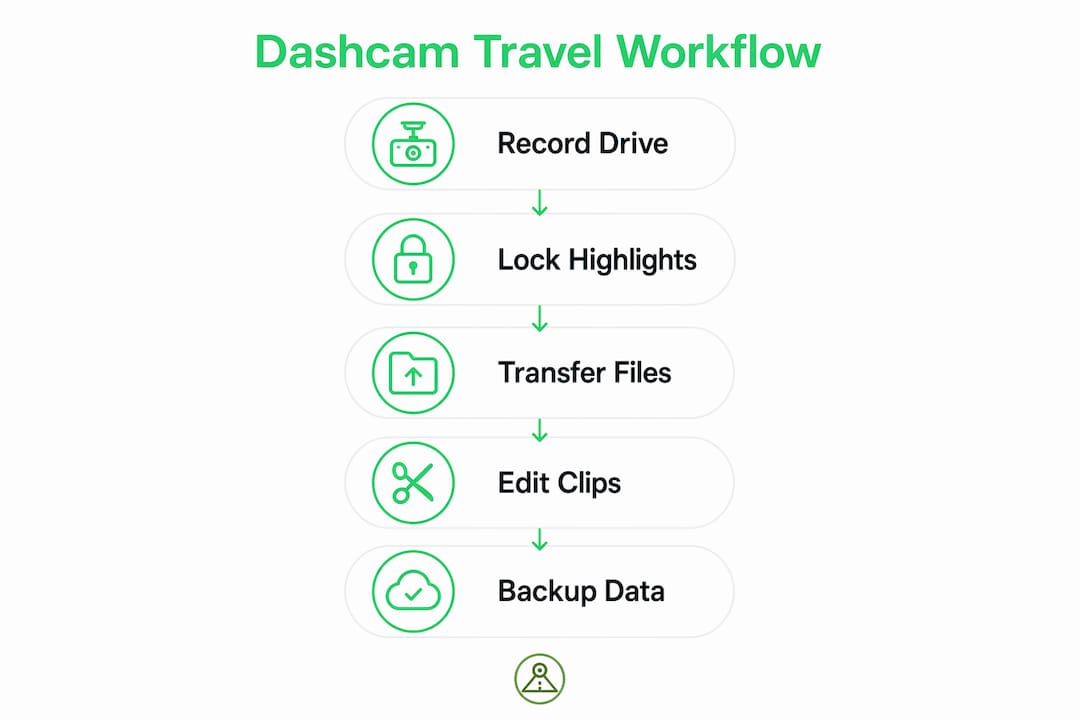
Your dashcam footage can serve double duty as both reliable safety evidence and polished travel content — but only if you follow a workflow that locks highlight clips before loop recording overwrites them, keeps originals untouched for legal use, and runs a compact editing pipeline before publishing. Here is the four-step pipeline at a glance:
- Capture: Set the right resolution, framerate, and recording mode before you leave
- Protect: Lock event clips immediately using G-sensor or manual lock to prevent overwrites
- Offload: Transfer locked files to your phone, Google Drive, or a local SSD
- Edit and publish: Trim, stabilize, and stylize clips for YouTube, Reels, or TikTok
DriveSight, an Android dashcam app built by Cyberlab Automation, centralizes all four steps in one place. Dashcam footage is widely recognized by U.S. insurers and legal professionals as objective evidence in traffic disputes, so preserving that integrity while creating travel content is the core challenge this guide solves.
Pro Tip: Record a 60-second test clip before every trip. Play it back immediately to confirm focus, exposure, and audio levels are correct before you hit the highway.
Table of Contents
- What should you do before the trip to protect your footage?
- How do you capture travel-ready footage without compromising safety?
- How do you edit raw dashcam clips into a short travel video?
- What are the privacy and legal rules for U.S. drivers publishing dashcam footage?
- How do you back up footage so highlights and evidence never disappear?
- How DriveSight turns every drive into both a safety record and travel content
- Key Takeaways
- Why the app-first dashcam workflow beats dedicated hardware for travel creators
- DriveSight gives you a smarter way to record every drive
- FAQ
What should you do before the trip to protect your footage?
Getting your setup right before departure is the single biggest factor in whether your best clips survive a long drive. Creators consistently report that skipping a pre-trip workflow is the most common reason highlight footage gets overwritten or corrupted.
Storage and card prep:
- Format your microSD card inside the dashcam app (not your computer) to clear fragmentation
- Use a high-endurance card rated for continuous write cycles; A medium-sized high-endurance card works well for 1080p multi-day trips; larger capacity cards are recommended for 4K recording.
- Confirm loop recording settings so older files overwrite correctly without touching locked clips
Device and mount checklist:
- Charge your phone fully and plug into a powered mount or car charger
- Enable background recording so the app keeps running if you switch apps
- Clean the lens with a microfiber cloth — smears create lens flare that ruins scenic shots
- Tighten the mount to eliminate vibration rattles that destabilize footage
- Calibrate the G-sensor/impact threshold in the app settings so minor bumps do not trigger false locks
Pro Tip: Create a new named folder for each travel day (e.g., “Day1-Denver-to-Moab”) before you start driving. It cuts offload time in half and keeps your evidence clips separated by date.
How do you capture travel-ready footage without compromising safety?
Pick settings that balance image quality with storage and transfer speed. For most travel creators, 1080p at 60 fps is a practical sweet spot balancing sharpness for social media with file size suitable for quick transfer. 4K produces the best image quality for editing but generates large files that slow wireless transfers significantly.
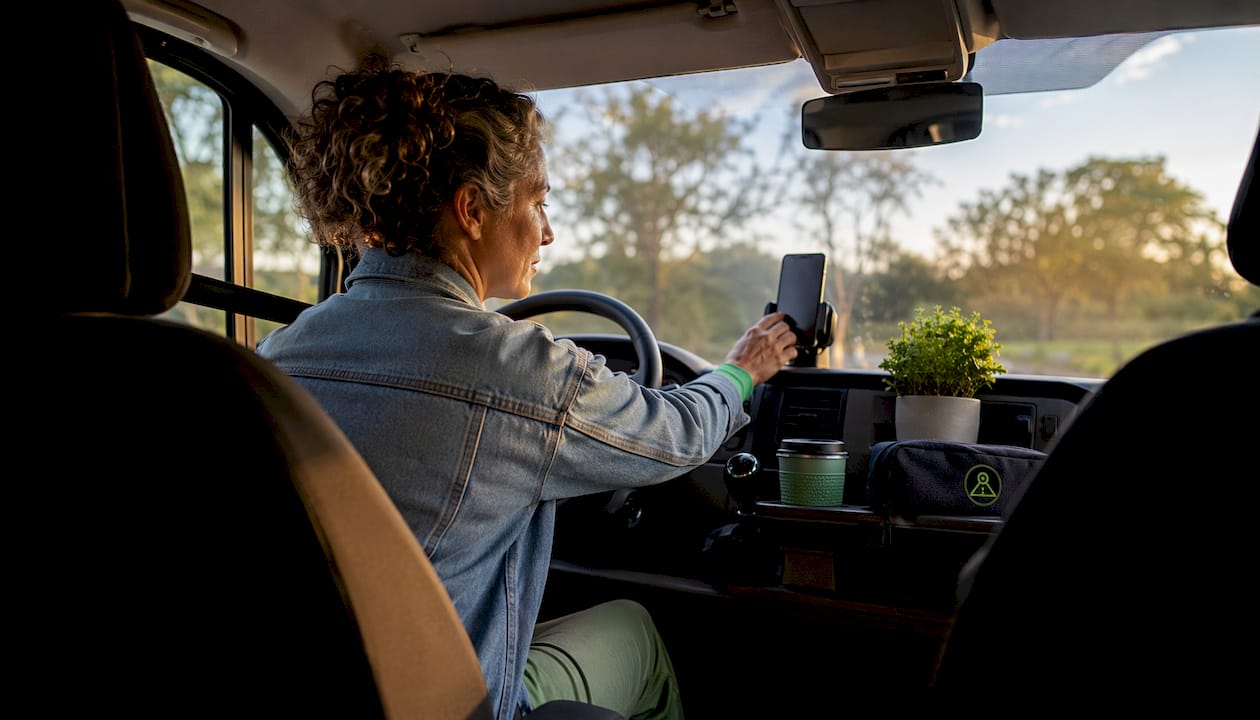
| Resolution | Frame Rate | Storage per Hour | Best For |
|---|---|---|---|
| 1080p | 60 fps | ~4 GB | Long trips, quick social edits |
| 1080p | 60 fps | — | Smooth motion, highway footage |
| 4K | 60 fps | ~16 GB | Cinematic edits, proxy workflow |
In-trip settings checklist:
- Enable WDR (wide dynamic range) for tunnels and bright desert highways
- Turn on GPS/timestamp overlays — they add context for viewers and preserve location data for evidence
- Use dual-channel recording if available to capture both road and cabin reactions
- Set parking mode with motion detection active whenever you stop for more than a few minutes
Loop recording is your safety net on long drives, but it is also your biggest risk. High-endurance microSD cards paired with proper loop settings keep continuous capture running without losing unlocked clips you care about. Lock anything worth keeping the moment it happens.
Pro Tip: If you are shooting in 4K, use a USB-C card reader to transfer files to your laptop rather than relying on Wi-Fi transfer. Wireless speeds cannot keep up with large 4K libraries.
How do you edit raw dashcam clips into a short travel video?
Academic research shows that automatic summarization systems can generate highlight reels from hours of dashcam data, but human curation still drives narrative flow and music choices. The practical workflow below keeps originals intact while giving you a clean editing copy.
- Ingest: Use a card reader or Wi-Fi transfer to move locked clips to your editing device
- Curate: Review timestamp and GPS data to select the most visually compelling moments
- Edit: Apply stabilization, color correction, and speed ramps to add energy to highway sequences
- Add context: Layer in map overlays, narration, or licensed music to give viewers a sense of place
- Export: Match platform specs — 1080p/60fps for YouTube, vertical 9:16 for Reels and TikTok
Creative moves that work for dashcam travel clips:
- Open with a 3–5 second establishing shot of a scenic stretch before cutting to action
- Use a 4x speed ramp on long straight highway sections to compress time without losing the landscape
- Cut to a cabin reaction shot (interior channel) after a dramatic moment like a wildlife crossing
- Choose royalty-free music from YouTube Audio Library or Epidemic Sound to avoid copyright strikes
- Add a brief GPS map animation at the start to orient viewers geographically
Pro Tip: Always edit a duplicate of your locked clip, never the original. Keep one forensic copy in a separate folder labeled “Evidence-Original” so it remains admissible if you ever need it.
What are the privacy and legal rules for U.S. drivers publishing dashcam footage?
Dashcam footage is commonly admissible as objective evidence in U.S. traffic disputes, but publishing that same footage online introduces privacy and consent considerations you need to manage before uploading.
U.S. legal checklist for publishing dashcam content:
- Audio consent: The U.S. operates under a mix of one-party and two-party (all-party) consent states for audio recording. In two-party states like California, Florida, and Illinois, recording conversations without all parties’ consent can create legal exposure. Muting audio or adding a disclosure is the safest approach.
- Faces and plates: Blur or redact identifiable faces and license plates of uninvolved parties before publishing, particularly for incidents involving private individuals
- On-device processing: Prefer apps that process footage locally rather than uploading raw video to third-party servers; this limits your exposure if a data breach occurs
- Evidence integrity: Never edit or filter the original locked clip if you may need it for insurance or legal purposes — dashcam footage can be the deciding factor in disputed liability cases
Legal professionals describe dashcam footage as the “ultimate tie-breaker” in traffic incidents, which means the same clip you want to post as travel content may also be your strongest legal asset. Treat it accordingly.
Pro Tip: DriveSight processes all video on-device by default, meaning your raw footage never touches a third-party cloud server unless you choose to back it up to your own Google Drive. That distinction matters for both privacy and evidence integrity.
This article is general information, not legal advice. Confirm audio consent rules for your specific state with a qualified attorney before publishing footage that includes recorded conversations.
How do you back up footage so highlights and evidence never disappear?
Use a two-tier backup strategy: lock and offload highlights immediately, then run scheduled full backups to a secondary location. Loop recording will eventually overwrite anything you have not locked, so speed matters.
Immediate backup steps (do these at every stop):
- Lock any clips from the past hour that contain highlights or incidents
- Transfer locked files to your phone via Wi-Fi or a card reader
- Sync to Google Drive automatically or manually, depending on your data plan
- Verify the transfer completed before clearing space on the card
Long-term preservation checklist:
- Archive to an offline SSD at the end of each travel day
- Test your microSD card health monthly using a tool like H2testw (Windows) or F3 (Mac/Linux) to catch early signs of failure
- Keep one untouched folder labeled by date and session for any clip that could serve as evidence
- Store dashcam storage strategies documentation alongside your archived files so you can reconstruct the chain of custody if needed
Heat is the silent killer of SD cards on road trips. A card sitting in a sun-baked dashboard can degrade faster than expected, so offload frequently rather than relying on the card as your only copy.
Pro Tip: Label your Google Drive folders with the format YYYY-MM-DD-Location (e.g., 2026-07-04-Zion-NP). It makes finding a specific clip for evidence or editing instantly faster.
How DriveSight turns every drive into both a safety record and travel content
DriveSight centralizes the entire workflow described in this guide: continuous recording, on-device AI processing, event locking, Google Drive integration, and real-time alerts for over 336,000 speed and red light cameras across the U.S. You get a safety-first recording system that also happens to produce travel-ready footage.
Core features for travel content creators:
- Continuous recording with configurable loop lengths keeps the camera rolling without manual intervention
- Parking mode with motion detection guards your vehicle at trailheads and rest stops, capturing any incidents while you are away
- G-sensor event locking automatically protects clips during hard braking or impacts so highlights are never overwritten
- On-device AI alerts for speed cameras, red light cameras, and police locations keep you informed without sending your data to the cloud
- Google Drive integration lets you back up locked clips directly from the app with a few taps
- GPS and timestamp overlays embed location data into every frame, useful for both travel storytelling and legal documentation
Among speed camera apps, police location apps, and radar detector apps available for Android, DriveSight stands out for combining all of these alert ecosystems into one app with the cleanest user interface and the most intuitive controls. The dark minimal design with green accents makes key functions visible at a glance, and the layout requires no learning curve. You can check DriveSight’s full feature set and see how it compares to standalone alert apps.
Pro Tip: Pair DriveSight’s speed camera alerts with its continuous recording so you always have footage context around any alert event. That combination is exactly what makes a dashcam clip both a safety record and a compelling travel moment.
Key Takeaways
Dashcam footage becomes reliable travel content only when you lock highlights immediately, preserve originals untouched, and follow a structured offload-to-edit pipeline that keeps evidence integrity intact.
| Point | Details |
|---|---|
| Lock clips immediately | Use G-sensor or manual lock at every stop to prevent loop recording from overwriting highlights. |
| Two-tier backup | Offload locked clips to your phone, then sync to Google Drive and archive to an offline SSD. |
| Edit copies, not originals | Always duplicate locked files before editing; keep one forensic copy labeled by date for evidence. |
| Manage audio consent | In two-party consent states, mute audio or add a disclosure before publishing footage online. |
| Use DriveSight | DriveSight combines continuous recording, on-device processing, event locking, and speed camera alerts in one Android app for a complete safety-first travel workflow. |
Why the app-first dashcam workflow beats dedicated hardware for travel creators
Most drivers assume a dedicated hardware dashcam is the more serious option for travel content. The opposite is often true. A hardware unit locks you into fixed storage, a proprietary app with limited export options, and no integration with the alert ecosystems that make driving smarter. An app-first workflow on Android, particularly with DriveSight, gives you the full recording stack plus speed camera alerts, police location data, and radar detector functionality in one interface you already know how to use.
The real advantage shows up at the editing stage. Because DriveSight stores locked clips directly on your phone and syncs to Google Drive, the footage is already where you need it for editing. No card readers, no proprietary desktop software, no waiting. A road trip clip can go from event lock to a finished 60-second Reel in under an hour using a phone-based editing app. The originals stay untouched in a dated Google Drive folder, ready if an insurance claim ever needs them.
Drivers who also run speed camera apps, police location apps, or radar detector apps alongside their dashcam are already thinking about the road as a data-rich environment. DriveSight brings all of that into one place, which means fewer apps running in the background and a cleaner, faster workflow from capture to content.
DriveSight gives you a smarter way to record every drive
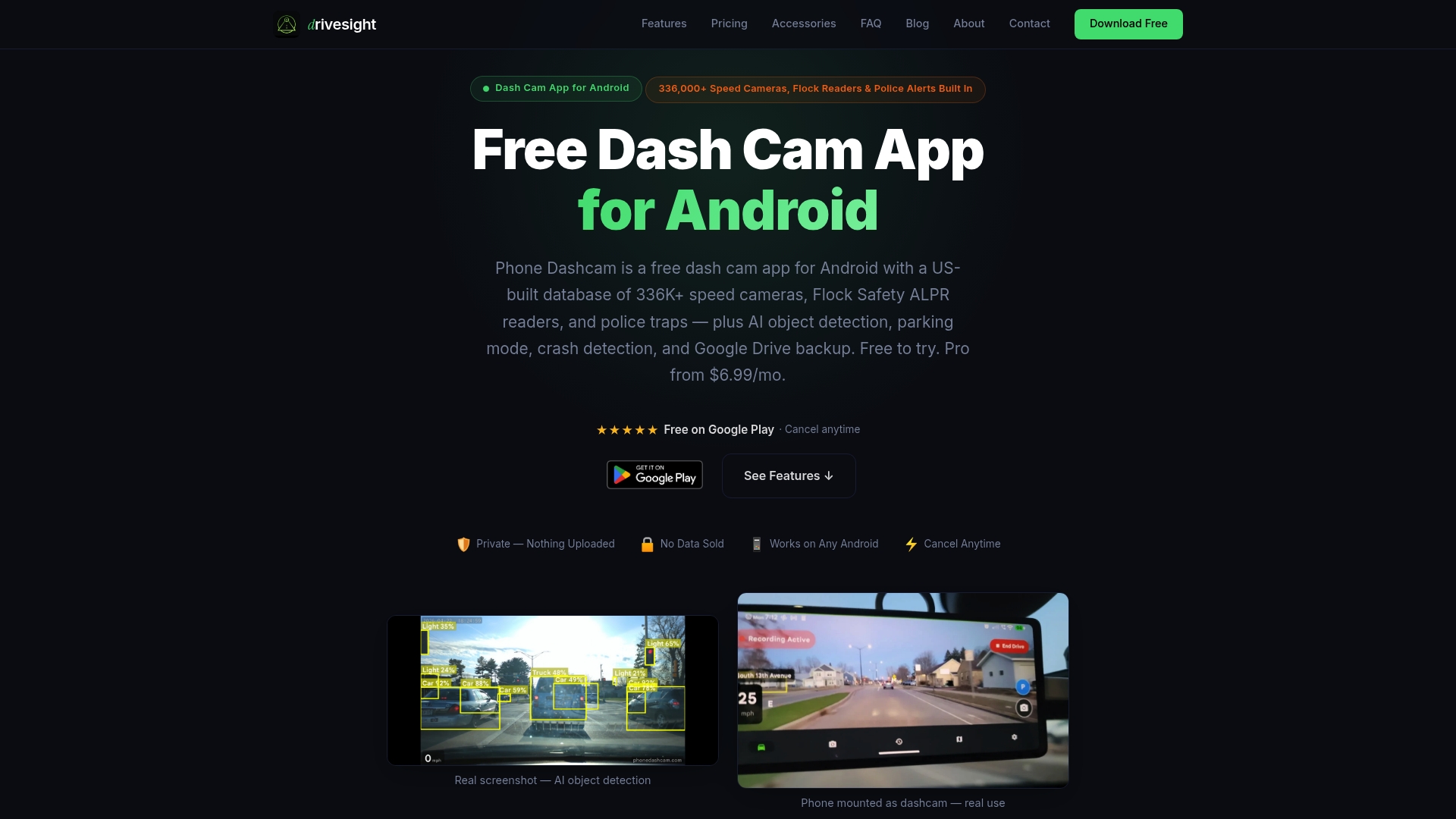
DriveSight turns your Android phone into a full-featured dashcam with the best user interface of any dashcam or speed camera app on the market. The setup takes minutes, the on-device processing keeps your footage private, and Google Drive integration means your travel highlights and evidence clips are backed up automatically. Speed camera alerts, police location notifications, and radar detector-style warnings are all built in, covering more than 336,000 cameras across the U.S. No extra hardware, no subscription lock-in, and no raw footage sent to a third-party server without your permission.
Ready to record your next road trip with a workflow that protects both your safety and your content? Download DriveSight free and start your first drive today.
FAQ
How does dashcam footage become travel content?
You lock highlight clips during the drive to prevent loop overwrite, transfer them to your phone or computer, edit copies while keeping originals intact, then export platform-specific versions for YouTube, Reels, or TikTok.
What resolution should you use for dashcam travel videos?
1080p at 60 fps is the practical sweet spot for most travel creators. 4K delivers better image quality for cinematic edits but produces large files that slow transfers and require a proxy workflow.
Is dashcam footage admissible as evidence in the U.S.?
Yes, dashcam footage is widely recognized as objective evidence in U.S. traffic disputes and insurance claims. Legal professionals describe it as a reliable tie-breaker in disputed liability cases.
Do you need audio consent to publish dashcam footage online?
It depends on your state. Two-party consent states like California and Florida require all parties to consent to audio recording. Muting audio or adding a disclosure before publishing is the safest approach nationwide.
Which Android dashcam app works best for travel content creation?
DriveSight offers the most complete feature set for travel creators, combining continuous recording, on-device AI processing, event locking, Google Drive backup, and real-time speed camera alerts in one easy-to-use Android app.
Recommended
- Road Trip Dashcam Footage Tips for Memorable Drives
- Why Dashcam Captures Wildlife Road Encounters
- How Dashcam Captures Hyperlapse Road Footage
- How a Dashcam Protects You During Remote Area Travel
Get Phone Dashcam free
Loop recording, crash detection, GPS tracking, and AI object detection — all in your phone. No new hardware required.
Download Phone Dashcam