Dashcam Loop Recording on Long Drives: Manage It Right
Dashcam Loop Recording on Long Drives: Manage It Right

TL;DR:
- Dashcam loop recording automatically overwrites old footage, ensuring continuous recording during long trips.
- Using a 3-minute segment length balances file management and data safety, especially with high-endurance SD cards formatted inside the dashcam.
Dashcam loop recording is defined as a continuous recording method that automatically overwrites the oldest footage when storage is full, ensuring your camera never stops capturing. For drivers planning long trips, this feature is the difference between arriving home with complete footage and discovering hours of blank memory. Managing dashcam loop recording on a long drive requires the right segment length, a properly formatted high-endurance SD card, and a verified setup before you leave the driveway. Get these three things right, and your dashcam works silently in the background, protecting every mile.
How to manage dashcam loop recording on a long drive
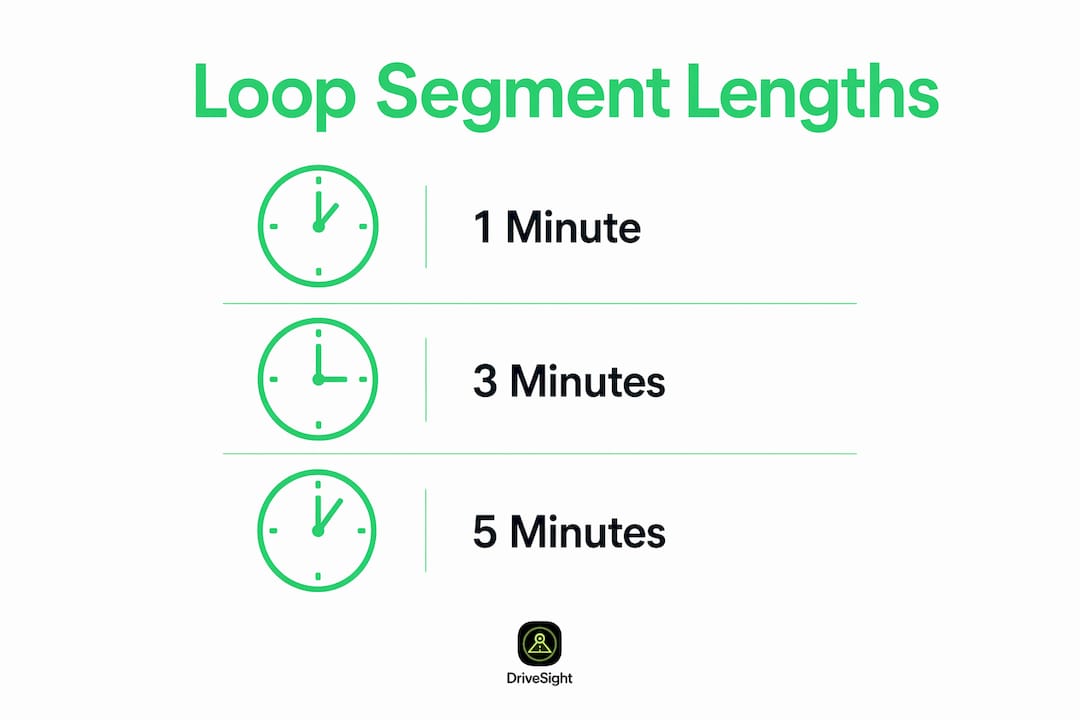
Loop recording segments come in three standard lengths: 1 minute, 3 minutes, and 5 minutes. Each option carries real trade-offs that affect how easy your footage is to review and how much data you lose if a file corrupts.

A 3-minute segment is the industry-recommended setting for most drivers. That length balances file navigation ease with data safety, meaning a corrupted file costs you only 3 minutes of footage rather than 5.
One-minute segments create a large volume of files, which makes scrolling through footage after a 10-hour drive genuinely tedious. Five-minute segments reduce file count but increase your exposure if the dashcam loses power mid-write. The table below shows the practical trade-offs at a glance.
| Segment length | File count per hour | Data loss if file corrupts | Best for |
|---|---|---|---|
| 1 minute | 60 files | 1 minute | Drivers who review footage frequently |
| 3 minutes | 20 files | 3 minutes | Most long-distance drivers (recommended) |
| 5 minutes | 12 files | 5 minutes | Drivers prioritizing fewer files over granularity |
Pro Tip: Set your loop length to 3 minutes before every long trip. If you use a dashcam app like DriveSight, check the recording settings screen directly, not just the home screen indicator.
What SD card do you need for reliable loop recording?
The SD card is the single most common point of failure in dashcam systems. Standard consumer SD cards degrade quickly under loop recording’s constant write-and-overwrite cycles. A dashcam-rated high-endurance microSD card is built for exactly this workload and lasts significantly longer.
Card capacity matters just as much as card type. A 128GB card recording at 1080p stores roughly 24 hours of footage. Recording at 4K resolution cuts that to 8–10 hours. For a two-day road trip, a 256GB high-endurance card at 1080p gives you comfortable headroom without constant manual management.
Formatting the card correctly is non-negotiable. Formatting on a computer can create file fragmentation that is incompatible with a dashcam’s proprietary writing logic. Always format the card inside the dashcam itself, using the dashcam’s own menu.
Follow this maintenance schedule to keep your card performing reliably:
- Format inside the dashcam before every major trip, after backing up any footage you want to keep.
- Back up locked or protected files to a computer or external drive before formatting, since formatting erases everything.
- Reformat every 1–2 months if you use the dashcam daily. Periodic formatting reduces the risk of corrupted footage over time.
- Inspect the card physically every few months. Micro-cracks or bent contacts cause intermittent write failures that are hard to diagnose.
- Replace the card if you see repeated “card error” warnings or notice gaps in recorded footage. High-endurance cards have a finite write cycle life.
Pro Tip: Buy two high-endurance cards and rotate them. While one is in the dashcam, the other holds your backed-up footage. This habit prevents the scenario where formatting erases footage you still needed.
How to set up loop recording correctly before a long trip
A correct setup takes less than five minutes. Skipping it is the most common reason drivers end up with no footage after a long trip. Some dashcams ship with loop recording disabled or lose their settings after a power cycle, so you cannot assume the feature is active just because it worked last time.
Work through this checklist before every long drive:
- Power on the dashcam and open the settings menu.
- Confirm loop recording is enabled and the segment length is set to your preferred duration.
- Verify the SD card is recognized and shows available storage.
- Check that the G-sensor (impact sensor) is active. G-sensor impact detection automatically locks files during a collision, preventing loop recording from overwriting critical footage.
- Confirm the dashcam is mounted securely and the power cable is fully seated.
- Watch for the recording indicator light or on-screen icon to confirm recording has started.
Beyond the initial setup, a few additional settings protect your footage during the drive:
- G-sensor sensitivity: Tune this to match your driving conditions. Adjusting G-sensor sensitivity reduces false triggers on rough roads while still capturing genuine impact events.
- Parking mode: If you stop overnight, confirm parking mode is configured so the dashcam continues monitoring.
- App notifications: If you use a smartphone dashcam app like DriveSight, enable push notifications for SD card errors or recording interruptions. You will know immediately if something goes wrong, rather than discovering it at the end of the trip.
Common issues to watch for during the drive include the dashcam restarting repeatedly (usually a power cable issue), the recording light going dark (often a full or failed SD card), and the app losing connection (check phone permissions and screen-off recording settings). Addressing these early saves footage that would otherwise be lost. Reviewing common dashcam setup mistakes before you leave is a practical way to catch problems before they cost you footage.
Best practices for managing dashcam footage during and after long drives
Active footage management during a long trip prevents the situation where loop recording overwrites something you needed. The goal is to protect critical clips as they happen and organize everything else efficiently after you arrive.
During the drive:
- Lock important clips immediately. Most dashcams have a manual lock button. Press it within seconds of a near-miss or incident. Locked files are excluded from the loop overwrite cycle.
- Use cloud backup when available. Cloud-based automatic event uploads reduce the need for manual backups and protect footage even if the dashcam is damaged or stolen. DriveSight supports cloud backup as part of its recording feature set.
- Avoid filling the card with locked files. Too many locked files leave no room for new loop recording. Clear unnecessary locked clips at rest stops.
After the drive:
- Copy all footage you want to keep to an external drive or cloud storage before reformatting the SD card.
- Organize saved clips by date and event type. A folder structure like “2026-06 Road Trip / Incidents” makes retrieval fast if you ever need footage for insurance or legal purposes.
- Reformat the SD card inside the dashcam after the backup is complete. This resets the file system and prepares the card for the next trip.
- Review a sample of footage from the trip to confirm recording quality and that no gaps exist. Catching a recurring SD card error early is far better than discovering it after the next trip.
Pro Tip: Connect your phone to a Wi-Fi hotspot at a rest stop and let DriveSight’s cloud backup run for 10 minutes. You will arrive home with critical footage already secured, independent of what happens to the physical device.
For drivers who record continuously across multiple days, dashcam storage strategies for Android offer additional guidance on managing high-volume footage without losing important clips.
Key Takeaways
Effective dashcam loop recording management on a long drive requires verified settings, a high-endurance SD card formatted inside the dashcam, and a consistent backup habit before and after each trip.
| Point | Details |
|---|---|
| Use 3-minute loop segments | This length balances file count and data loss risk for most long-distance drivers. |
| Choose a high-endurance SD card | Standard consumer cards fail quickly under constant loop recording rewrites. |
| Format inside the dashcam | Computer formatting causes fragmentation that corrupts dashcam footage. |
| Verify loop recording before every trip | Some dashcams lose settings after power cycling, leaving drivers with no footage. |
| Lock and back up critical clips promptly | Locked files are protected from overwrite; cloud backup secures them off-device. |
What I have learned from years of watching drivers get this wrong
Most drivers treat dashcam setup as a one-time task. They install the device, enable loop recording once, and assume it runs forever without attention. That assumption is the root cause of most empty-footage complaints we see.
The checklist habit is the single most valuable practice I can recommend. Before a long trip, spend three minutes confirming loop recording is active, the SD card is recognized, and the G-sensor is set correctly. Three minutes of verification has saved drivers from losing footage of serious accidents.
I have also seen drivers disable loop recording accidentally when they explore unfamiliar dashcam menus mid-trip. The consequence is a full SD card that stops recording entirely, with no warning until the driver checks the device. Combining loop recording with G-sensor impact detection solves the overwrite problem for critical events without requiring manual intervention.
Smartphone dashcam apps change this equation significantly. With DriveSight running on an Android phone, you get push notifications for recording errors, remote viewing through the Phone Dashcam Remote Viewer, and cloud backup that runs automatically. You do not need to pull over and check the device. The app tells you when something needs attention.
The proactive backup habit is the last piece. Drivers who back up footage at rest stops never lose critical clips to loop overwriting. Drivers who wait until they get home sometimes find the footage they needed was overwritten three hours ago.
— Cyberlab Automation
DriveSight makes loop recording and footage management simple
Long-distance drivers need a dashcam system that works without constant manual oversight. DriveSight, the free and premium Android app from phonedashcam.com, handles loop recording with automatic smart overwriting, so your phone keeps capturing without filling up storage.
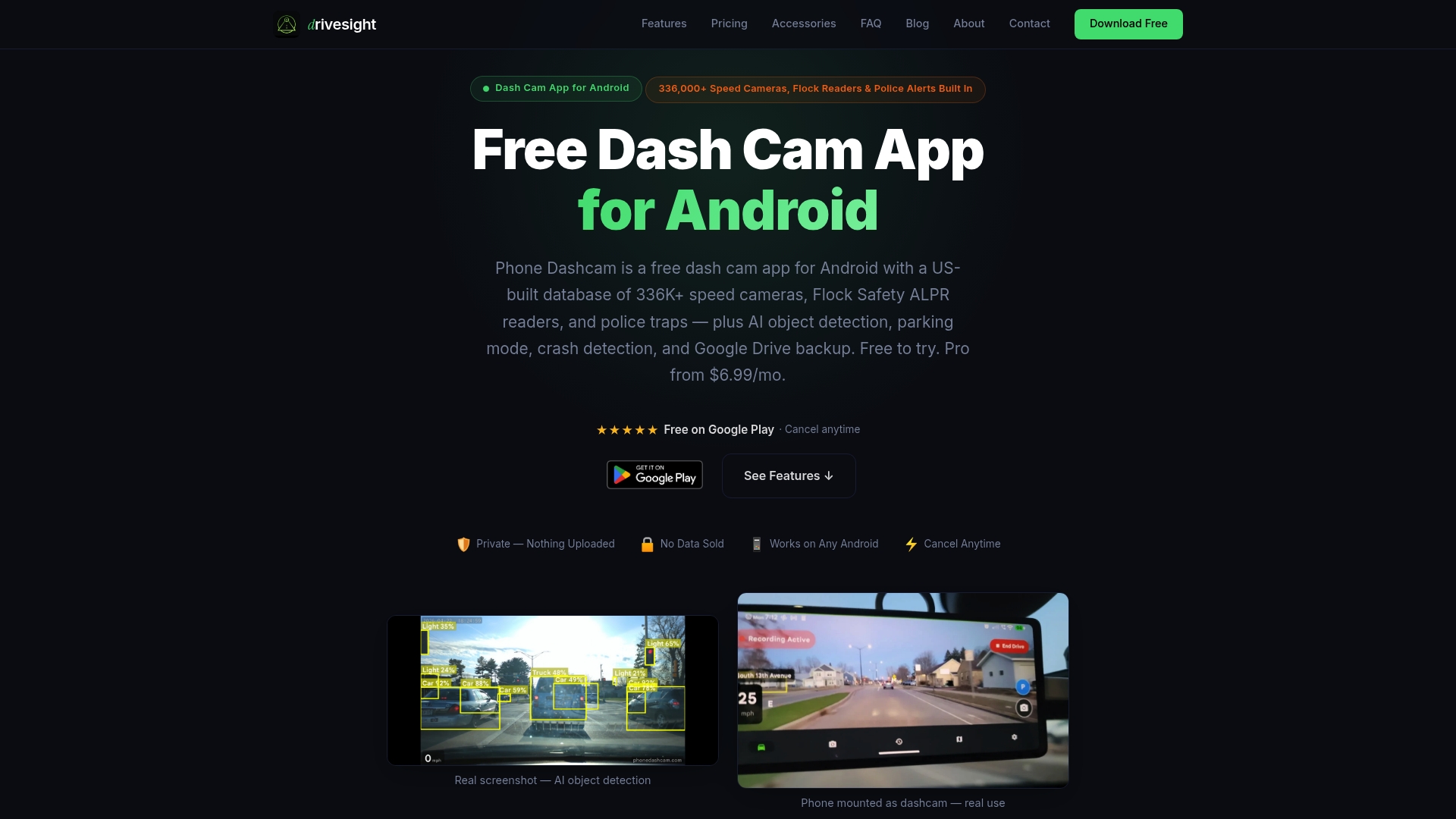
The app’s accelerometer-based impact sensing locks critical footage automatically when a collision or hard braking event occurs, protecting those clips from the loop overwrite cycle. Cloud backup runs in the background, so important footage is secured off-device without stopping to copy files manually. The DriveSight features page covers the full recording mode lineup, including parking security and remote live viewing, for drivers who want continuous coverage from departure to destination.
FAQ
What is dashcam loop recording?
Dashcam loop recording is a continuous recording mode that automatically overwrites the oldest footage when the SD card is full. This keeps the camera recording indefinitely without requiring manual file deletion.
What loop segment length should I use for a long drive?
A 3-minute segment is the recommended setting for most drivers. It limits data loss to 3 minutes if a file corrupts and keeps the total file count manageable after a full day of driving.
How much footage does a 128GB SD card hold?
A 128GB card recording at 1080p stores roughly 24 hours of footage. Recording at 4K resolution reduces that capacity to approximately 8–10 hours.
How do I protect important clips from being overwritten?
Press the manual lock button immediately after an incident, or rely on G-sensor impact detection to lock files automatically. Locked files are excluded from the loop overwrite cycle until you manually delete them.
How often should I format my dashcam SD card?
Format the card every 1–2 months using the dashcam’s own menu, not a computer. Always back up any footage you want to keep before formatting, since the process erases all files on the card.
Recommended
- Multi-Shift Dashcam Recording Tips for Reliable Coverage
- Dashcam recording modes explained for Android drivers
- Road Trip Dashcam Footage Tips for Memorable Drives
- What is road trip dashcam recording explained: your driver’s guide
Get Phone Dashcam free
Loop recording, crash detection, GPS tracking, and AI object detection — all in your phone. No new hardware required.
Download Phone Dashcam