Understanding the Dashcam Overlay Display
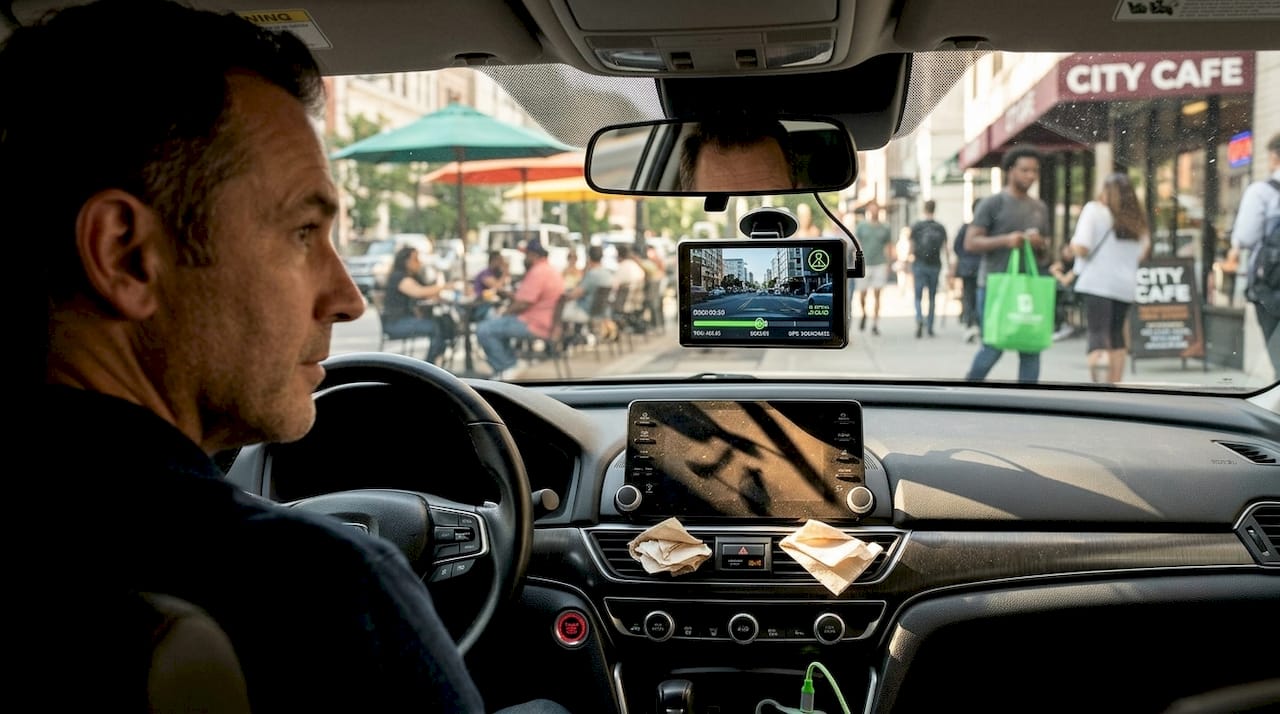
If you have ever reviewed dashcam footage and noticed speed readings, GPS coordinates, or a compass appearing on screen, you have already encountered what does dashcam overlay display mean in practice. These graphics are not decorative. They are live telemetry data tied directly to your driving record, and they can be the difference between winning an insurance dispute and losing one. Understanding how overlays work, what data they contain, and how to use them gives you a genuine edge in safety and legal protection.
Table of Contents
- Key Takeaways
- What dashcam overlay displays actually mean
- How overlay features vary across dashcam models
- How to use and customize your dashcam overlay display
- Comparing overlay options in Android dashcam apps
- My honest take on dashcam overlays
- Try Phonedashcam for customizable overlay recording
- FAQ
Key Takeaways
| Point | Details |
|---|---|
| Overlays are embedded data | Dashcam overlay displays combine graphical and telemetry data synchronized to recorded video frames. |
| SEI metadata powers overlays | Speed, GPS, and G-force data are embedded using SEI NAL units in H.264/H.265 video streams. |
| Overlays vary by hardware | Firmware version, hardware generation, and recording mode determine whether overlays appear at all. |
| You can toggle them on/off | Most dashcam apps let you show or hide overlay layers without altering the underlying footage. |
| Missing overlays have a cause | Absent overlays usually point to firmware gaps, hardware limits, or specific recording conditions. |
What dashcam overlay displays actually mean
A dashcam overlay display is any graphical or data layer shown on recorded video footage, either burned directly into the visual frame or linked to the video through embedded metadata. The meaning of dashcam overlays goes beyond simple graphics. They represent a real-time record of what your vehicle was doing at the exact moment the footage was captured.
The most common overlay data types you will encounter include:
- Timestamp and date — confirms exactly when an event occurred
- Vehicle speed — often pulled from GPS or OBD data
- GPS coordinates and map position — places the vehicle geographically
- G-force readings — shows sudden acceleration, braking, or impact force
- Steering wheel angle — records directional inputs from the driver
- Gear state and turn signal status — documents driver intent at critical moments
- Compass heading — tracks which direction the vehicle was traveling
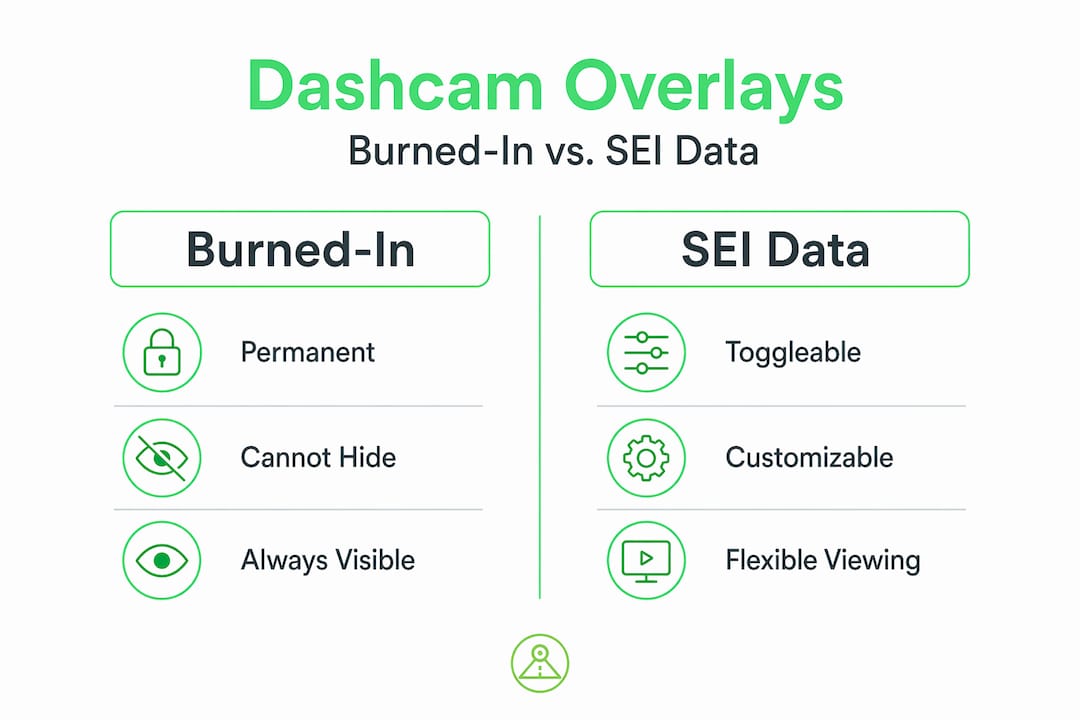
There is an important technical distinction worth understanding here. Some overlays are “burned in,” meaning the data graphics are permanently baked into the video file and visible in any media player. Others rely on SEI metadata in video streams, where telemetry is encapsulated in SEI NAL units within H.264 or H.265 streams. This approach keeps the raw video unaltered while still allowing compatible viewers to display rich overlay data on demand.
The practical implication? SEI-based overlays give you flexibility. You can toggle them off for a clean view or switch them on to see full telemetry during an incident review. Burned-in overlays are always visible but cannot be removed if they obstruct the image.
Pro Tip: When using dashcam footage for an insurance claim or legal proceeding, always check whether your overlay data is burned in or SEI-embedded. A burned-in timestamp on every frame can be far more persuasive to an adjuster than metadata that requires specialized software to read.
How overlay features vary across dashcam models
Not every dashcam produces overlays the same way, and understanding these differences helps you set realistic expectations. The importance of overlay display becomes especially clear when you compare systems side by side.
Tesla’s built-in dashcam viewer is a well-documented example. It overlays telemetry data including speed, steering wheel angle, and turn signal state synchronized with video through SEI metadata. Critically, SEI data requires firmware 2025.44.25+ and at least HW3 hardware. Vehicles running older firmware or hardware simply will not generate the metadata needed for overlay display, and certain conditions like parking mode footage may also lack SEI data entirely.
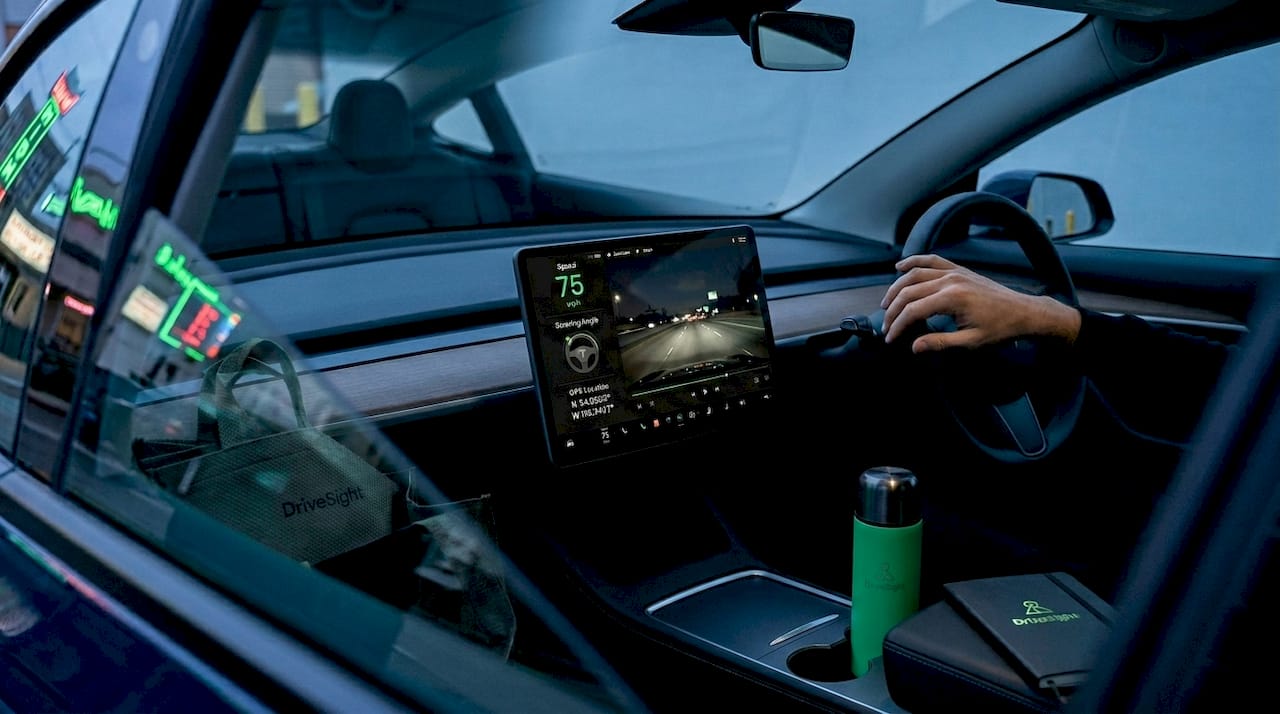
Third-party tools take this further. Some dashcam software supports configurable telemetry widget layouts, including instrument cluster panels, GPS map panels with speed-adaptive zoom, and themes that change the visual style of the overlays. These are composited on top of video footage during playback rather than permanently burned in.
Here is how overlay availability typically differs across major dashcam categories:
| Dashcam Type | Overlay Data Available | Toggleable | Notes |
|---|---|---|---|
| Tesla built-in (HW3+, 2025.44.25+ firmware) | Speed, steering, G-force, GPS, turn signals | Yes | Requires SEI metadata support |
| Dedicated hardware dashcams | Timestamp, speed, GPS | Varies by model | Many burn overlays into frames |
| Android dashcam apps | Timestamp, speed, GPS, custom widgets | Yes | Highly configurable depending on app |
| Basic dashcams (no GPS/OBD) | Timestamp only | Rarely | No telemetry source available |
Pro Tip: Before purchasing a dashcam or app based on its overlay features, confirm whether those overlays depend on specific firmware versions or hardware tiers. Marketing materials often highlight overlay capabilities without noting those conditions.
The recording modes on Android dashcams also affect what overlay data gets captured. A continuous recording session typically logs full telemetry, while a parking mode clip may record without GPS lock or speed data, resulting in incomplete overlays during review.
How to use and customize your dashcam overlay display
Knowing what overlays mean is only half the equation. Using them effectively during playback is where the real value shows up.
Here is a practical workflow for getting the most from your dashcam overlay features:
-
Access overlay settings in your dashcam app. Most Android dashcam apps and dedicated viewers include an overlay or display settings menu. Look for options labeled “data overlay,” “telemetry display,” or “OSD” (on-screen display). Toggle individual data layers on or off depending on what you need.
-
Choose the right overlay layout for your purpose. If you are reviewing footage for personal safety analysis, a full telemetry layout with speed, G-force, and GPS map is useful. If you are preparing footage for a lawyer or insurer, a cleaner layout with only timestamp and speed may be easier for a non-technical audience to interpret.
-
Cross-reference speed data against GPS position. During incident review, do not just look at speed in isolation. Compare it against your GPS position on the map overlay to confirm whether the vehicle was in a speed zone, approaching an intersection, or on a highway. This combination is powerful evidence.
-
Export or screen-record with overlays visible. When sharing footage externally, many apps let you export a version with overlays burned into the output. Do this before sharing so the recipient sees the same data you are analyzing.
-
Troubleshoot missing overlays systematically. If overlays are absent, check your firmware version first. Then confirm your GPS signal was active during the recording session. Missing overlay data often traces back to firmware gaps, hardware limits, or a GPS signal that was not acquired before recording started.
Pro Tip: If your dashcam app lets you customize which data widgets appear, save two layout presets: one for daily review and one for incident documentation. Switching between them takes seconds and prevents you from fumbling with settings during a stressful moment.
Comparing overlay options in Android dashcam apps
For drivers using smartphones as dashcams, Android overlay systems support OEM and app developer customization, including recording triggers, streaming components, and overlayable UI elements. This makes Android dashcam apps some of the most flexible options available.
Here is how overlay capabilities compare across common dashcam solution types:
| Feature | Android dashcam apps | Dedicated hardware dashcams |
|---|---|---|
| Custom widget layout | Often available | Rarely available |
| GPS map panel | Available in premium apps | Available on mid to high-end models |
| G-force display | Available in most apps | Available on higher-end models |
| Toggle overlays on/off | Yes | Usually no |
| Android Auto support | Available in select apps | Uncommon |
| Remote viewing with overlays | Available in select apps | Rare |
The advantages of Android dashcam apps for overlay customization are clear:
- Flexible data widgets let you show only what matters to you
- Software updates push new overlay features without buying new hardware
- Remote viewing means you can check footage and overlays from anywhere, not just at your vehicle
- Integration with speed camera databases adds real-time alert overlays to your live recording view, not just playback
The main limitation of Android apps versus dedicated hardware is reliability. A dedicated dashcam is always on, always recording. An Android app depends on your phone’s battery, temperature tolerance, and background process management. For delivery drivers or ride-share operators who need 10-plus hour recording sessions, this matters.
My honest take on dashcam overlays
Most drivers I talk to think of dashcam overlays as a nice visual extra. Speed in the corner. A timestamp at the bottom. That kind of thing. In my experience, that framing undersells what overlays actually do for you.
The real value of overlay data is forensic. When I reviewed footage from a rear-end collision dispute, it was not the video itself that settled the question. It was the G-force spike, the GPS position, and the speed reading at the moment of impact, all synchronized to the exact frame. That combination told a story no written statement could match.
What I see too often is drivers who never configure their overlays at all. They record on default settings, discover an incident, and then find out their footage has no speed data, no GPS, or a timestamp that is off by months because nobody set the clock. The footage still helps, but it helps less than it should.
My recommendation is simple. Spend 10 minutes in your dashcam app’s overlay settings before you ever need to use the footage in a dispute. Turn on GPS, speed, and G-force at minimum. Confirm the timestamp is accurate. Then test the export so you know exactly what a third party will see when you hand them the file.
The future of dashcam telemetry is moving toward richer overlays, not simpler ones. AI-based object detection annotations, lane departure markings, and speed zone warnings overlaid on live footage are already appearing in advanced apps. Drivers who understand what overlays mean now will be ready to use those tools when they arrive.
— Cyberlab
Try Phonedashcam for customizable overlay recording
If you want full control over your dashcam overlay features without buying dedicated hardware, Phonedashcam turns your Android phone into a capable dashcam with configurable data overlays, GPS tracking, and impact detection built in.
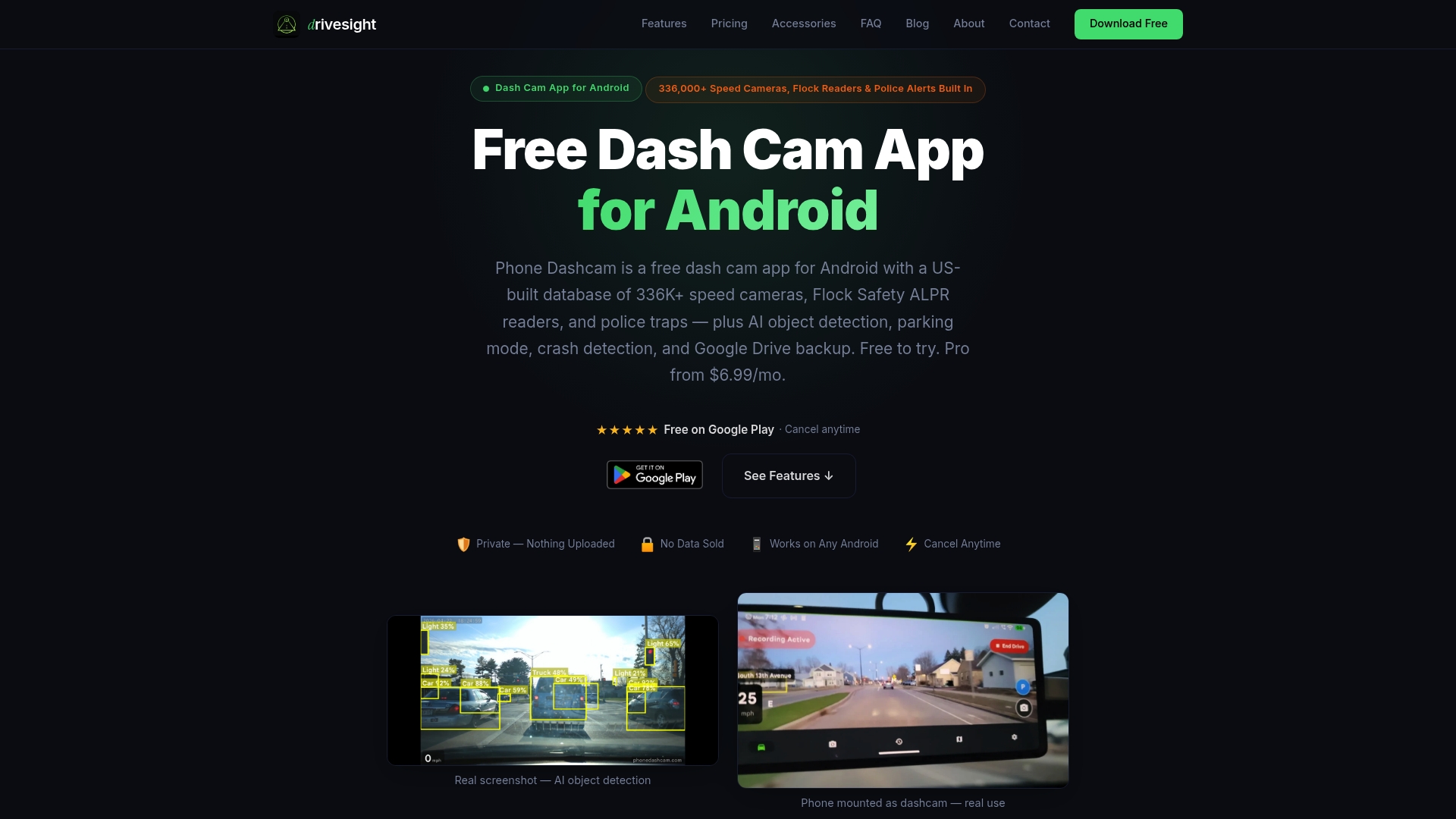
The free Android dashcam app from Phonedashcam supports timestamping, speed display, and GPS-linked overlays out of the box, with premium options for additional telemetry widgets and remote viewing. The remote viewer feature lets you check overlay data and live footage from anywhere, which is especially useful for delivery drivers and ride-share operators who need real-time visibility. Phonedashcam also supports Android Auto integration for a connected, heads-up driving experience. Download the free version and configure your overlays before your next trip.
FAQ
What does a dashcam overlay display mean?
A dashcam overlay display is graphical or telemetry data shown on or linked to recorded video footage, including speed, GPS coordinates, timestamps, and G-force readings synchronized to each frame.
Why is my dashcam not showing overlay data?
Missing overlays typically result from firmware version gaps, hardware limitations, or a lack of GPS signal during recording. Overlay availability depends on specific firmware and hardware conditions, so checking your device’s firmware version is the first troubleshooting step.
Can I turn dashcam overlays on or off?
Yes. Most dashcam apps and viewing systems include UI toggles that enable or disable telemetry overlays dynamically, letting you switch between a clean view and a full data view without altering the underlying footage.
What information does a dashcam overlay show?
Common dashcam overlay data includes vehicle speed, GPS location, date and time, steering wheel angle, G-force, turn signal status, gear state, and compass heading. The exact data available depends on your dashcam model and its connected sensors.
Does overlay data hold up as evidence?
Overlay data, especially when tied to SEI metadata rather than manually entered, carries strong evidentiary weight because it is generated automatically and synchronized frame by frame with the video. Speed readings and GPS positions tied to a recorded incident are difficult to dispute.
Recommended
- Phone Dashcam Remote Viewer
- Why fleet dashcams deter reckless driving effectively
- How to enable dashcam parking mode for commuters
- What is road trip dashcam recording explained: your driver’s guide
Get Phone Dashcam free
Loop recording, crash detection, GPS tracking, and AI object detection — all in your phone. No new hardware required.
Download Phone Dashcam