Safely Storing Overnight Delivery Footage With a Dashcam
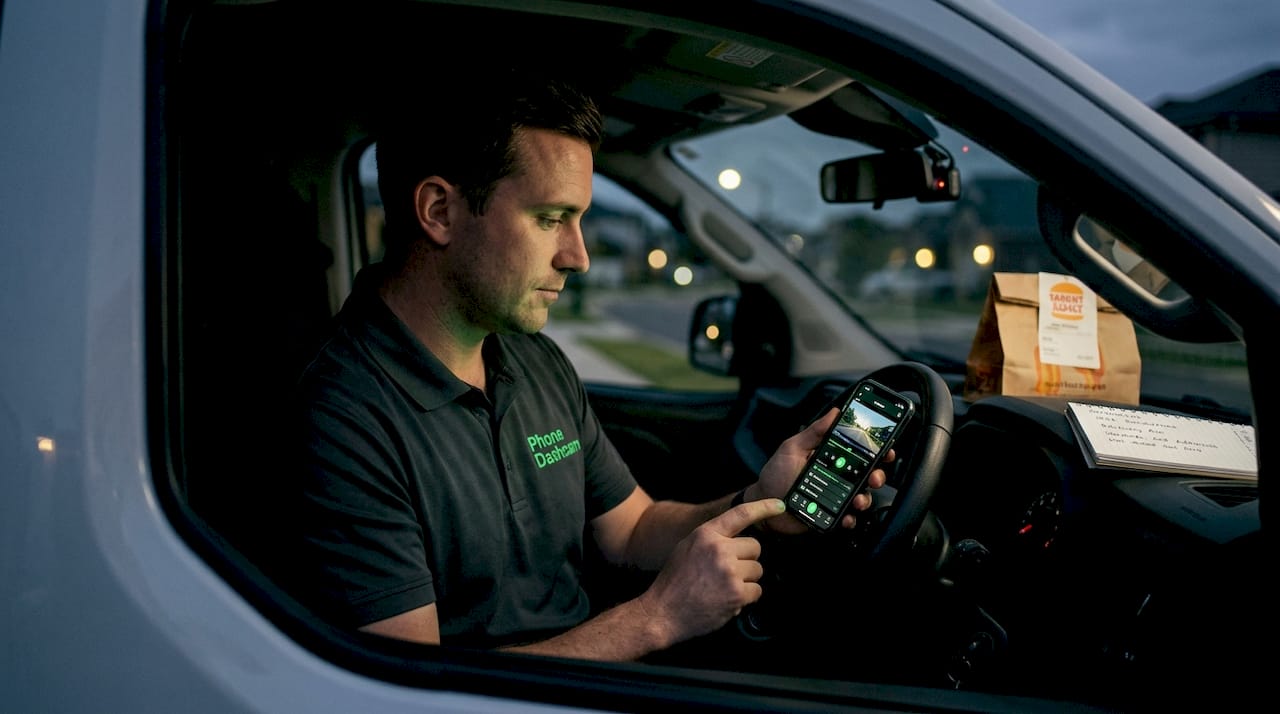
Many delivery and rideshare drivers believe their dashcam captures and keeps everything that happens overnight. That assumption can be dangerously wrong. A single SD card failure, a full card with no locked files, or the wrong resolution setting can wipe out hours of footage you desperately need after a parking lot hit-and-run or a false damage claim. Understanding exactly how your dashcam stores footage overnight is not just a technical curiosity. It is the difference between having solid evidence and showing up to a dispute empty-handed.
Table of Contents
- Understanding dashcam storage basics
- How events get protected: G-sensor and incident locking
- Cloud vs local storage: What delivery drivers need to know
- Dashcam settings that impact overnight storage
- A smarter way to ensure your overnight footage is always safe
- Protect your footage with smarter dashcam solutions
- Frequently asked questions
Key Takeaways
| Point | Details |
|---|---|
| Loop recording risk | Dashcams overwrite the oldest unlocked footage, so critical clips can be lost overnight unless protected. |
| G-sensor incident locks | A dashcam’s G-sensor locks videos during collisions to help preserve essential evidence for delivery drivers. |
| Cloud vs SD card | Solo drivers often do fine with local SD cards, but fleets benefit from the longer retention and remote access of cloud backup. |
| Settings and card care | Recording mode, resolution, and regular SD card maintenance all affect how much footage your dashcam safely keeps overnight. |
Understanding dashcam storage basics
With the stakes set, let’s break down exactly how dashcams manage and store your overnight footage.
Nearly every consumer dashcam on the market today relies on a microSD card as its primary recording medium. These cards are compact, relatively affordable, and easy to swap out. However, they have a fixed capacity, which creates a real challenge for drivers working long overnight shifts. Once the card fills up, the camera does not stop recording. Instead, it uses a method called loop recording.
Loop recording means the dashcam continuously overwrites the oldest video files with new footage. Dashcams store footage using loop recording, which automatically deletes the oldest clips when the card is full so the camera never stops running. For a driver doing a 10-hour overnight shift, this is both a feature and a trap. The camera keeps going, but footage from the first few hours may be gone by morning if nothing triggered a save.
Not all files are treated equally. Dashcams split recordings into two categories: unlocked files and locked files.
- Unlocked files are regular loop recordings. These get overwritten first when the card fills up.
- Locked files are clips saved after a trigger event, such as a hard brake or impact. These are protected from overwriting.
- Manually locked files are clips you or the app flag for saving. These also survive loop recording.
- Corrupted files can occur when a card is old or improperly formatted, and these may be unreadable even if they were locked.
The risk is clear. If nothing triggers a lock during your overnight shift and something happens at 3 a.m., that footage may already be gone by the time you check the camera at 7 a.m. Regular card checks, formatting the card monthly, and understanding your camera’s file structure are all essential habits.
You should also understand dashcam parking mode basics if you leave your vehicle unattended during rest breaks or between shifts. Parking mode changes how the camera records when the engine is off, which directly affects how much storage gets used overnight.
| Feature | Unlocked files | Locked files |
|---|---|---|
| Overwritten when card is full | Yes | No |
| Created automatically | Yes | Only after trigger events |
| Safe from accidental deletion | No | Usually yes |
| Risk of card failure | Yes | Yes |
| Requires manual backup | Recommended | Critical |
How events get protected: G-sensor and incident locking
Now that you know the basics of storage and auto-overwrite, it’s crucial to understand how vital clips are protected. Not everything makes the cut.
The G-sensor (short for gravity sensor) is the primary mechanism that saves critical footage. It is a small accelerometer built into your dashcam that measures sudden changes in motion, such as a hard stop, a collision, or a sharp swerve. G-sensor technology locks video files after detecting impacts or sudden movements, preventing them from being overwritten and preserving your evidence after an accident.
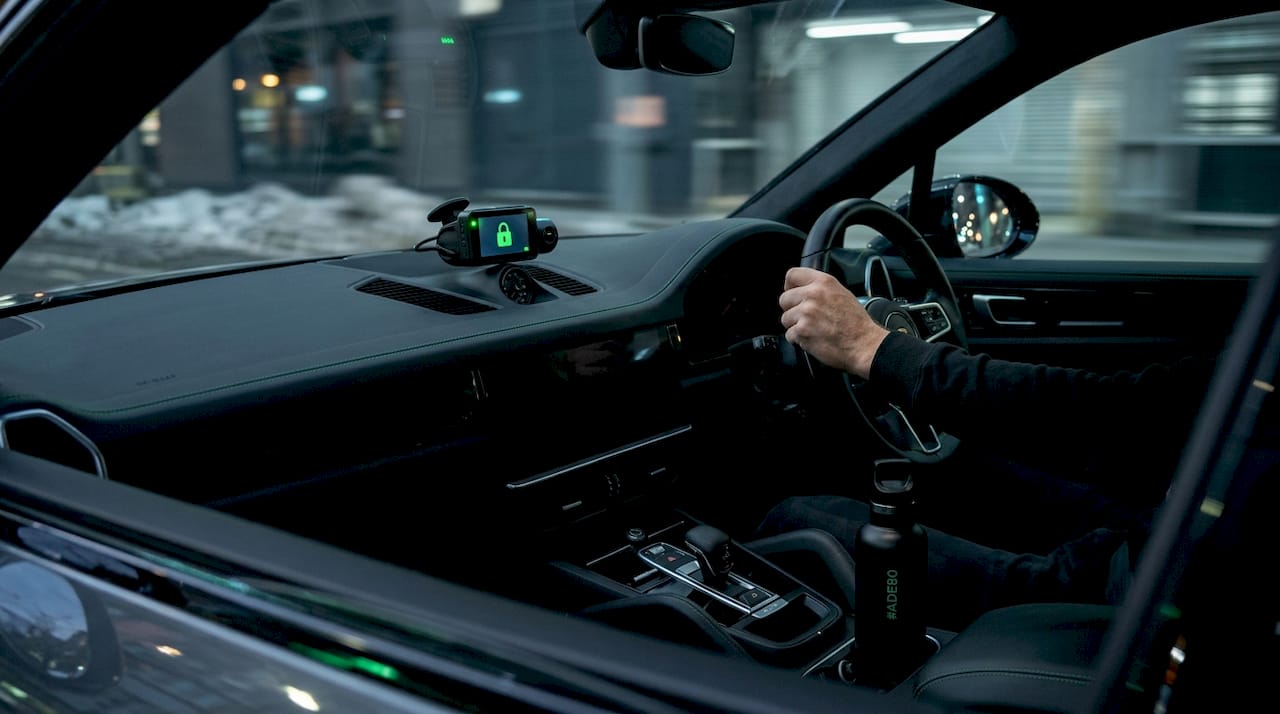
During an overnight delivery shift, the G-sensor is working constantly in the background. If someone bumps your parked vehicle, the sensor detects the impact and immediately locks the current clip and sometimes the clips immediately before and after. This is called an event file, and it sits in a separate folder on your SD card that the loop recording system will not touch.
However, G-sensors have real limitations that every driver should know about.
“Even locked files are only as safe as the SD card they sit on. A corrupted or failed card can make locked footage completely unrecoverable, regardless of how well the G-sensor performed.”
The sensitivity of the G-sensor matters enormously. Set it too high, and it triggers on every speed bump, filling your locked folder with useless clips and eventually preventing new incidents from being saved because the locked folder is full. Set it too low, and a slow-speed parking lot scrape might not trigger it at all. Finding the right sensitivity for your typical routes and vehicle type takes some trial and error.
There is also the issue of what happens when the locked folder reaches its capacity. Many dashcams stop overwriting locked files entirely, which sounds great until you realize the camera may also stop recording new events because there is nowhere to put them. Some cameras simply stop locking new events silently, with no warning to the driver.
Modern AI and incident auto-lock features go beyond basic G-sensor triggers by using computer vision to detect near-misses, sudden lane changes, and even aggressive behavior from other drivers. These systems can lock footage based on what the camera sees, not just what it feels, which is a significant improvement for delivery drivers dealing with unpredictable urban traffic overnight.
Pro Tip: The moment you discover an incident has been recorded, back up that locked clip immediately. Do not wait until your shift ends. Transfer it via USB to your phone or laptop, or upload it through your dashcam app. Locked files on a damaged or failing SD card are not recoverable.
Cloud vs local storage: What delivery drivers need to know
Of course, storage is not just about the SD card. More drivers now use the cloud. Here is what that means for your overnight shifts.
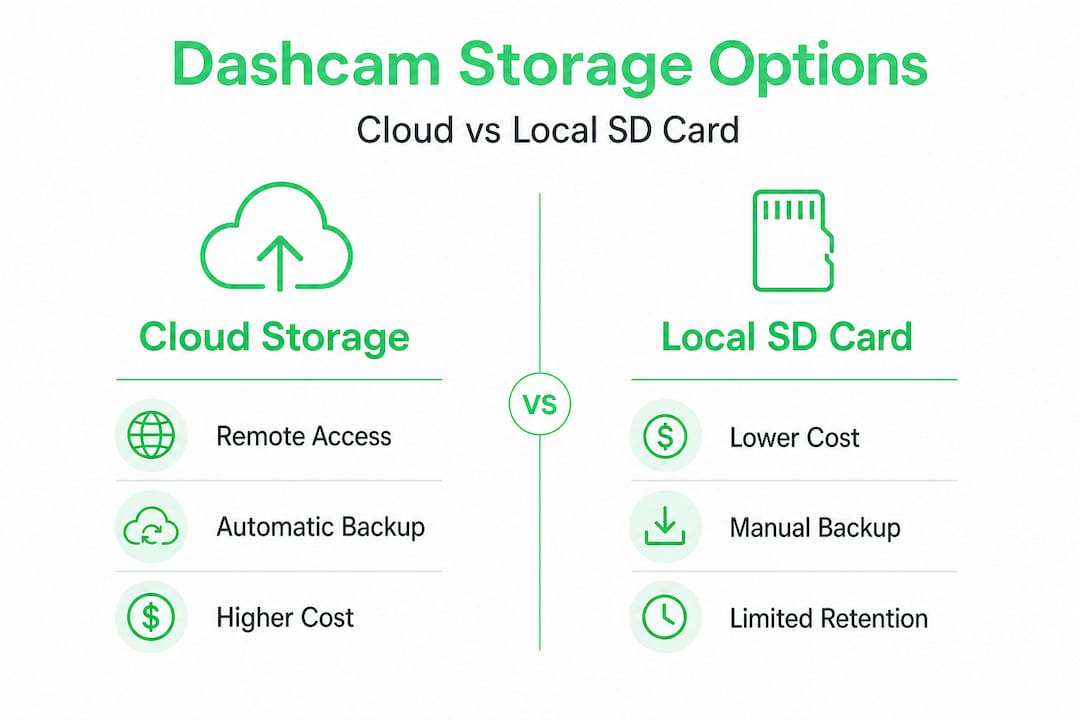
Local storage means your footage lives entirely on the microSD card in your dashcam. Cloud storage means footage is uploaded over a cellular or Wi-Fi connection to a remote server, where it can be accessed from anywhere. Cloud storage options upload event footage remotely for fleets and rideshare operators, providing backups beyond SD cards with retention policies that typically range from 30 to 90 days for routine footage and up to 3 to 5 years for incident clips.
For solo delivery drivers, local SD storage is usually the most affordable and practical choice. A 128GB card costs around $15 to $25 and holds many hours of footage. The downside is that if your vehicle is stolen, the card goes with it. If the card fails, everything is gone.
| Storage type | Cost | Retention | Remote access | Risk |
|---|---|---|---|---|
| Local SD card | Low ($15-$25) | Until overwritten | No | Card theft or failure |
| Cloud only | Monthly fee | 30-90 days routine | Yes | Subscription cost |
| Hybrid (SD + cloud) | Moderate | SD + cloud retention | Yes | Requires data connection |
| App-based mobile | Low to free | Configurable | Yes (with app) | Phone storage limits |
Fleets and multi-vehicle rideshare operators benefit most from cloud or hybrid systems because managers can review footage remotely without physically collecting cards. The cloud storage pros and cons for delivery drivers come down to one key question: how often do you actually need to access footage, and how critical is it that it survives a vehicle theft or break-in?
Here is a practical process for moving a critical clip from your local SD card to a safe backup location:
- As soon as you notice an incident, park safely and do not turn off the camera abruptly.
- Use your dashcam’s companion app to locate the locked event file.
- Select the clip and tap “share” or “export” to send it to your phone’s local storage.
- Immediately upload the file to a cloud service such as Google Drive or your dashcam app’s cloud backup.
- Confirm the upload completed before reformatting or swapping the SD card.
- Label the file with the date, time, and a brief description so you can find it quickly later.
The remote viewing options available through modern dashcam apps let you check footage from your phone without ever touching the SD card, which is especially useful when you need to share evidence with a dispatcher or insurance company quickly.
Dashcam settings that impact overnight storage
Choosing the right storage method is just part of the story. Your dashcam’s settings can make or break how much footage you keep on hand.
Resolution is the single biggest factor in how much footage your card can hold. High-resolution 4K recording reduces storage time by 50% compared to 1080p, and running multiple channels doubles consumption again. A dashcam recording front and rear in 4K can fill a 128GB card in as little as 4 to 6 hours, which is a serious problem for a 10-hour overnight shift.
Here are the key settings that affect your overnight storage capacity:
- Resolution: 1080p is the sweet spot for most delivery drivers. It provides clear, usable evidence footage while leaving enough room for a full overnight shift.
- Frame rate: 30fps is sufficient for most situations. 60fps produces smoother video but nearly doubles the file size.
- Multi-channel recording: Front and rear recording is valuable but doubles your storage use. Consider whether rear footage is truly necessary for your overnight route.
- Parking mode: Time-lapse parking mode records one frame every few seconds instead of continuous video, dramatically reducing file size while still capturing motion around your vehicle.
- Voltage cutoff: This setting tells the dashcam to stop drawing power from your vehicle’s battery when the voltage drops below a set threshold, typically between 11.8V and 12.2V. Without it, you risk a dead battery by morning.
The multi-channel recording tips for Android-based dashcam setups show how to balance front and rear recording without burning through your storage in the first half of your shift. Similarly, time-lapse storage options can extend your overnight parking coverage from a few hours to an entire 12-hour window on the same card.
Pro Tip: Format your SD card at least once a month using the dashcam’s built-in format function, not your computer. This clears file system errors that accumulate over time and are the leading cause of corrupted or unreadable footage. A card that seems fine can silently fail to write new files after months of continuous use.
A smarter way to ensure your overnight footage is always safe
Having covered the options and quirks, here is the practical strategy experienced drivers actually use to keep their footage safe, night after night.
The biggest mistake drivers make is treating their dashcam as a set-it-and-forget-it device. They install it, trust the G-sensor, and assume locked files are safe forever. The reality is that time-lapse parking mode is ideal for overnight storage efficiency, and always backing up critical clips via app or USB immediately is essential because even locked files risk card failure.
Relying on locked files alone is not a strategy. It is wishful thinking. A card that has been recording continuously for six months without formatting is a card that is one bad write cycle away from failure. We have heard from drivers who discovered their “locked” incident file was corrupted and unreadable right when they needed it most, during an insurance dispute or a customer complaint.
The drivers who never lose footage combine three things: smart settings, consistent maintenance, and automated backups. They run 1080p with time-lapse parking mode to maximize coverage. They format their card on the first of every month without exception. And they use an app that automatically uploads event clips to cloud storage the moment their phone connects to Wi-Fi at home.
The uncomfortable truth is that no single layer of protection is enough. Local SD cards fail. Cloud connections drop. G-sensors miss low-speed impacts. The drivers who protect themselves use parking mode for security combined with immediate cloud backup for any clip that matters. That layered approach is what separates drivers who have evidence when they need it from drivers who are left explaining what they think happened.
Long-term, the smartest move is to automate as much of this as possible. Set your dashcam app to auto-upload event files. Set a recurring monthly reminder to format your card. Check your locked folder at the end of every shift to make sure it is not full of false triggers eating up protected space. These habits take five minutes and can save you thousands of dollars in liability disputes.
Protect your footage with smarter dashcam solutions
Ready to put this knowledge into action? Here is how you can secure your overnight delivery footage with a cost-effective, powerful dashcam solution.
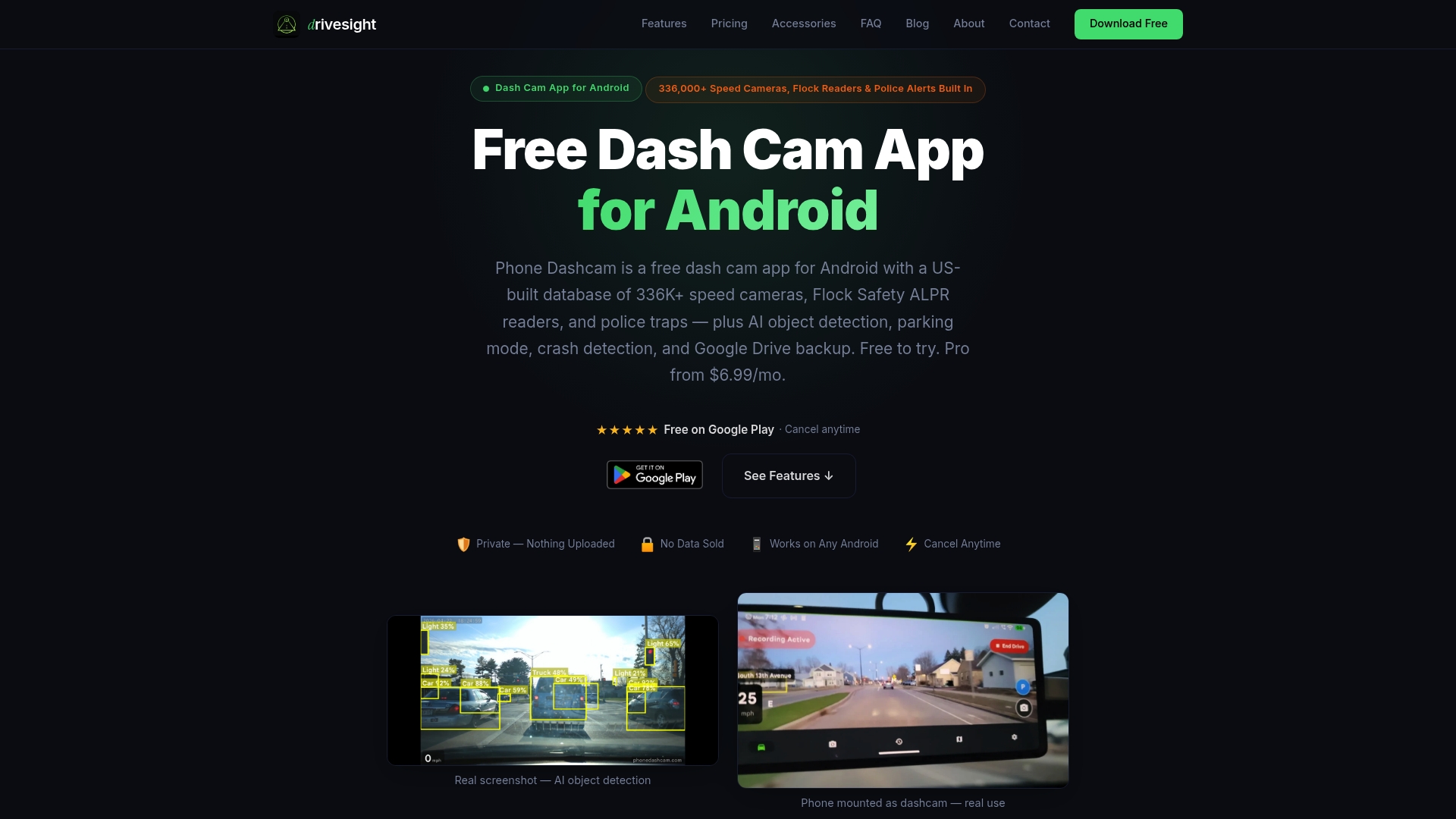
If you are looking for an affordable way to get reliable overnight dashcam coverage without buying expensive hardware, the free Android dashcam app from PhoneDashCam lets you turn any spare Android phone into a fully functional dashcam with parking mode, crash detection, and cloud backup built in. You can monitor your vehicle remotely using the remote footage viewer, which means you can check on your parked vehicle between shifts without ever leaving your next delivery stop. For drivers who want to stay ahead of the curve, the latest dashcam features include AI-powered incident detection and automatic cloud saves that take the guesswork out of overnight footage protection.
Frequently asked questions
How long does dashcam footage last before being overwritten?
Most dashcams overwrite oldest unlocked files automatically once the SD card is full, which typically means footage lasts anywhere from 6 to 48 hours depending on your card size and resolution settings.
What should I do after an incident is recorded overnight?
Always backup critical clips via your dashcam app or USB transfer immediately after discovering the incident, since even locked files can become unreadable if the SD card is damaged or fails.
Should I use cloud or SD card storage for overnight delivery shifts?
Local SD suits solo drivers who want affordable coverage, while cloud or hybrid systems are better for fleets that need remote access and long-term footage retention across multiple vehicles.
How does high-resolution video impact storage limits overnight?
High-resolution 4K recording cuts your available storage time by up to 50% compared to 1080p, and adding a second recording channel doubles the file size again, which can leave you with just a few hours of overnight coverage on a standard card.
Recommended
- DriveSight Features in 2026: AI Detection, Parking Mode, Cloud Backup and More
- DriveSight Remote Viewer
- How to Create a Time-Lapse from Your Dashcam Clips
- DriveSight — Free Dash Cam App for Android
Article generated by BabyLoveGrowth
Get DriveSight free
Loop recording, crash detection, GPS tracking, and AI object detection — all in your phone. No new hardware required.
Download DriveSight