How a Dashcam App Manages Multiple Travel Days
How a Dashcam App Manages Multiple Travel Days
TL;DR:
- A dashcam app manages multiple travel days through continuous loop recording that overwrites old clips while protecting impact events. It uses configurable clip lengths, GPS tagging, and auto-start triggers to ensure reliable footage over extended trips. Proper setup of storage, crash recovery, and background running features is essential for uninterrupted multi-day recording.
A dashcam app manages multiple travel days by using automatic loop recording, configurable clip lengths, and storage limits that keep capturing video without any manual intervention. This is the industry term: continuous loop recording, and it is the foundation of every professional dashcam app designed for extended trips. DriveSight and similar apps built for Android rely on this mechanism to handle days or even weeks of footage without filling your phone. The key insight is that the app never stops recording. It simply overwrites the oldest clips once storage reaches its limit, while protecting any footage flagged by a G-force event or manual lock.
How does a dashcam app manage multiple travel days?
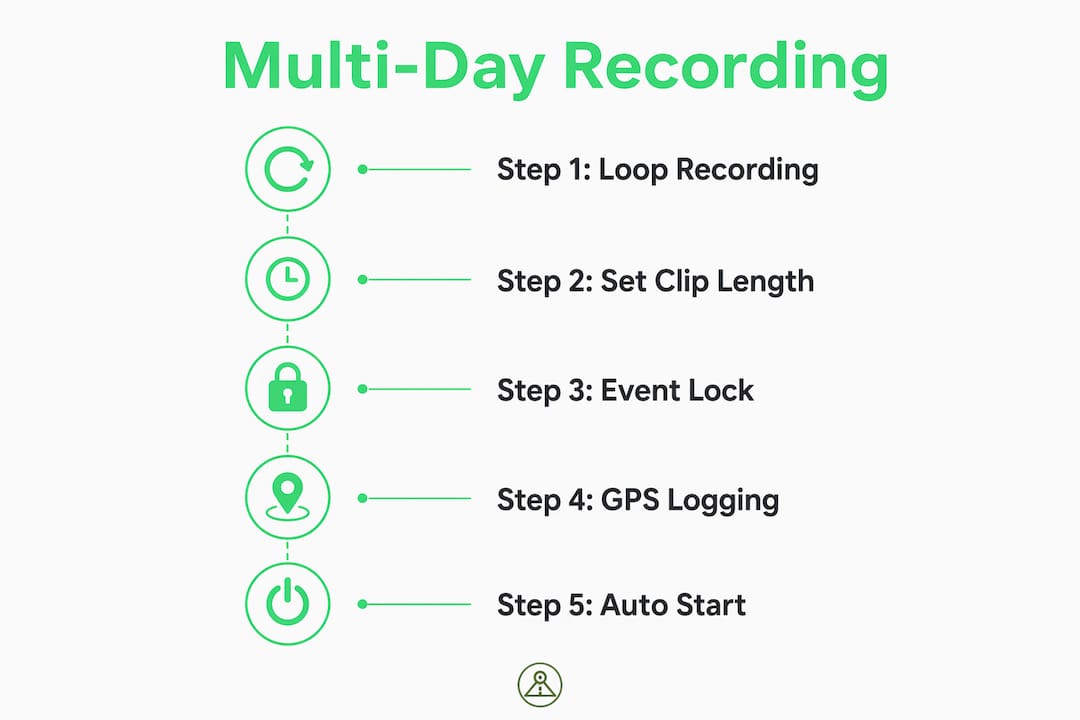
Continuous loop recording is the core method that makes multi-day recording possible without constant manual file management. Apps using this approach divide footage into short, fixed-length clips rather than one continuous file. When storage fills up, the app automatically deletes the oldest unlocked clip and writes a new one in its place.

Clip lengths are configurable between 1 and 60 minutes, depending on the app. Shorter clips, typically 1–5 minutes, make it easier to find a specific moment in footage without scrubbing through a long file. Longer clips reduce the number of file writes, which can benefit older phones with slower storage.
Event-triggered recording adds a second layer of protection. When the app detects a sudden impact or hard braking, it locks that clip immediately. Locked clips are excluded from the auto-deletion cycle, so they survive even after the phone’s storage fills and empties dozens of times over a long trip. This separation between routine footage and protected evidence is what makes dashcam apps genuinely useful across multiple travel days, not just a single commute.
What are the key recording and storage features for multi-day use?
Getting the most out of a dashcam app on a long road trip requires understanding a handful of specific features. Each one solves a real problem that shows up when you are recording for days at a time.
- Loop recording with auto-deletion. Oldest files are deleted automatically when storage reaches its configured limit. This keeps the camera running without any action from you.
- Configurable clip duration. Segments between 1–30 minutes balance file size against the ease of reviewing footage. A 2-minute clip is far easier to share as evidence than a 4-hour file.
- G-force sensitivity settings. Advanced apps let you set impact thresholds from 0.3G to 1.5G. G-force event clips are protected from the auto-deletion cycle, so a hard brake or minor collision stays on your device regardless of how much other footage has been overwritten.
- Auto-start and auto-stop triggers. Recording triggers include speed, power supply, Bluetooth device connection, and internet status. Connecting your phone to the car charger can start recording automatically, and disconnecting it stops the app. This means you never forget to hit record at the start of a driving day.
- Storage location selection. Storing footage on an SD card rather than internal phone storage reduces storage bottlenecks that build up over multi-day trips. Internal storage fills faster and creates file management problems that an SD card largely avoids.
Pro Tip: Set your G-force sensitivity to around 0.7G for highway driving. Lower settings trigger false saves on rough roads; higher settings may miss real incidents at speed.
How do dashcam apps integrate GPS and trip logging for long routes?
GPS integration turns a dashcam app from a simple video recorder into a full travel log. For drivers covering multiple days, this distinction matters practically and legally.
Here is how GPS-enabled trip logging works in professional-grade apps:
- Location tagging. Every video clip receives a GPS coordinate stamp at the time of recording. Apps with Google Maps integration display recorded routes, speeds, and locations tied directly to the video timeline.
- Distance calculation. Apps calculate trip distance using the Haversine formula, which accounts for the curvature of the Earth across long routes. This produces accurate mileage figures even on winding roads.
- Purpose tagging. Drivers can tag each trip as Business, Personal, or Rideshare at the end of each driving day. This categorization is what separates a dashcam log from an IRS-compliant mileage record.
- Export formats. Advanced apps export IRS-compliant reports in CSV or PDF format. For professional drivers, this removes the need for a separate mileage tracking app.
The table below shows how GPS features map to practical use cases across different driver types.
| GPS Feature | Use Case | Driver Type |
|---|---|---|
| Location-tagged clips | Incident evidence with exact coordinates | All drivers |
| Haversine distance calculation | Accurate mileage for tax deductions | Business, rideshare |
| Purpose tagging | Separate business from personal trips | Freelancers, delivery drivers |
| CSV/PDF export | IRS-compliant mileage reports | Self-employed, fleet operators |
| Google Maps route overlay | Visual trip review and route verification | Touring, long-haul drivers |
For drivers managing GPS route logging across multiple days, this combination of video and metadata creates a record that holds up in both insurance claims and tax audits.
What practical steps can drivers take to prepare for a long road trip?
Setup decisions made before you leave determine how reliably your app records across multiple days. These are the settings that matter most.
- Choose clip length based on trip type. For a road trip with frequent stops, 2-minute clips make it easy to find footage from a specific location. For highway-only driving, 5-minute clips reduce the number of file writes without sacrificing much search convenience.
- Select SD card storage. Internal storage creates file management issues on trips longer than one day. A dedicated SD card with at least 64GB gives you room to store several days of footage before the loop cycle begins deleting older files.
- Set G-force sensitivity before departure. Calibrate it on a short test drive. A setting that triggers saves on every speed bump will fill your protected clip folder quickly, leaving less room for genuine incidents.
- Enable auto-start triggers. Configure the app to start recording when your phone connects to the car charger or a specific Bluetooth device. This removes human error from the equation on early morning departures.
- Set a storage limit. Most apps let you reserve a portion of storage for other phone functions. Setting a cap prevents the dashcam from consuming all available space and causing the phone to slow down or crash.
Pro Tip: Before a multi-day trip, do a full test run: start the car, confirm the app launches automatically, record for 10 minutes, then check that the clip saved correctly. This catches configuration errors before they cost you footage.
For more detailed setup guidance, the road trip dashcam tips guide covers camera angle, mounting position, and video quality settings worth reviewing before you leave.
How do dashcam apps handle interruptions during extended trips?
Unexpected shutdowns are the biggest threat to footage reliability on long trips. Mobile phones are vulnerable to thermal limits, low battery, and operating system interruptions in ways that dedicated hardware dashcams are not.
Crash recovery is a non-negotiable feature for reliable multi-day recording. When an app crashes or the phone loses power, a well-designed dashcam app finalizes the current video clip before shutting down. Without this, the last few minutes of footage can become a corrupted file that is unreadable and useless as evidence.
Crash recovery in dashcam apps works by writing video data to disk in short intervals rather than holding it in memory until a clip ends. When power cuts out, the most recently written segment survives intact. Apps without this feature lose everything recorded since the last completed clip, which could mean losing the footage of an incident that happened seconds before the phone died.
Foreground services on Android keep the recording process active even when the screen is off or other apps are running. Without a foreground service, Android’s battery optimization can kill the dashcam process in the background, stopping recording without any warning. Drivers should confirm their dashcam app runs as a foreground service and is excluded from battery optimization in Android settings. This single configuration step prevents the most common cause of missed footage on multi-day trips.
A common pitfall is assuming the app is recording when it is not. Check the persistent notification in your status bar each time you start driving. If the notification is absent, the foreground service has been stopped and the camera is off.
Key Takeaways
A dashcam app manages multiple travel days reliably only when loop recording, crash recovery, and auto-start triggers are all configured correctly before the trip begins.
| Point | Details |
|---|---|
| Loop recording is the foundation | Apps delete the oldest clips automatically when storage fills, keeping recording continuous across days. |
| G-force clips are protected | Impact-triggered clips are locked from deletion, preserving incident footage through the full trip. |
| SD card storage outperforms internal | Using an SD card reduces file management problems that build up over multi-day recording sessions. |
| GPS logging adds legal value | Purpose-tagged trips with Haversine distance data produce IRS-compliant mileage reports for professional drivers. |
| Crash recovery prevents footage loss | Apps that finalize clips on power loss protect the last recorded segment from corruption. |
What I’ve learned from watching drivers set up dashcam apps wrong
Most drivers who lose footage on long trips make the same mistake: they install the app, mount the phone, and assume it will work. They never test the auto-start trigger. They never check whether battery optimization is killing the foreground service. They find out something went wrong only after an incident, when the footage they need does not exist.
The second most common mistake is using a single general-purpose app for both travel day counting and incident recording. These functions have distinct technical requirements, and an app optimized for one rarely handles the other well. A mileage tracker built for tax compliance may not have crash recovery. A basic loop recorder may not export GPS data in a format that holds up in an insurance claim.
My honest recommendation: treat storage as the variable most likely to fail you. Check your available space at the start of each driving day. Confirm your protected clip folder has not filled up with false G-force triggers from the previous day’s rough roads. And if you are covering more than three days of driving, use an SD card. Internal storage is a liability on extended trips, not a convenience.
— Cyberlab Automation
DriveSight handles the complexity of multi-day recording for you
Planning a long road trip means one less thing to worry about when your dashcam app is already configured for continuous operation.
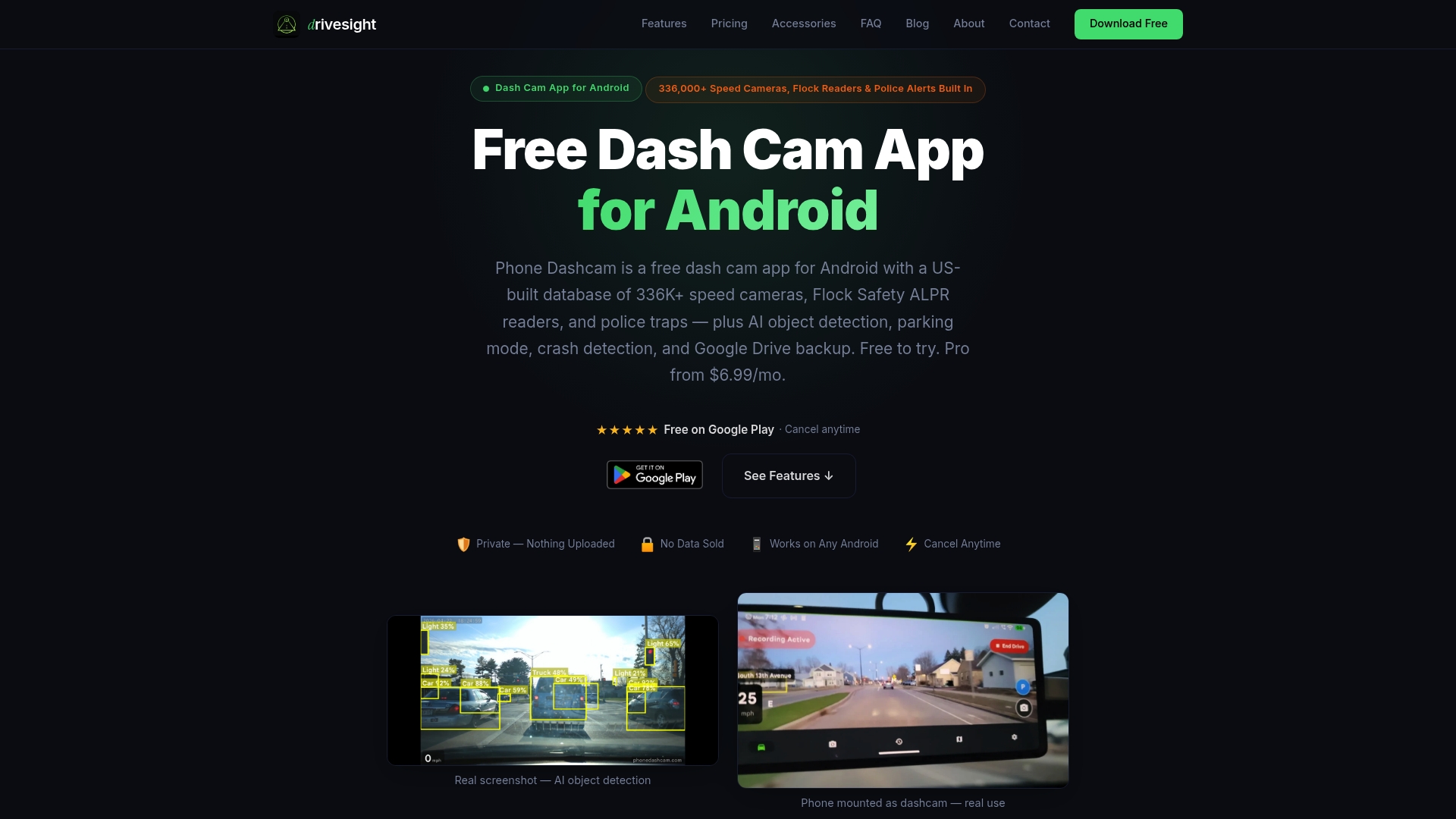
DriveSight transforms your Android phone into a full-featured dashcam built for extended travel. The app runs as a foreground service for uninterrupted background recording, auto-starts when you connect to your car charger, and protects G-force event clips from the loop deletion cycle. The remote viewer lets you check live footage from anywhere, which is useful when your phone is mounted and recording while you are away from the car. For drivers who want a free, capable, and well-supported Android dashcam app that handles multi-day trips without constant manual management, DriveSight is the place to start. You can also review mobile car care solutions that pair well with a dashcam setup for long-distance travel.
FAQ
What is loop recording in a dashcam app?
Loop recording is a method where the app continuously records video in short clips and automatically deletes the oldest files when storage is full. This keeps the camera running indefinitely without manual file management.
How long should dashcam clips be for a multi-day road trip?
Clips between 1–5 minutes work best for most road trips. Shorter clips are easier to review and share as evidence, while longer clips reduce the number of file writes on older phones.
Can a dashcam app record in the background on Android?
Yes, but only if it runs as a foreground service and is excluded from Android’s battery optimization settings. Without this configuration, Android can stop the recording process without warning.
How does a dashcam app protect important footage from being deleted?
G-force event clips are locked automatically when the app detects a sudden impact or hard braking. Locked clips are excluded from the auto-deletion cycle and remain on the device regardless of how much other footage has been overwritten.
Do dashcam apps work for IRS mileage tracking on multi-day trips?
Advanced apps that include GPS logging and purpose tagging can export IRS-compliant mileage reports in CSV or PDF format. Drivers should confirm the app supports both video recording and trip export before relying on it for tax purposes.
Recommended
- Phone Dashcam vs Dash Cam Travel — Which Android Dashcam App Is Better in 2026?
- How to Sync Dashcam Footage for Your Daily Commute
- Dashcam timelapse recording: Real examples and smart setups
- Phone Dashcam — Free Dash Cam App for Android
Get Phone Dashcam free
Loop recording, crash detection, GPS tracking, and AI object detection — all in your phone. No new hardware required.
Download Phone Dashcam