Dashcam App Background Running on Android: 2026 Guide
Dashcam App Background Running on Android: 2026 Guide
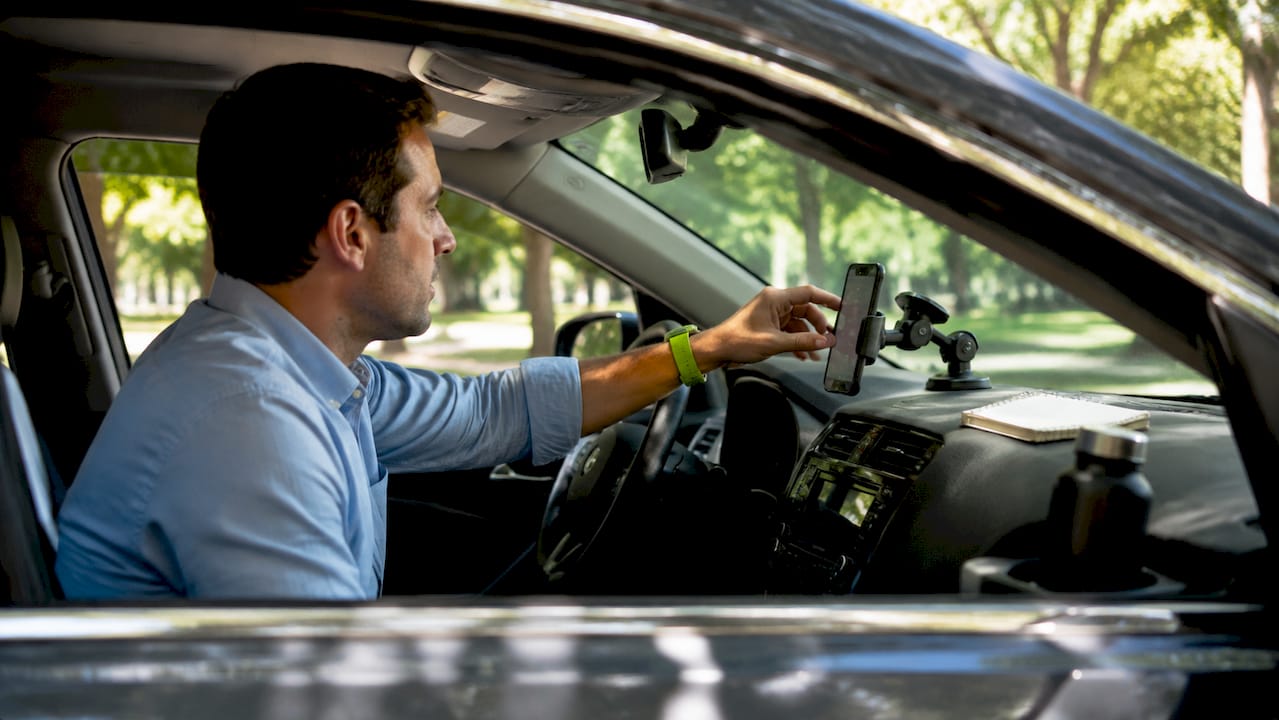
TL;DR:
- Running a dashcam app in the background on Android relies on foreground services with persistent notifications to keep recording active. Proper device settings, including unrestricted battery use and exclusive permissions, are essential for continuous, reliable recording during drives. Utilizing loop recording and managing storage effectively help prevent storage overflow and ensure optimal thermal performance.
Running a dashcam app in the background on Android means your phone records continuously while you use navigation, music, or messaging without interruption. This capability relies on Android Foreground Services, a system mechanism that keeps the app alive even when the screen is off. Without the right permissions and settings, Android’s battery management will shut the recording down within minutes. This guide covers every setting, storage decision, and battery technique you need to keep a dashcam app background running on Android reliably for every commute or long trip.
What device settings enable background dashcam recording on Android?
Background dashcam recording on Android requires a Foreground Service with a persistent notification. A foreground service with a persistent notification keeps the app active even when the screen turns off or another app moves to the front. Without this notification visible in your status bar, Android treats the app as idle and kills it to save battery.
Follow these steps to configure your device correctly:
- Grant camera and microphone permissions. Open Settings, go to Apps, find your dashcam app, and set both Camera and Microphone to “Allow.”
- Set battery usage to Unrestricted. In the app’s battery settings, set battery optimization to Unrestricted so Android never throttles or stops the recording process.
- Disable Adaptive Battery for the app. On Samsung, Pixel, and OnePlus devices, Adaptive Battery aggressively limits background activity. Turn it off specifically for the dashcam app.
- Turn off sleep mode or screen timeout restrictions. Some OEMs apply deep sleep to apps not used for 72 hours. Manually exempt the dashcam app from this list.
- Check Android version permissions. On Android 14+, camera and microphone foreground services must start while the app is visible on screen. Force-stopped apps cannot restart themselves automatically, so never force-stop the app mid-trip.
Pro Tip: Disable any fitness tracking apps or step counters running in the background. They compete for the same sensor pipeline and can cause camera access conflicts on certain Qualcomm-based devices.
OEM-specific quirks are real. Xiaomi’s MIUI and Huawei’s EMUI both include proprietary battery managers that override standard Android settings. On these devices, also add the dashcam app to the “Protected Apps” or “Auto-launch” whitelist inside the manufacturer’s security app.
How to manage storage for continuous background recording
Storage is the most overlooked constraint in dashcam app storage management on Android. A 32GB storage holds roughly 5 hours of 1080p dashcam video, while 64GB extends that to 8–12 hours. For daily commuters, 32GB to 64GB is typically sufficient when loop recording is active.

Loop recording solves the storage problem automatically. The app records in short segments, then overwrites the oldest clips once the storage limit is reached. Most apps let you set segment lengths of 1, 3, or 5 minutes. Shorter segments mean finer control over which clips to save manually.
| Resolution | Frame Rate | Storage per Hour | Recommended Segment |
|---|---|---|---|
| 1080p | 30 fps | ~6 GB | 3 or 5 minutes |
| 720p | 30 fps | ~3 GB | 1 or 3 minutes |
| 480p | 30 fps | ~1.5 GB | 1 minute |
Set a maximum storage cap inside the app’s settings. This prevents the dashcam from filling your phone’s entire internal storage and crashing other apps. A cap of 8–10 GB works well for most daily drivers.
- Local storage keeps footage private, processes faster, and avoids modem heat. It is the right default for most users.
- Cloud storage adds off-device backup but increases battery drain and heat significantly. Reserve cloud uploads for Wi-Fi at home, not during active recording.
- External storage via USB-C or microSD (where supported) extends capacity without touching internal storage.
Pro Tip: For detailed guidance on sizing your storage correctly, the dashcam storage strategies guide covers partition limits, file system choices, and loop recording math in depth.
For best dashcam video quality settings, 1080p at 30 fps with the H.264 codec is the right balance. It captures license plates clearly, keeps file sizes manageable, and avoids the thermal problems that come with higher resolutions.
How to reduce battery drain and prevent overheating
Dashcam apps drain battery because they run the camera sensor, GPS receiver, and video encoder simultaneously. Constant camera use, GPS tracking, and encoding together represent the three largest power draws on any Android device. The good news is that each one can be tuned.
Thermal throttling occurs within 20–40 minutes on older Android hardware when recording at 4K or 60 fps. Dropping to 1080p at 30 fps with H.264 eliminates most of this risk. Newer flagship devices handle 1080p continuous recording without throttling, but budget phones from 2020 or earlier will struggle at any resolution above 720p.
Steady, continuous recording is cooler than stop-and-start recording. Intermittent recording causes more heat than continuous recording because each camera cold-start forces the image signal processor to reinitialize. Keep the recording running from the moment you start driving to the moment you park.
Practical steps to reduce heat and extend battery life:
- Dim the screen to near-zero or use an AMOLED screen-off mode if your app supports it.
- Disable cellular data during recording and upload footage over Wi-Fi later. Cloud uploading loads the modem and SoC, raising device temperature significantly.
- Turn off Bluetooth scanning and Wi-Fi scanning while driving. Both run background radio cycles that add heat.
- Plug into a car charger rated at least 15W. Recording at 1080p draws more power than most phones generate passively.
Pro Tip: If your phone feels hot to the touch after 30 minutes, check for Galaxy phone overheating causes and apply the same ventilation principles. A phone mount that keeps the device away from direct sunlight and dashboard heat vents makes a measurable difference.
Signs of thermal stress include frame drops in the recorded video, the phone display dimming automatically, or a system notification warning about temperature. If any of these appear, stop cloud uploads first, then reduce resolution.
Step-by-step setup and troubleshooting for background recording
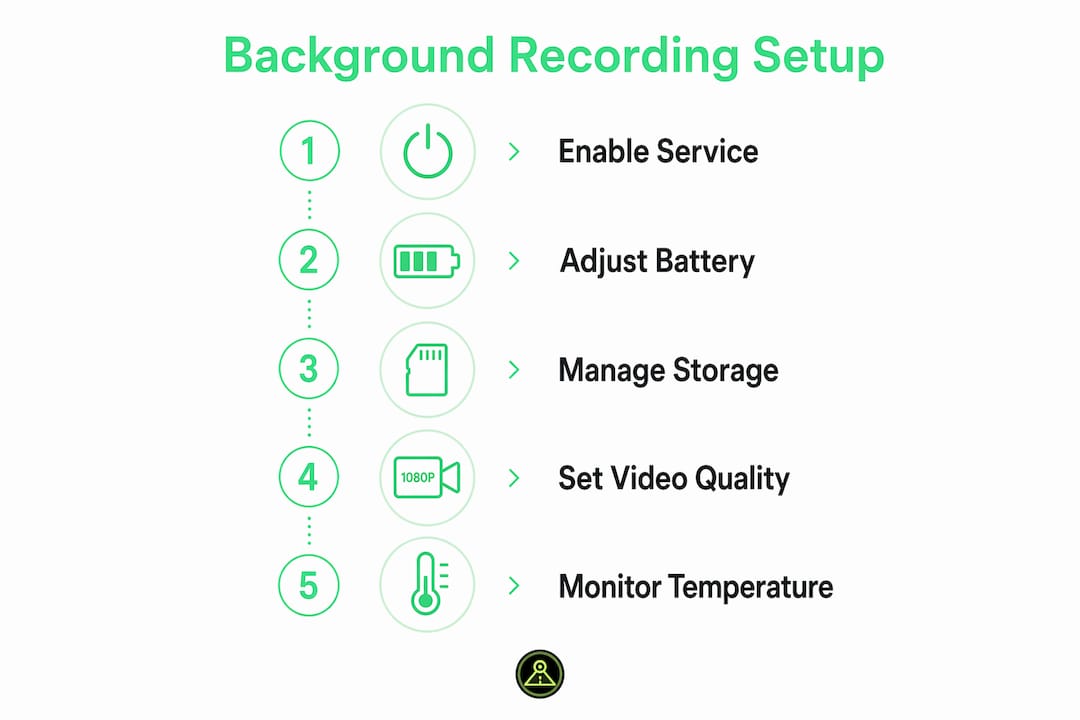
Getting a dashcam recording app on Android running correctly the first time takes about five minutes. Follow these steps in order:
- Install the app from the Google Play Store and open it.
- Accept all permission prompts: Camera, Microphone, Location, and Storage.
- Tap “Start Recording” while the app is visible on screen. This satisfies the Android 14+ requirement that the foreground service start while the app is in the foreground.
- Confirm the persistent notification appears in your status bar. The notification is proof the foreground service is active.
- Lock the screen or switch to another app. Recording should continue uninterrupted.
Common issues and fixes:
- App stops recording after screen locks. Go to Settings > Apps > [App Name] > Battery > set to “Unrestricted.” Also check your phone’s RAM management settings and add the app to any “lock in memory” list.
- Persistent notification disappears. This means the OS killed the foreground service. Reopen the app, start recording again, and verify battery optimization is off.
- Camera shows black screen in background. Some OEMs block camera access when the app is not in the foreground. On Xiaomi devices, enable “Display pop-up windows while running in background” in the app’s permissions.
- App does not restart after a force-stop. This is expected Android behavior. Force-stopped apps cannot restart automatically. Always use the back button or home button to exit, never force-stop.
For a full overview of android dashcam features and how they interact with background recording, the DriveSight documentation covers device-specific quirks for Samsung, Pixel, and Xiaomi hardware.
Key Takeaways
Reliable background dashcam recording on Android requires Foreground Services, Unrestricted battery settings, loop recording with a storage cap, and 1080p at 30 fps to avoid thermal throttling.
| Point | Details |
|---|---|
| Foreground service is mandatory | A persistent notification confirms the service is active and prevents OS shutdown. |
| Set battery to Unrestricted | Android’s default battery optimization will stop background recording without this change. |
| Use loop recording with a cap | Set a storage limit of 8–10 GB to prevent the app from filling your phone’s internal storage. |
| Record at 1080p, 30 fps | Higher resolutions cause thermal throttling within 20–40 minutes on most Android hardware. |
| Avoid cloud uploads while driving | Local-only recording reduces modem load, device temperature, and battery drain significantly. |
What we have learned building for the Android background recording challenge
The single biggest mistake we see is users installing a dashcam app and assuming it will “just work” in the background. Android’s battery management is aggressive by design. Every OEM layer on top of stock Android adds another obstacle. We have spent considerable time testing DriveSight across Samsung One UI, Xiaomi MIUI, and stock Pixel builds, and the behavior differences are significant enough that a one-size-fits-all setup guide does not exist.
The insight that surprised us most: proactive “babysitting” of initial settings is not optional. Users who skip the battery optimization step will see their recording stop within the first 15 minutes, every time. The fix is simple, but it requires knowing where to look.
We also believe the industry underestimates thermal management. Most guides tell you to “lower the resolution.” That is correct but incomplete. Stopping cloud uploads during recording cuts device temperature more than dropping from 1080p to 720p. The modem is a major heat source that gets ignored. Proper app architecture with local-only recording and a continuous foreground service is the right foundation.
Android OS updates will keep changing the rules. Android 14 tightened foreground service permissions, and future versions will likely tighten them further. The apps that survive these changes are the ones built on solid foreground service architecture, not workarounds.
— Cyberlab Automation
DriveSight: built for reliable Android background recording
DriveSight is a free Android dashcam app designed to run continuously in the background without draining your phone or filling your storage. It uses a foreground service with a persistent notification, supports loop recording with a configurable storage cap, and records at 1080p 30 fps by default to stay within safe thermal limits. The app is compatible with Android 8.0 and above, and includes built-in guidance for battery optimization settings on Samsung, Pixel, and Xiaomi devices.
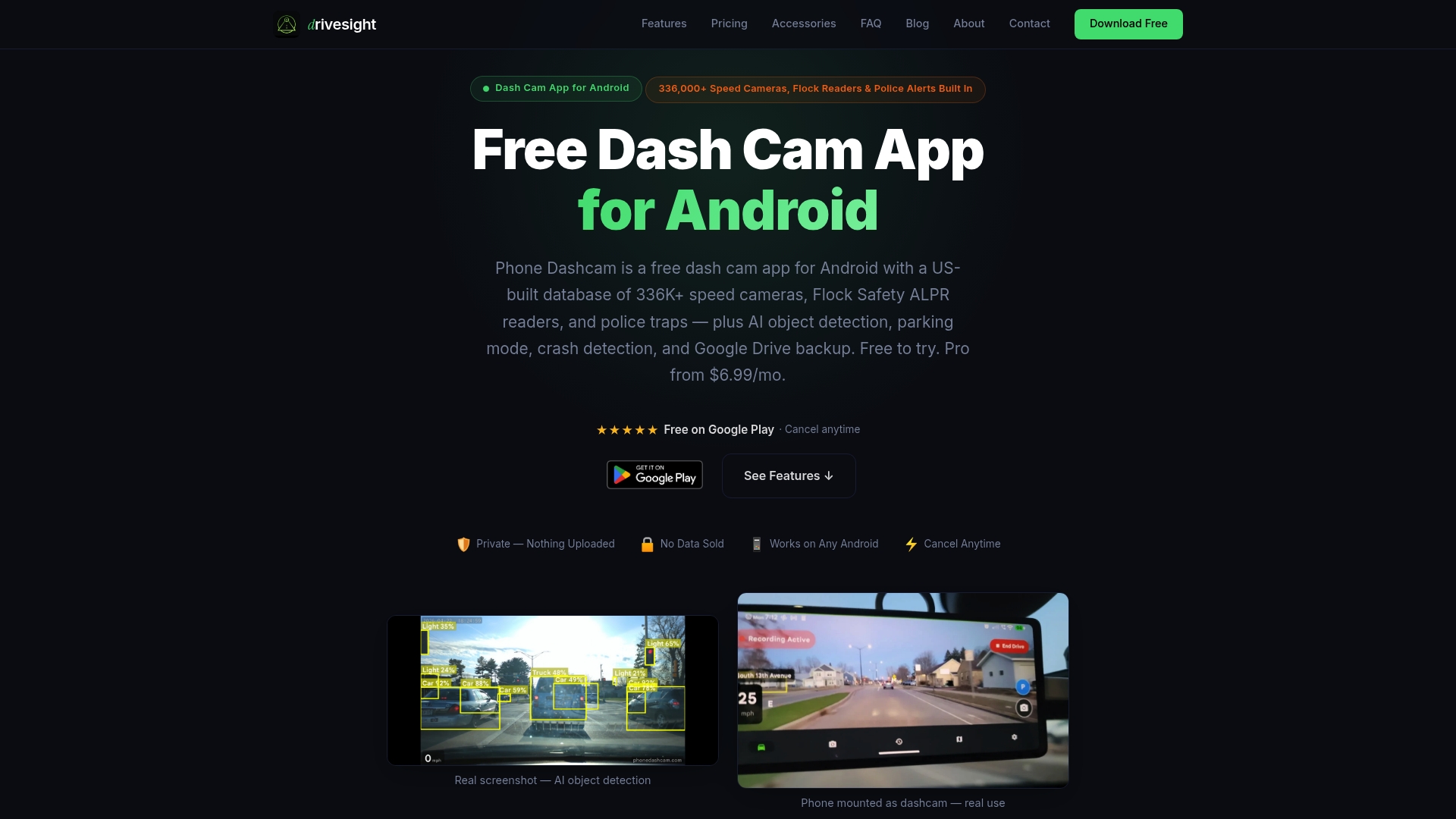
Beyond background recording, DriveSight includes AI-powered crash detection, accelerometer-based impact sensing, and real-time alerts from a database of over 336,000 speed cameras and police traps worldwide. You can also enable parking surveillance mode for motion-triggered recording when your car is parked. Download DriveSight free from phonedashcam.com and have background recording running on your Android phone in under five minutes.
FAQ
What is a foreground service in a dashcam app?
A foreground service is an Android system component that keeps an app running even when the screen is off or another app is active. It requires a persistent notification in the status bar as proof it is running.
Why does my dashcam app stop recording in the background?
Android’s battery optimization kills background apps to save power. Set the dashcam app’s battery usage to “Unrestricted” in Settings > Apps > Battery to prevent this.
How much storage does a background dashcam app use on Android?
A 32GB phone holds roughly 5 hours of 1080p dashcam footage. With loop recording and an 8–10 GB storage cap, the app overwrites old clips automatically and never fills your phone.
Does running a dashcam app in the background drain the battery fast?
Yes, because the camera sensor, GPS, and video encoder all run simultaneously. Plugging into a car charger, disabling cloud uploads, and dimming the screen reduces drain enough for most commutes.
Does DriveSight work on Android 14?
DriveSight supports Android 8.0 and above, including Android 14. On Android 14, you must start recording while the app is visible on screen to satisfy the foreground service permission requirement.
Recommended
- Phone Dashcam Blog — Dashcam Guides, App Comparisons & Driving Tips
- Dashcam Parking Mode: How It Works on Android (2026 Guide)
- Dashcam timelapse recording: Real examples and smart setups
- Phone Dashcam — Free Dash Cam App for Android
Get Phone Dashcam free
Loop recording, crash detection, GPS tracking, and AI object detection — all in your phone. No new hardware required.
Download Phone Dashcam