Best Dashcam Video Quality Settings for Clear Footage
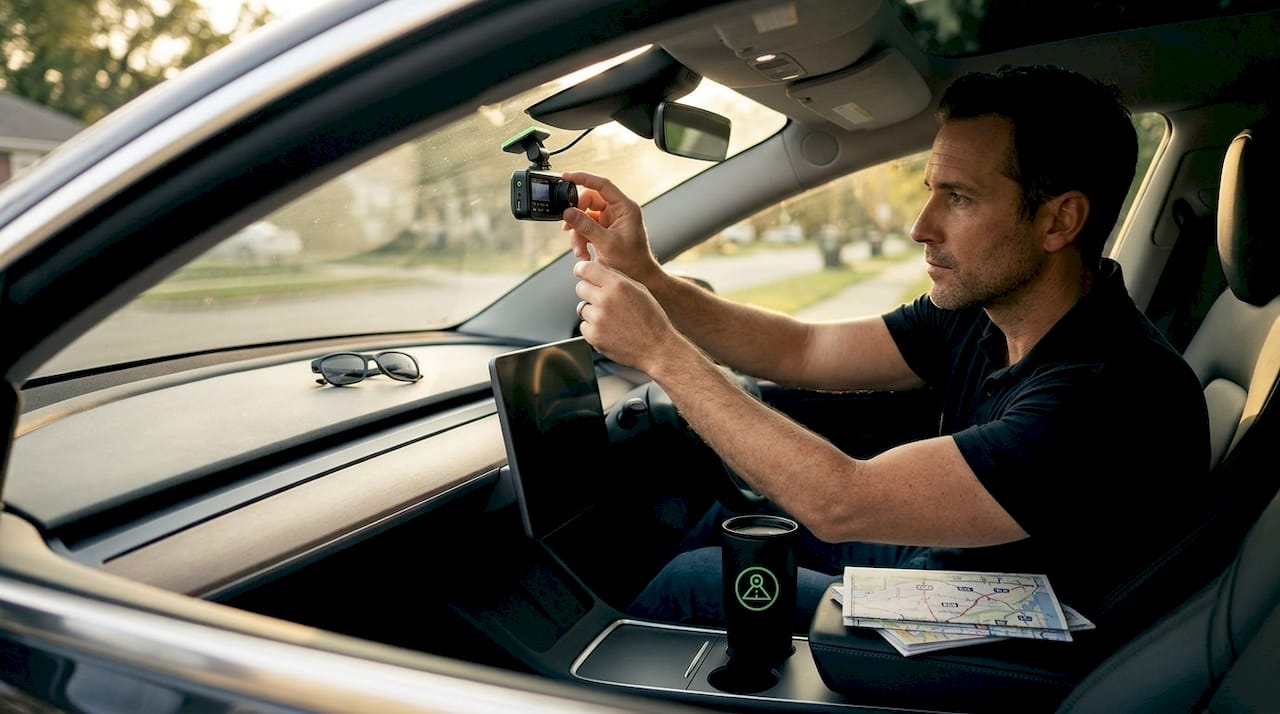
Getting the best dashcam video quality settings right is the difference between footage that holds up as evidence and a blurry clip that raises more questions than answers. Resolution grabs the headlines, but frame rate, bitrate, storage encoding, and even your windshield’s cleanliness all shape what your camera actually captures. This guide walks you through every setting that matters — with real trade-offs, concrete numbers, and practical choices for daily commuters, highway drivers, and anyone preparing for a long road trip.
Table of Contents
- Key takeaways
- 1. Understanding what “best dashcam video quality settings” actually means
- 2. Resolution options and when each one makes sense
- 3. Frame rate and its real impact on your footage
- 4. Bitrate: the setting most drivers ignore
- 5. Exposure and HDR settings for dashcam settings at night and in bright sun
- 6. Mounting position and windshield cleanliness
- 7. Firmware updates and app-based settings control
- 8. Quick comparison: common settings combinations
- Our take on getting this right in real-world driving
- Turn your Android phone into a fully optimized dashcam
- FAQ
Key takeaways
| Point | Details |
|---|---|
| Resolution alone isn’t enough | Bitrate and encoding quality determine whether license plates are readable, not megapixels. |
| Match frame rate to conditions | Use 60fps for daytime highway driving and 30fps at night to reduce noise and save storage. |
| H.265 encoding doubles storage efficiency | Switching from H.264 to H.265 can roughly double how many hours fit on your memory card. |
| Mounting and exposure matter as much as specs | Poor placement or incorrect exposure compensation degrades footage even from a high-resolution camera. |
| Test your settings before you need them | Take a short drive after any change and review the footage for plate clarity and glare before relying on it. |
1. Understanding what “best dashcam video quality settings” actually means
Most drivers assume buying a 4K camera solves everything. It doesn’t. The term “dashcam recording settings” covers a system of interdependent variables: resolution, frame rate, bitrate, encoding format, exposure, and HDR. Change one and you affect the others. A 4K file recorded at a low bitrate will produce compression artifacts that make license plates unreadable, while a well-tuned 1080p setup with high bitrate and proper exposure can capture the same plate clearly. Understanding this system is what separates useful footage from decorative footage.
2. Resolution options and when each one makes sense
Choosing your resolution is your first real decision in any dashcam setup guide. Here is how the three main tiers perform in practice:
- 1080p Full HD: The industry standard for daily driving. Files are manageable, compatibility is universal, and the footage holds up well for general evidence. For city commuting and parking lot incidents, 1080p is more than adequate.
- 2K (1440p): A practical middle ground. You get noticeably sharper plate captures at moderate distances without the storage penalty of 4K. For most drivers, this is the sweet spot for optimal dashcam video.
- 4K (2160p): Maximum pixel detail, but it comes with real trade-offs. A 256GB microSD card stores 16 to 20 hours of 4K footage at 30fps. At 60fps that drops to 6 to 10 hours on the same card. Dual-channel and parking mode recording eat into that further.
For scenic road trips where you want the highest quality dashcam footage and storage is planned in advance, 4K at 30fps is justified. For daily urban driving or fleet use, 2K is the smarter call.
3. Frame rate and its real impact on your footage
Frame rate is where drivers most commonly misconfigure their dashcam. The choice between 30fps and 60fps is not just about smoothness. 60fps captures smoother motion and lets you slow down playback for fine detail, but it nearly doubles storage consumption and often forces a resolution step-down.
A useful rule: use 60fps for daytime highway driving where fast-moving vehicles and quick plate reads matter most. Drop to 30fps at night. The longer exposure time per frame at 30fps lets the sensor gather more light, which reduces image noise significantly in low-light conditions. Switching frame rate by condition is one of the most practical adjustments any driver can make.
Pro Tip: If your dashcam supports scheduled profiles, set 60fps as your daytime profile and 30fps as your nighttime profile. You get the benefits of both without manually adjusting settings every day.
Here is a quick storage reference table for common setting combinations:
| Settings | Approx. storage per hour | 256GB card capacity |
|---|---|---|
| 1080p @ 30fps (H.264) | 3 to 5 GB | 50 to 85 hours |
| 2K @ 30fps (H.264) | 6 to 8 GB | 32 to 42 hours |
| 4K @ 30fps (H.264) | 10 to 16 GB | 16 to 25 hours |
| 4K @ 30fps (H.265) | 5 to 8 GB | 32 to 50 hours |
| 4K @ 60fps (H.264) | 18 to 30 GB | 8 to 14 hours |
H.265 (HEVC) encoding is worth enabling wherever your device supports it. H.265 can roughly double the footage duration for the same file size compared to H.264, with no visible quality loss. For drivers who want maximum quality without burning through storage, that trade-off is straightforward. Check your dashcam storage strategies before committing to a high-resolution setup.
4. Bitrate: the setting most drivers ignore
Bitrate is arguably the most underrated variable in dashcam resolution tips. It measures how much data is written per second of video. A 4K camera recording at a low bitrate produces compressed, artifact-heavy footage where license plate characters blur into indistinct shapes. Low bitrate causes compression artifacts that undermine high-resolution footage completely.
For 1080p, target a minimum of 15 to 20 Mbps. For 2K, aim for 25 to 35 Mbps. For 4K, 50 Mbps or higher is where you start seeing genuinely sharp results. If your camera caps out below these numbers, upgrading resolution is pointless until bitrate improves. This is why bitrate and codec selection are foundational to capturing readable plates, not just buying a higher-resolution model.
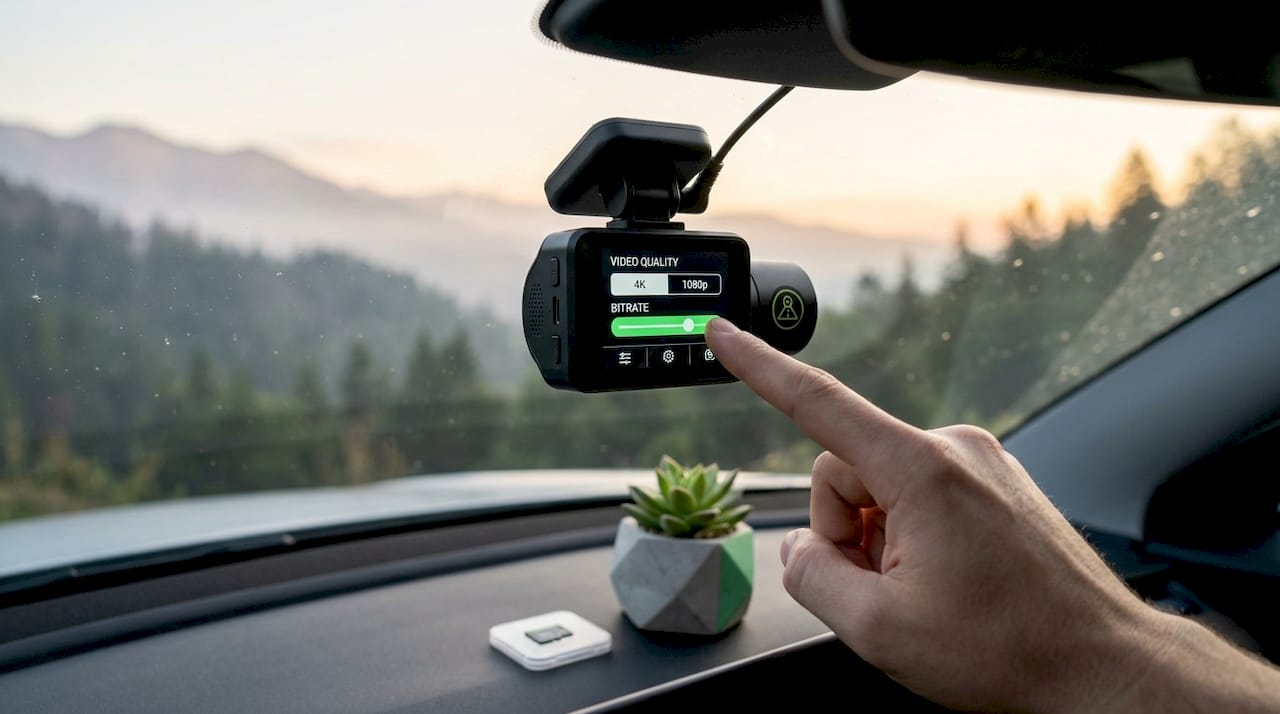
5. Exposure and HDR settings for dashcam settings at night and in bright sun
Exposure compensation is a control that most drivers set once and forget, but it has a direct effect on plate readability. Set exposure too high and you get washed-out highlights in direct sun. Set it too low and tunnel exits and nighttime scenes become unusable.
A calibrated approach works best. Set exposure compensation to around -0.5 EV during the day to prevent glare-driven washout on white vehicles and bright asphalt. Drop to -1 EV at night to reduce sensor blooming from headlights. For HDR, use moderate settings rather than maximum. Overexposure and maximum HDR cause plate bloom and reduce overall contrast, especially under mixed lighting conditions.
Real-world dashcam performance depends heavily on these tuning choices. Even the best sensor cannot compensate for incorrect exposure settings or poor HDR calibration.
6. Mounting position and windshield cleanliness
Where you mount your camera shapes everything captured in the frame. Mount too low and you capture hood instead of road. Mount off-center and near-side lane vehicles exit frame before you capture their plates. The correct position is behind the rearview mirror, centered on the windshield, angled slightly downward to keep the horizon in the upper third of the frame.
Windshield cleanliness directly affects footage clarity in ways drivers routinely mistake for camera or settings issues. A thin film of road grime or interior fog refracts light and softens the entire image. Clean the inside and outside of the glass where your lens sits at least once a week. The auto cleaning process matters more than most settings adjustments.
7. Firmware updates and app-based settings control
Firmware updates can improve video quality by fixing encoding bugs and refining noise reduction algorithms. Many drivers run outdated firmware and then attribute footage quality issues to the hardware itself. Check for updates every 60 to 90 days. If your dashcam has companion app control, use it. App interfaces make it practical to adjust dashcam recording settings without digging through on-device menus while parked. Learn more about what each recording mode does by reviewing the recording modes explained for Android setups.
Pro Tip: After any firmware update or settings change, record a 5-minute test drive and review it specifically for plate clarity at 20 to 30 feet. This is your quality check before the footage ever matters.
8. Quick comparison: common settings combinations
| Combination | Best for | Quality | Storage use | Notes |
|---|---|---|---|---|
| 1080p @ 30fps | Daily commuting | Good | Low | Reliable baseline, wide compatibility |
| 2K @ 30fps | City and highway driving | Very good | Moderate | Best practical balance for most drivers |
| 2K @ 60fps | Daytime highway, road trips | Excellent | High | Strong for dashcam video quality settings road trip |
| 4K @ 30fps | Evidence-focused recording | Outstanding | High | Use H.265 to manage storage |
| 4K @ 60fps | Premium highway recording | Maximum | Very high | Practical only with 256GB+ and H.265 |
Our take on getting this right in real-world driving
I’ve reviewed a lot of dashcam footage across different setups, and the pattern is consistent: drivers who chase the highest specs get the worst results. They record 4K at 60fps, fill their card in four hours, and then realize their loop recording deleted the incident they needed. Or they get gorgeous resolution on a dirty windshield and wonder why plates still look soft.
My honest take is that 2K at 30fps with H.265 encoding and properly calibrated exposure handles 90% of real driving situations better than any 4K setup that hasn’t been properly configured. The resolution gap between 2K and 4K is real but small at typical capture distances. The difference between correct exposure settings and incorrect ones is not small. It’s the gap between readable and useless.
What actually improves footage most: mount position, lens cleanliness, bitrate, and exposure calibration. These four things outperform a resolution bump every single time. Review your settings every three months, especially after seasonal changes that affect light conditions. The best dashcam setup guide is the one you actually revisit.
— Cyberlab Automation
Turn your Android phone into a fully optimized dashcam
If you want control over every video quality variable we’ve covered here, without buying dedicated hardware, DriveSight’s Phone Dashcam app gives you exactly that. You choose resolution, frame rate, and bitrate from within the app. Setup takes minutes on any Android device, and a real-time preview confirms your framing and exposure before you pull out of the driveway.
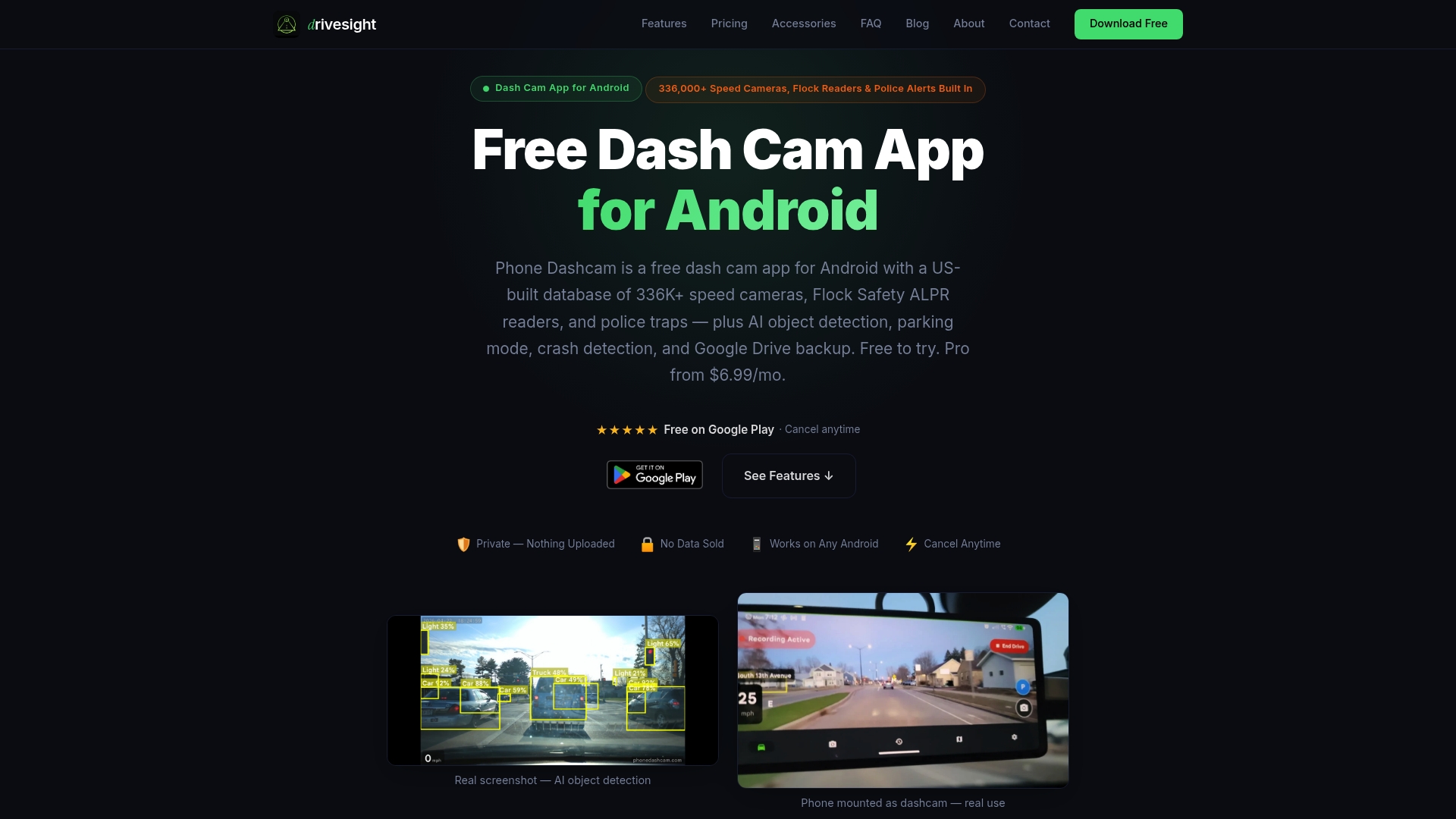
DriveSight also handles automatic crash saves, parking mode, and cloud backup, so your footage is protected the moment an incident happens. For drivers who want a flexible, software-based solution that matches or surpasses standalone hardware, download the free app and configure your settings today. You can also explore app comparisons to see how DriveSight stacks up on video quality and features.
FAQ
What resolution is best for capturing license plates?
2K (1440p) at a high bitrate of 25 Mbps or above offers the best practical balance for plate capture. Bitrate matters more than resolution alone, so avoid low-bitrate 4K over well-configured 2K.
Is 60fps better than 30fps for dashcams?
60fps gives smoother motion and better detail in fast-moving scenes during daylight, but 30fps is better at night because it allows more light per frame, reducing noise in low-light footage.
How much storage do I need for 4K dashcam recording?
A 256GB card holds 16 to 20 hours of 4K at 30fps using H.264. Switch to H.265 encoding and that figure roughly doubles, making 256GB a practical minimum for 4K recording with parking mode enabled.
Does windshield condition affect dashcam video quality?
Yes. Road grime and interior fog on the windshield where the lens sits soften the entire image, an effect many drivers misattribute to poor camera settings or hardware limitations.
What is H.265 and should I use it?
H.265 (HEVC) is a video encoding format that compresses footage more efficiently than H.264 with no visible quality loss. If your dashcam or app supports it, enabling H.265 is one of the simplest ways to improve storage efficiency without changing resolution or frame rate.
Recommended
- Dashcam timelapse recording: Real examples and smart setups
- Dashcam recording modes explained for Android drivers
- Phone Dashcam vs Real Dashcam: Honest Comparison (2026)
- Phone Dashcam — Free Dash Cam App for Android
Get Phone Dashcam free
Loop recording, crash detection, GPS tracking, and AI object detection — all in your phone. No new hardware required.
Download Phone Dashcam