How to Set Up a Front-and-Rear Dashcam on Android
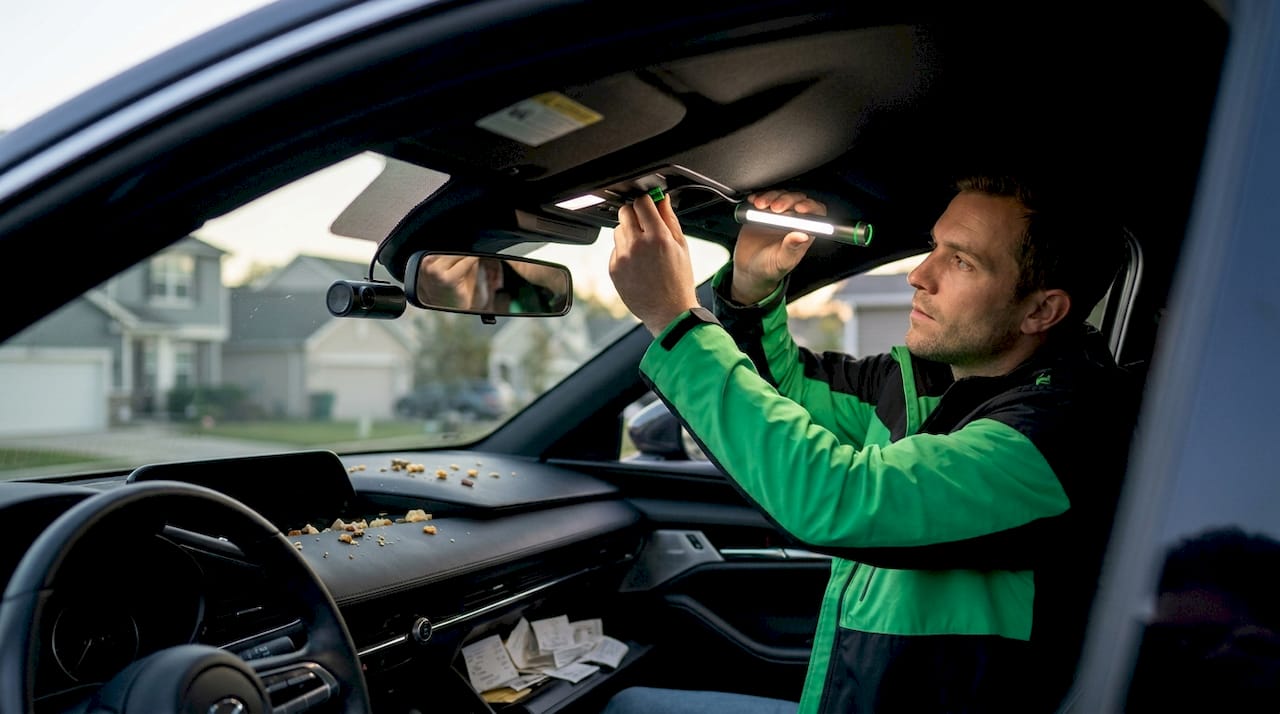
A single-lens dashcam feels like solid protection until someone rear-ends you at a red light and your camera was pointing the wrong direction the whole time. Rear-end collisions account for nearly 29% of all crashes in the United States, yet most budget dashcams only capture what happens in front of you. A dual camera front and rear Android dashcam setup changes that equation completely, giving you full coverage, app-based evidence retrieval, and the kind of footage that actually holds up when you need it most. This guide walks you through every step.
Table of Contents
- What you need: Recommended dual camera dashcam features for Android
- Step-by-step installation and setup
- App setup and workflow: Using an Android dashcam system day-to-day
- Verification and troubleshooting: Making sure your dual dashcam works
- What most guides miss: Why your workflow and cable setup matter more than ‘best camera’ lists
- Try an all-in-one Android dashcam app solution
- Frequently asked questions
Key Takeaways
| Point | Details |
|---|---|
| Check compatibility | Confirm your chosen dashcam kit and app support your Android version before purchase. |
| Prioritize cable routing | Proper rear camera installation and cable management are the most common challenges. |
| Know your app | Understand how your dashcam app stores and lets you retrieve footage without interruptions. |
| Verify front and rear recording | Test and regularly review both camera feeds after setup to avoid missing crucial evidence. |
| Maximize value | A dual camera setup covers most users’ needs, but some cases may require adding an interior camera. |
What you need: Recommended dual camera dashcam features for Android
Now that you understand what a dual dashcam setup can do for you, it’s crucial to make sure you have the right tools before starting.
Choosing the wrong hardware is the most common and most expensive mistake drivers make. You can spend hours on installation only to discover the rear camera doesn’t pair with your app, or the Wi-Fi transfer speed makes downloading a 30-second clip feel like waiting for a dial-up connection.
Key feature requirements at a glance
| Feature | Minimum requirement | Recommended |
|---|---|---|
| Front camera resolution | 1080p Full HD | 2.5K or 4K |
| Rear camera resolution | 720p HD | 1080p Full HD |
| Android app compatibility | Android 8.0 | Android 10 or higher |
| Wi-Fi speed | 2.4GHz | 5GHz or 5.8GHz |
| GPS logging | Optional | Strongly recommended |
| Parking mode | Basic motion detection | 24/7 hardwire parking mode |
| Kit vs. separate units | Separate (risky) | Matched kit (verified pairing) |
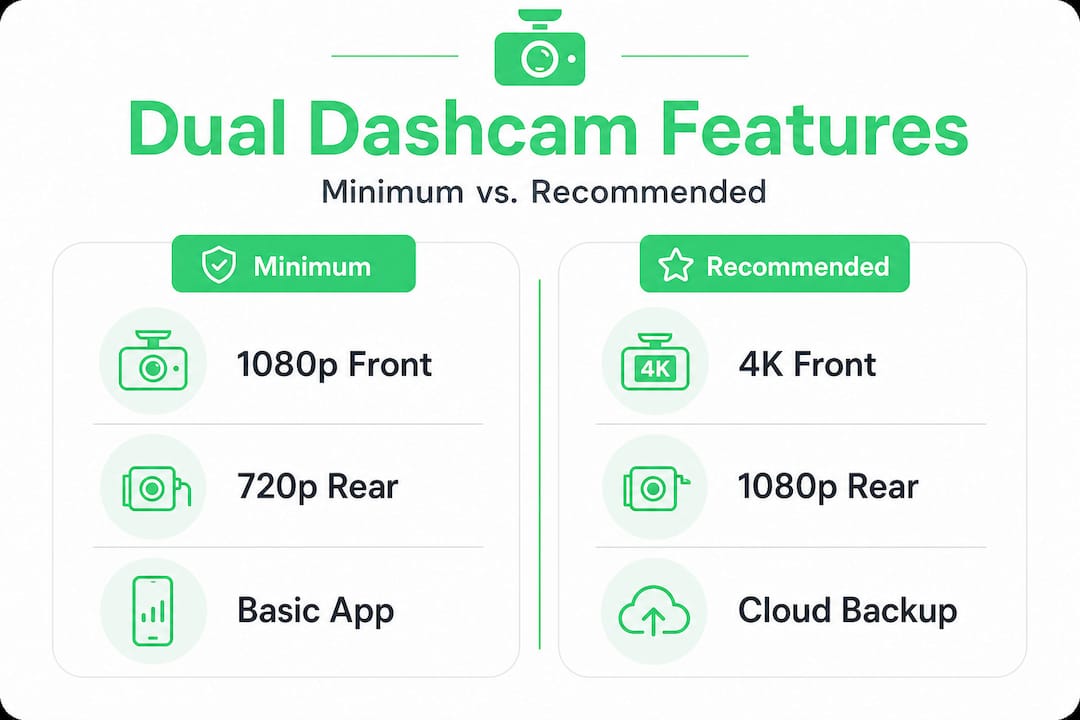
Digital Camera World recommends buying a two-camera kit so the front unit and rear sensor are verified to connect and work together, noting that installation cable routing can be difficult when components aren’t designed as a system. This is practical advice that saves real headaches.
On the hardware side, a model like the Rexing R88 illustrates what a well-specified dual dashcam looks like: 4K front and 4K rear recording, built-in 5.8GHz Wi-Fi for fast clip transfers, GPS logging, and a 24/7 parking mode with smart hardwire options. Not every driver needs 4K on both channels, but this spec sheet shows the ceiling of what’s available at the mid-range price point.
For Android app compatibility, BlackVue explicitly states that its application requires Android 8.0 or higher for front and rear models. That’s the floor. If your phone runs an older version, plan to update or use a secondary device.
Here’s what to look for when selecting your kit:
- Matched kit purchase: Front and rear units sold together are tested to communicate. Mixing brands is a gamble.
- App quality: Download the companion app before buying. Read reviews specifically about Wi-Fi stability and clip download reliability.
- GPS logging: Timestamps and location data are critical for insurance claims and police reports.
- Parking mode power: Some parking modes require a hardwire kit. Others run off a battery pack. Know your setup before you buy.
Pro Tip: If you plan to use parking mode overnight, a hardwire kit that draws from your vehicle’s fuse box is far more reliable than leaving the dashcam on battery power. Confirm your chosen model supports this before purchasing.
You can also explore dual camera dashcam options and read through our dashcam guides to compare what’s available at different price points.
Step-by-step installation and setup
With your cameras and app ready, it’s time to get hands-on and install the system in your vehicle.
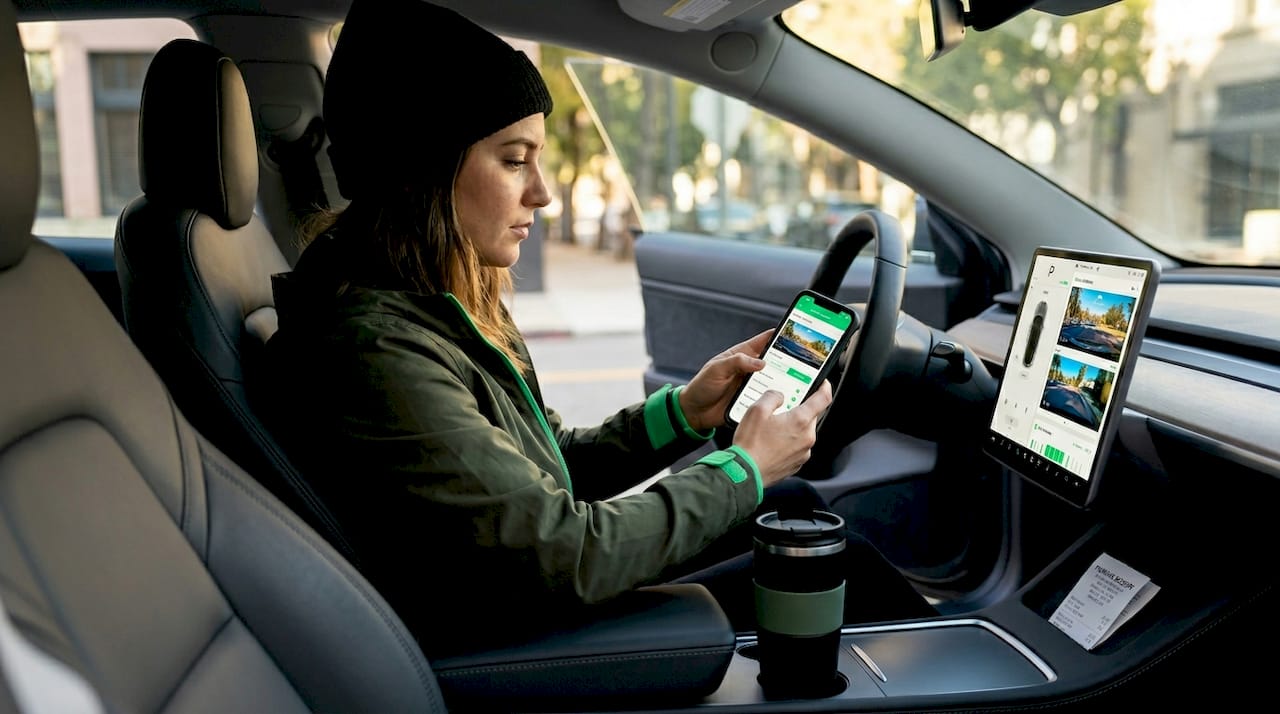
Installation is where most people underestimate the time commitment. The front camera takes maybe 20 minutes. The rear camera cable can take two hours if you’ve never done it before. Go in with realistic expectations.
Installation steps
-
Unbox and bench test both cameras. Before touching your vehicle, power both units using a USB adapter and confirm they record, display footage, and connect to the app. Fix problems on the bench, not inside your car.
-
Mount the front camera. Position it behind the rearview mirror to minimize driver distraction. Peel the adhesive mount, press firmly, and hold for 60 seconds. Run the power cable along the windshield edge and tuck it into the headliner.
-
Plan your rear cable route. This is the most time-consuming step. Cable routing is consistently identified as the hardest part of front and rear dashcam installation. Trace the path from the front unit, down the A-pillar, along the door sill, up the C-pillar, and to the rear window. Use a trim removal tool to tuck the cable cleanly under panels.
-
Mount the rear camera. For sedans, mount it on the inside of the rear window near the top center. For SUVs or hatchbacks, the rear wiper area often works well. Confirm the lens has a clear, unobstructed view.
-
Connect power and test before finalizing. Plug everything in and power the system before tucking the last cables. Confirm both cameras appear active and that the app sees both feeds.
-
Install and pair the Android app. Download the manufacturer’s companion app, connect your phone to the dashcam’s Wi-Fi network, and verify both camera views appear. Thinkware’s ARC 900 bundle pairs with the THINKWARE DASH CAM LINK app over 5GHz Wi-Fi, which is a good example of how modern systems handle this pairing process.
-
Configure settings. Set video loop length (typically 1, 3, or 5 minutes), enable emergency recording, and confirm parking mode is active if you’ve hardwired the unit.
Safety warning: Never route cables across airbag deployment zones, including the side curtain airbag panels on the A and B pillars. If in doubt, consult a professional installer. A cable that interferes with airbag deployment creates a serious safety risk.
Pro Tip: Take photos of your cable route before closing up the trim panels. If you ever need to service the system or diagnose a connection issue, you’ll thank yourself for having a visual record.
Follow our step-by-step dual dashcam guide for model-specific tips and additional photos.
App setup and workflow: Using an Android dashcam system day-to-day
Once your dashcams are physically set up, knowing how to use your Android app ensures your investment actually captures the moments that matter.
The hardware is only half the equation. Plenty of drivers install a dashcam, assume it’s working, and then discover weeks later that the app wasn’t configured correctly and their footage was overwriting without saving incidents. Don’t let that be you.
Daily app workflow
- Launch the app and verify both feeds. Each time you start a trip, open the app briefly to confirm front and rear cameras are recording. It takes 10 seconds and confirms your system is live.
- Switch between views. Most companion apps let you tap to toggle between front and rear live previews. Familiarize yourself with this before you need it in a stressful moment.
- Review recent footage. After any close call or incident, open the app while still parked and locate the clip. Don’t drive away assuming the footage is safe without checking.
- Download clips carefully. 70mai’s app describes live preview, historical footage review, and Wi-Fi downloading, but also notes that switching apps during a download can interrupt the transfer. Keep the app in the foreground until the download completes.
- Enable emergency clip locking. Most apps have a button or G-sensor trigger that locks a clip from being overwritten. Test this feature so you know exactly where it is.
A note on dual-channel dashcam selection: Wirecutter’s 2026 dash cam testing reinforces that buying a dashcam should be a spec-driven decision rather than simply chasing “best overall” lists, since top-rated single-channel cams won’t give you rear coverage no matter how good the front footage is.
Pro Tip: If your dashcam app supports cloud backup or automatic upload to external storage, enable it immediately. Losing a memory card to corruption right after an incident is more common than you’d think, and cloud backup is the only real safety net.
For drivers who want even more capability from their phone, Android Auto-compatible dashcam apps and hardware-free Android dashcam options are worth exploring as complementary tools.
Verification and troubleshooting: Making sure your dual dashcam works
You’ve set up your system, but ongoing verification and troubleshooting ensure continuous protection.
Setting it and forgetting it is the wrong approach. A dual-channel system has more components, more connection points, and more potential failure modes than a single camera. Regular checks are non-negotiable.
Single channel vs. dual channel: What to expect
| Spec | Single channel | Dual channel |
|---|---|---|
| Front resolution | Full rated resolution | May be reduced when rear is active |
| Front frame rate | Full rated fps | May drop (e.g., 60fps to 30fps) |
| Rear resolution | N/A | Typically lower than front |
| Processing load | Low | Higher |
| Storage usage | Standard | Roughly doubled |
| App complexity | Simple | More configuration needed |
This table highlights a critical point: some dual-channel setups reduce front-camera frame rate or resolution when the rear camera is connected, due to processing limits. Always confirm single vs. dual channel specs before purchasing so you know exactly what you’re getting in both configurations.
Common issues and how to fix them
-
App won’t connect to dashcam Wi-Fi. Forget the network on your phone and reconnect. If that fails, reboot the dashcam. Check that your phone’s Wi-Fi is set to the dashcam’s network, not your home router.
-
Rear camera not detected. Check the cable connection at both ends. A loose connector at the front unit or rear camera is the most common cause. Reseat both ends firmly.
-
Footage missing after an incident. Confirm your memory card isn’t full and that loop recording is enabled. If the card is corrupted, format it in the dashcam (not your computer) and retest.
-
Resolution looks lower than expected. Confirm you’re in dual-channel mode in the app settings. Some units default to single-channel mode until manually switched.
-
App shows front feed but not rear. The rear cable may be partially connected. Power down the dashcam, reseat the rear cable, and power it back on.
Reminder: Review your footage at least once a week. The worst failure isn’t a technical glitch. It’s discovering that your dashcam missed a critical incident because you hadn’t checked the system in months. Treat it like checking your mirrors: routine and non-negotiable.
Use our troubleshooting dual dashcam setups resource for model-specific fixes.
What most guides miss: Why your workflow and cable setup matter more than ‘best camera’ lists
Here’s the uncomfortable truth about dual dashcam buying guides, including most of the popular ones: they spend 80% of their word count comparing resolution specs and almost nothing on what actually determines whether your system works when it counts.
We’ve seen drivers with top-of-the-line 4K dual-channel systems lose critical footage because the app dropped the clip during a Wi-Fi download, or because the rear cable worked loose over a speed bump and nobody noticed for three weeks. Meanwhile, drivers with mid-range kits and clean installs retrieve clean, timestamped footage within two minutes of an incident.
The real differentiators are things most reviews barely mention. How fast does the app actually transfer a 3-minute clip over Wi-Fi? Does the companion app stay stable when your phone is running navigation at the same time? Is the rear camera cable routed in a way that won’t vibrate loose on rough roads?
Cable routing is where even experienced installers get frustrated. It’s not glamorous, and it doesn’t make for exciting YouTube content, but a poorly routed cable that pinches against a door panel will fail. The time you invest in a clean, secure cable run pays dividends every single day the system operates.
App usability is the other underrated factor. A dashcam that takes four minutes and seven menu taps to download a clip is nearly useless in a real incident scenario. You want to be able to pull footage in under 90 seconds while still at the scene. That speed comes from good Wi-Fi hardware and a well-designed app, not from having a 4K sensor.
Our in-depth Android dashcam review covers exactly these workflow considerations for drivers who want the full picture before they buy.
The bottom line: buy a verified kit, invest in a clean install, test your app workflow before you need it, and check your footage regularly. That combination beats any spec sheet.
Try an all-in-one Android dashcam app solution
With your hardware and knowledge in play, here’s how you can further streamline your driving security directly from your Android device.
If the installation complexity of a dedicated dual-camera hardware system feels like more than you want to manage, there’s a compelling alternative worth knowing about. Modern dashcam apps can turn an existing Android phone into a fully functional dashcam with features like cloud backup, real-time alerts for speed cameras and police traps, crash detection, and parking security modes, all without a single cable to route.
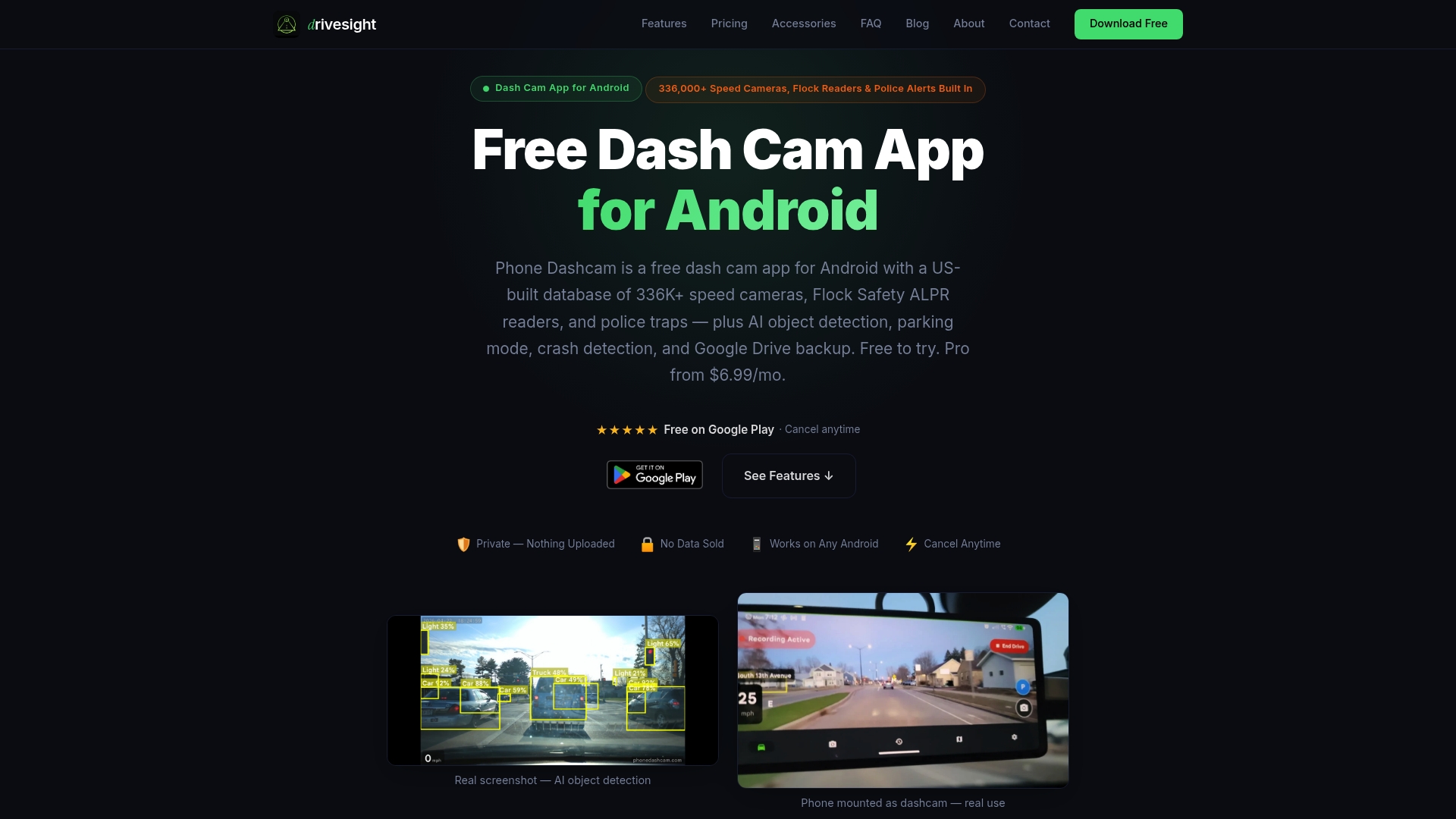
PhoneDashcam.com offers both a free Android dashcam app and a premium version that taps into a database of over 336,000 US-based speed cameras, red light cameras, and ALPR readers for live driver alerts. If you want the coverage benefits of a dual-channel setup without the hardware complexity, explore our dual camera Android dashcam guide and see how an Android Auto-compatible dashcam app can complement or replace dedicated hardware for your daily commute, delivery route, or road trip.
Frequently asked questions
Will a dual camera dashcam lower my front camera quality?
Some dual setups reduce front-camera frame rate or resolution when both cameras are active due to processing limits, so always check single vs. dual channel specs before buying to know exactly what you’re getting.
Does my Android phone work with all dual dashcam brands?
Most compatible apps require Android 8.0 or higher, as BlackVue explicitly confirms for its front and rear models, so check your specific Android version against the app requirements before purchasing.
How do I get footage quickly for insurance or police?
Use the dashcam’s Wi-Fi transfer feature through the companion app, but keep the app in the foreground the entire time since switching apps during a download can interrupt the transfer and leave you with an incomplete clip.
What is the biggest challenge installing a dual camera dashcam?
Rear camera cable routing is consistently the hardest and most time-consuming part, and choosing a matched kit where the front and rear units are designed to work together reduces compatibility surprises significantly.
Is dual front/rear always better than adding an interior camera?
Dual-channel front and rear coverage is better value for most drivers focused on outside incidents, but tri-channel and interior camera options make more sense for rideshare and taxi drivers who need in-cabin recording as well.
Recommended
- Dual Camera Dashcam Android — Record Front and Rear Simultaneously (2026)
- How to Turn an Old Android Phone Into a Dashcam (2026 Guide)
- Android Dash Cam App — Free, No Hardware Needed (2026)
- Best Dash Cam App with Android Auto Support (2026) — DriveSight
Article generated by BabyLoveGrowth
Get DriveSight free
Loop recording, crash detection, GPS tracking, and AI object detection — all in your phone. No new hardware required.
Download DriveSight