Parking Mode Dashcam Android Setup: 2026 Guide
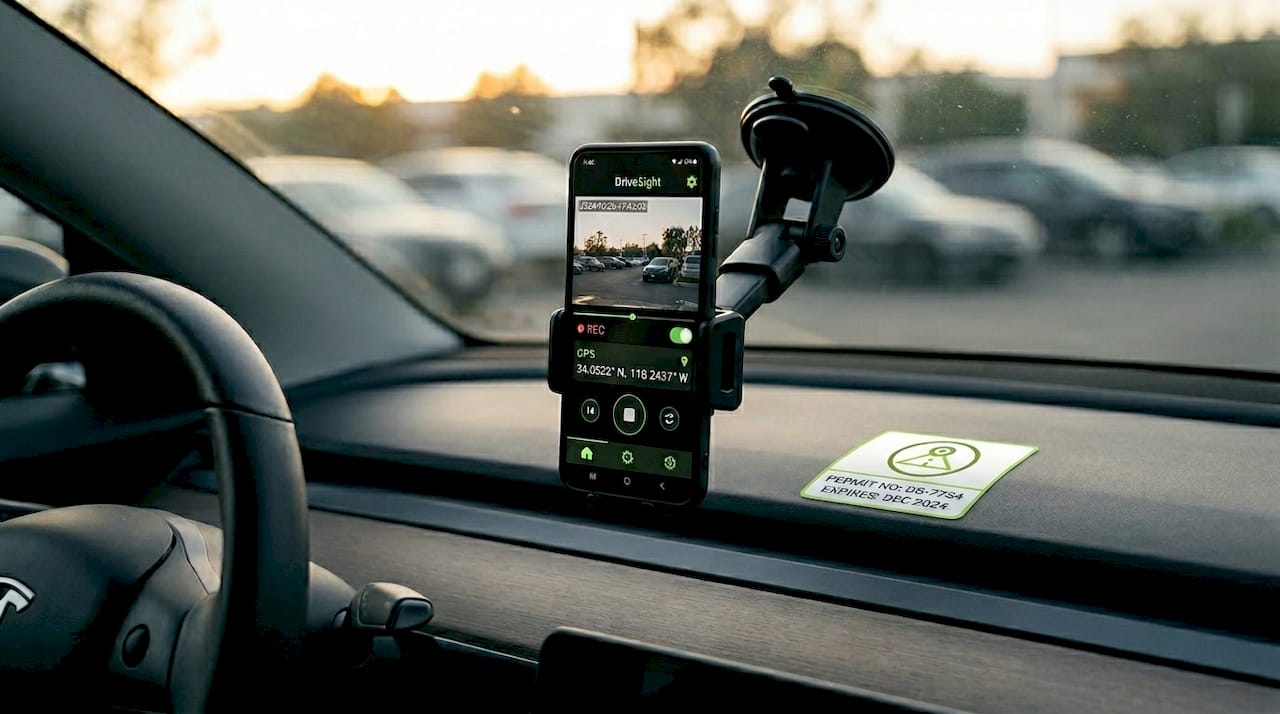
Parking mode dashcam Android setup is the process of configuring an Android phone or tablet to record and monitor your vehicle continuously while it is parked, using dedicated dashcam software and a reliable power source. Unlike standard driving recordings, parking mode keeps the camera active after you leave, capturing motion events, impacts, and time-lapse footage as evidence. Getting it right requires three things working together: a stable power supply that survives ignition-off, an app configured for auto-start and sensor detection, and storage that handles constant write cycles. We built DriveSight around exactly this use case, and this guide walks you through every layer of the setup.
What you need for parking mode dashcam Android setup
Before touching a wire or downloading an app, gather the right equipment. Missing one item, especially on the power side, is the most common reason parking mode fails silently.
Hardware checklist:
- A dedicated Android phone (repurposing an old device works well) with a working camera and at least Android 8.0
- A windshield or dashboard mount with a secure locking mechanism
- A hardwire kit or OBD2 power adapter rated for continuous 5V/3A output
- A multimeter for fuse identification and ground verification
- Add-a-fuse tap connectors if you are wiring directly to the fuse box
- A high-endurance microSD card rated for constant writing, formatted monthly to prevent file corruption
Software checklist:
- A dashcam app that supports parking mode detection. DriveSight’s Phone Dashcam app supports motion detection, G-sensor impact triggers, and time-lapse modes out of the box.
- Camera, location, and file access permissions granted at the OS level
- Battery optimization disabled for the dashcam app in Android settings
| Component | Recommended specification |
|---|---|
| Power adapter | OBD2 or hardwire kit, 5V/3A minimum |
| Storage card | High-endurance microSD, Class 10 or UHS-I |
| App permissions | Camera, location, file access, autostart |
| Ground resistance | Less than 0.5 ohms verified by multimeter |
Pro Tip: Buy a microSD card labeled “high endurance” or “dashcam rated.” Standard cards degrade within weeks under the constant write-erase cycles that parking mode demands.
How to wire your Android dashcam for parking mode
Power supply is the single decision that determines whether parking mode works at all. Most cigarette lighter sockets cut power when the ignition turns off, which means a USB-powered phone stops recording the moment you walk away. You need one of two alternatives.
Option 1: Fuse box hardwire kit
- Locate your vehicle’s fuse box, typically under the dashboard or in the engine bay.
- Use a multimeter to identify a constant fuse (live at all times) and an ACC fuse (live only with ignition on).
- Install add-a-fuse taps: connect the dashcam’s power wire to the constant fuse for parking mode, and optionally to the ACC fuse for driving mode switching.
- Run the ground wire to a bare metal chassis point. Proper grounding requires bare metal contact, not paint or plastic, with resistance verified below 0.5 ohms.
- Set the hardwire kit’s voltage cutoff to 11.6V for a 12V vehicle system to protect the battery.
Option 2: OBD2 power adapter
Plug the adapter into the OBD2 port, typically located under the steering column. OBD2 hardwire kits deliver stable 5V/3A output with selectable ACC or parking mode and cut power automatically at 11.6V for 12V vehicles and 23.2V for 24V vehicles. This is the faster install, but cable routing to the windshield is less clean than a hardwired solution.
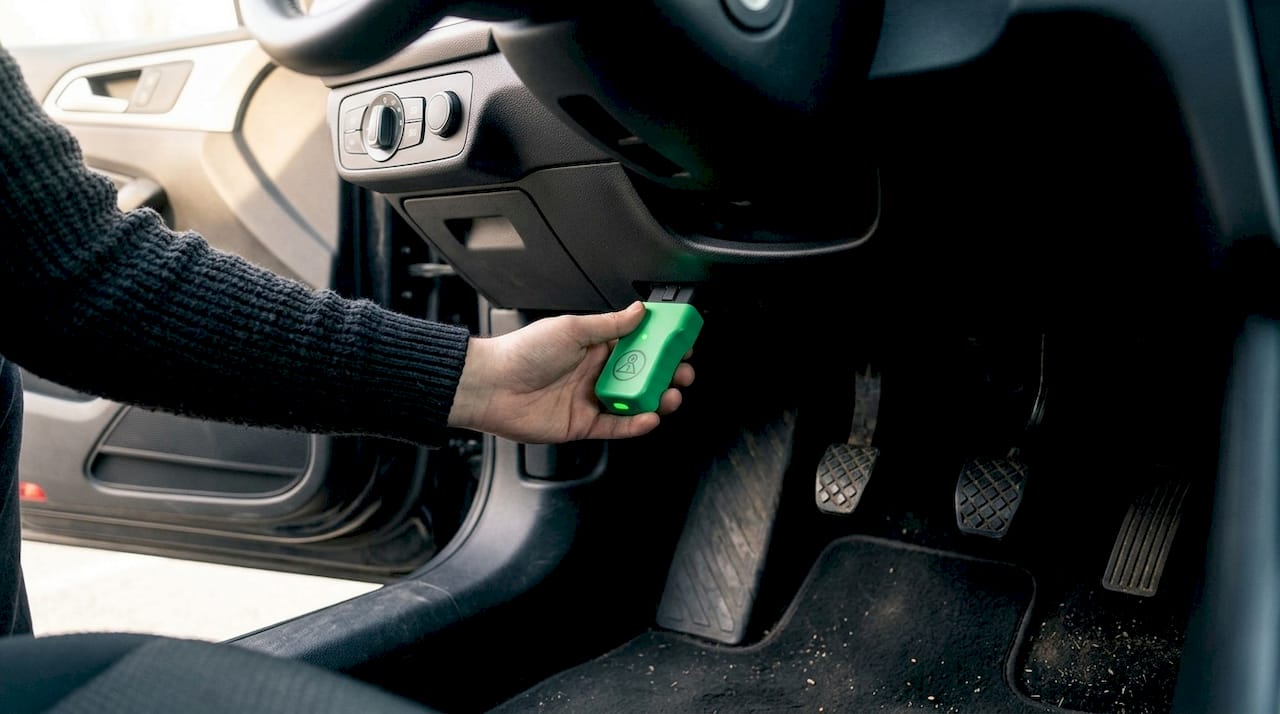
| Method | Install time | Battery protection | Cable routing |
|---|---|---|---|
| Fuse box hardwire | 45 to 90 minutes | Configurable cutoff | Clean, hidden |
| OBD2 adapter | Under 10 minutes | Built-in cutoff | Visible cable run |
| USB cigarette lighter | 2 minutes | None | Simple |
Pro Tip: After wiring, turn the ignition off and confirm the phone stays powered. Then trigger a light tap on the windshield and check that a parking mode clip saves. This two-step test confirms both power continuity and sensor detection before you rely on the system.
For a deeper look at powering your dashcam safely while parked, including battery preservation techniques specific to Android phones, we cover the full wiring decision tree on the DriveSight site.
Configuring your Android dashcam app for parking mode
Hardware gets power to the phone. App configuration determines what the phone does with it. These are the settings that matter most.
Permissions to grant first:
- Camera access: required for recording
- Location (GPS): enables speed, coordinate, and route overlays on video. Configuring overlay data in app settings adds time, date, GPS speed, and coordinates to footage, which strengthens its value as evidence.
- File access or storage: required to save clips to internal storage or microSD
- “Display over other apps” and autostart: needed on many Android skins (MIUI, One UI, OxygenOS) to prevent the OS from killing the app
Recording settings:
Set video resolution to 1080p at 30fps as a baseline. Higher resolutions consume more storage and heat the processor faster during long parking sessions. Enable loop recording so the app overwrites the oldest footage automatically when storage fills. For parking mode specifically, set the clip length to 1 to 2 minutes so individual events are easy to locate.
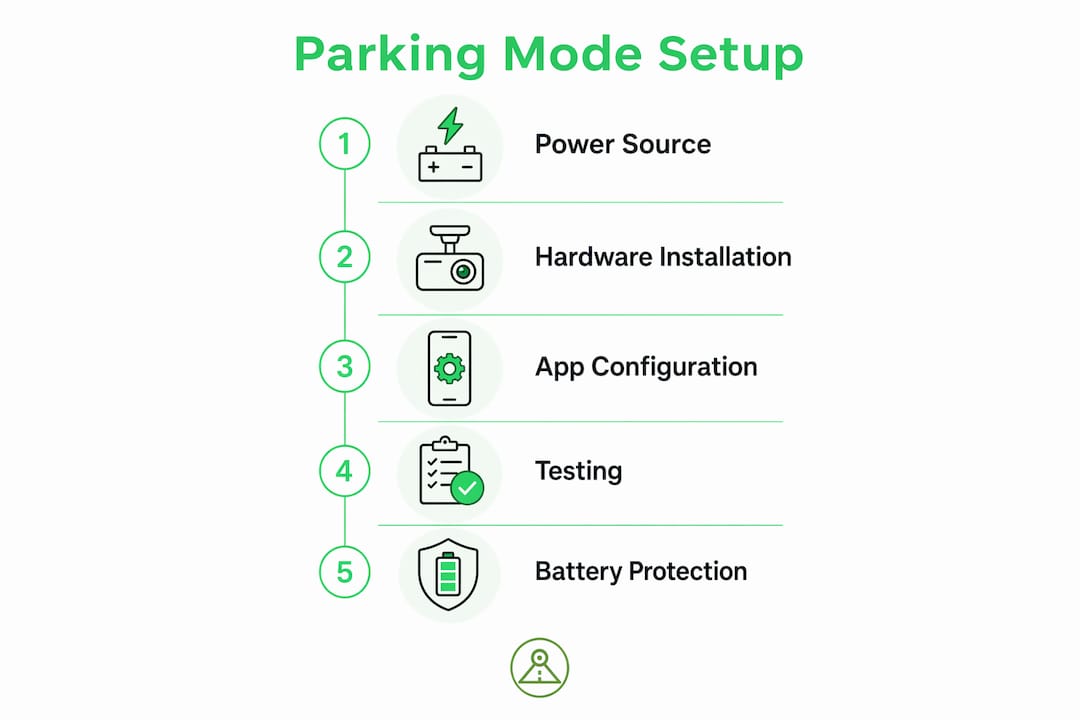
Parking mode detection type:
Choose between motion detection (camera-based), G-sensor impact detection (accelerometer-based), or time-lapse. Start with medium G-sensor sensitivity and test by tapping the windshield lightly. Adjust down if the system triggers on wind or passing trucks, and up if light contacts go unrecorded.
Auto-start configuration:
Configure the app to auto-start recordings when the phone powers on or connects via Bluetooth to your car’s audio system. This removes the need for manual intervention every time you park. Disable battery optimization for the dashcam app in Android’s settings under “Battery” or “App management” to prevent the OS from suspending it during long parking sessions.
Explore the full range of Android dashcam recording modes to understand how loop recording, event recording, and parking mode interact within a single session.
Troubleshooting common parking mode setup mistakes
Most parking mode failures trace back to one of six predictable errors.
- Wrong fuse selected. Using a switched fuse for the constant power line means the phone loses power with the ignition. Re-test with a multimeter before assuming the fuse is correct.
- Poor ground connection. A ground wire attached to a painted surface introduces resistance that causes intermittent shutdowns. Verify ground continuity is below 0.5 ohms using a multimeter, and move the wire to a bare bolt on the chassis if needed.
- Auto-start not configured. The app must be set to launch on power-on. Without this, the phone boots but sits idle at the home screen while your car is parked unmonitored.
- Battery optimization left enabled. Android’s power management will suspend background apps after several minutes of screen-off time. Whitelist the dashcam app explicitly.
- Camera obstructed. Tinted windows, rearview mirror housings, and dashboard reflections all degrade video quality. Mount the phone high on the windshield, behind the mirror, and test footage in daylight before relying on it at night.
- No voltage cutoff set. Running parking mode without a low-voltage cutoff can drain your car battery below the threshold needed to start the engine. Set the cutoff at 11.6V for 12V systems and test ignition-off transitions to confirm the system shuts down cleanly.
Key takeaways
Effective parking mode dashcam Android setup requires a continuous power source with voltage cutoff, correctly configured app permissions and auto-start, and high-endurance storage to function reliably without driver intervention.
| Point | Details |
|---|---|
| Power source is non-negotiable | USB cigarette lighters cut power at ignition-off; use a hardwire kit or OBD2 adapter instead. |
| Voltage cutoff protects your battery | Set cutoff at 11.6V for 12V systems to prevent battery drain during extended parking sessions. |
| App permissions and auto-start | Grant camera, location, and file access; disable battery optimization; configure auto-start on power-on. |
| Storage quality matters | Use a high-endurance microSD card and format it monthly to prevent file corruption. |
| Test before you trust | Simulate ignition-off and trigger a tap event to confirm clips save correctly before relying on the system. |
What we have learned building parking mode setups
Most people who struggle with parking mode setups focus too much on the app and not enough on the power circuit. We have seen setups where the app was configured perfectly, but a ground wire attached to a painted bracket caused random shutdowns every few hours. The hardware side is unglamorous, but it is where most failures originate.
The other pattern we notice is that drivers set G-sensor sensitivity too high, then abandon parking mode after a week because the storage fills with clips of passing trucks. Medium sensitivity, tested with a deliberate light tap, is the right starting point. You can always increase it after observing real-world false-positive rates.
On the software side, Android’s battery management has become more aggressive with each OS version. What worked on Android 11 may not work on Android 14 without re-whitelisting the app after a system update. We recommend checking the autostart and battery exemption settings after every major Android update.
The technology is genuinely getting better. Accelerometer-based impact sensing, AI object detection, and cloud backup have moved from dedicated hardware into Android apps. The gap between a $200 dedicated dashcam and a repurposed Android phone running a well-configured app is narrowing fast.
— Cyberlab Automation
Set up parking mode in minutes with DriveSight
DriveSight’s Phone Dashcam app is built specifically for Android drivers who want parking mode without the complexity. The app walks you through permission setup on first launch, supports auto-start via power-on and Bluetooth triggers, and includes motion detection, G-sensor impact recording, and time-lapse parking modes in a single interface.
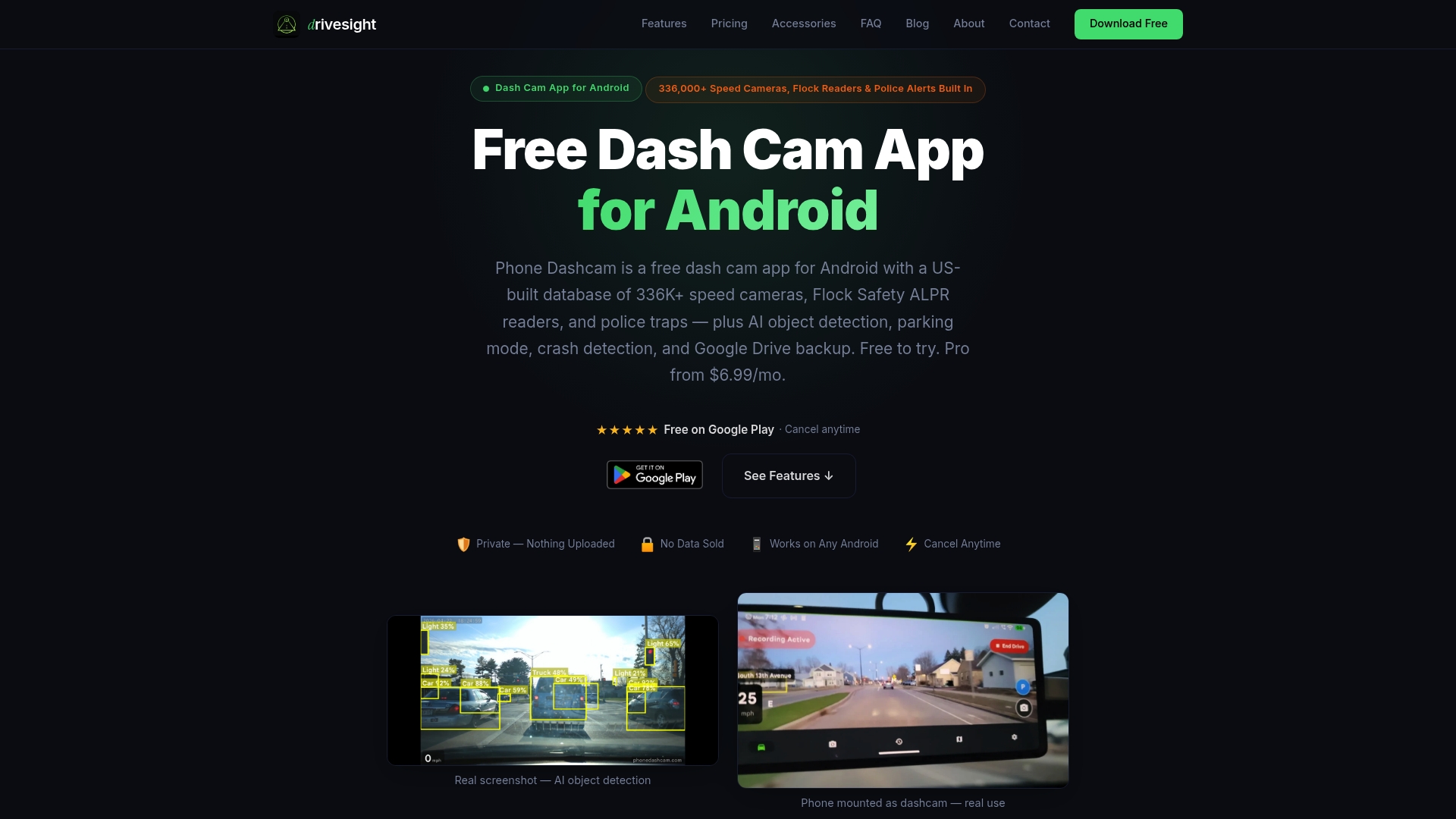
It works with hardwire kits, OBD2 adapters, and standard USB power, and it overlays GPS speed, coordinates, and timestamps on every clip. The remote viewer feature lets you check live footage or review saved clips from anywhere. The app is free to install, with premium features available for drivers who need cloud backup and advanced AI detection. Download it, grant the permissions, and your Android phone becomes a full parking security system.
FAQ
What is parking mode on an Android dashcam?
Parking mode is a recording state where the dashcam app continues monitoring and recording after the ignition turns off, triggered by motion detection or G-sensor impact. It requires a continuous power source independent of the ignition switch.
Can I use any Android phone for parking mode dashcam setup?
Any Android phone running Android 8.0 or later with a functional rear camera works. Repurposing an older phone is a practical option, provided you pair it with a reliable continuous power source and disable battery optimization for the dashcam app.
Do I need to hardwire my phone for parking mode?
Hardwiring or using an OBD2 power adapter is required for true parking mode. Standard USB sockets lose power when the ignition turns off, which stops all recording immediately.
How do I prevent my car battery from draining during parking mode?
Set a low-voltage cutoff on your hardwire kit or OBD2 adapter. For 12V vehicle systems, a cutoff at 11.6V stops the dashcam before the battery drops below safe starting levels.
Why is my parking mode app not recording when parked?
The two most common causes are auto-start not configured in the app settings and battery optimization enabled at the OS level. Check both settings, then simulate an ignition-off cycle to confirm the app stays active and saves clips correctly.
Recommended
- Dashcam Parking Mode: How It Works on Android (2026 Guide)
- Phone Dashcam Blog — Dashcam Guides, App Comparisons & Driving Tips
- Phone Dashcam Remote Viewer
- Set up a dual front and rear Android dashcam
Get Phone Dashcam free
Loop recording, crash detection, GPS tracking, and AI object detection — all in your phone. No new hardware required.
Download Phone Dashcam