Phone Dashcam Footage After a Crash: Save, Trim, Hand Over
Your dashcam clip can be overwritten within days. Here is how to find it, trim it safely, and hand it over to police or your insurer after a crash.
On this page
- Before You Start: What You Need and the One Rule That Protects You
- Why Loop Recording Gives You Days, Not Weeks
- Step 1: Stop Recording and Find the Clip in Loop Storage
- Step 2: Lock or Copy the Original Before Anything Else
- Step 3: Trim a Separate Copy of the 20 to 40 Seconds That Matter
- Step 4: Export So the Timestamp and Metadata Arrive Intact
- Step 5: Back Up, Then Write Down Where Every Copy Lives
- Step 6: Hand the Footage to Police or Your Insurer in Canada
- The Two-Minute Shortcut for Drivers Who Already Know Their File System
- Before the Crash: Set Up Your Android Dashcam So This Works Later
- Mistakes That Quietly Destroy Dashcam Evidence
- FAQ: Overwritten Clips, Phone Video and Other Loose Ends
- The Next Hour: Your Post-Crash Footage Checklist
- Conclusion
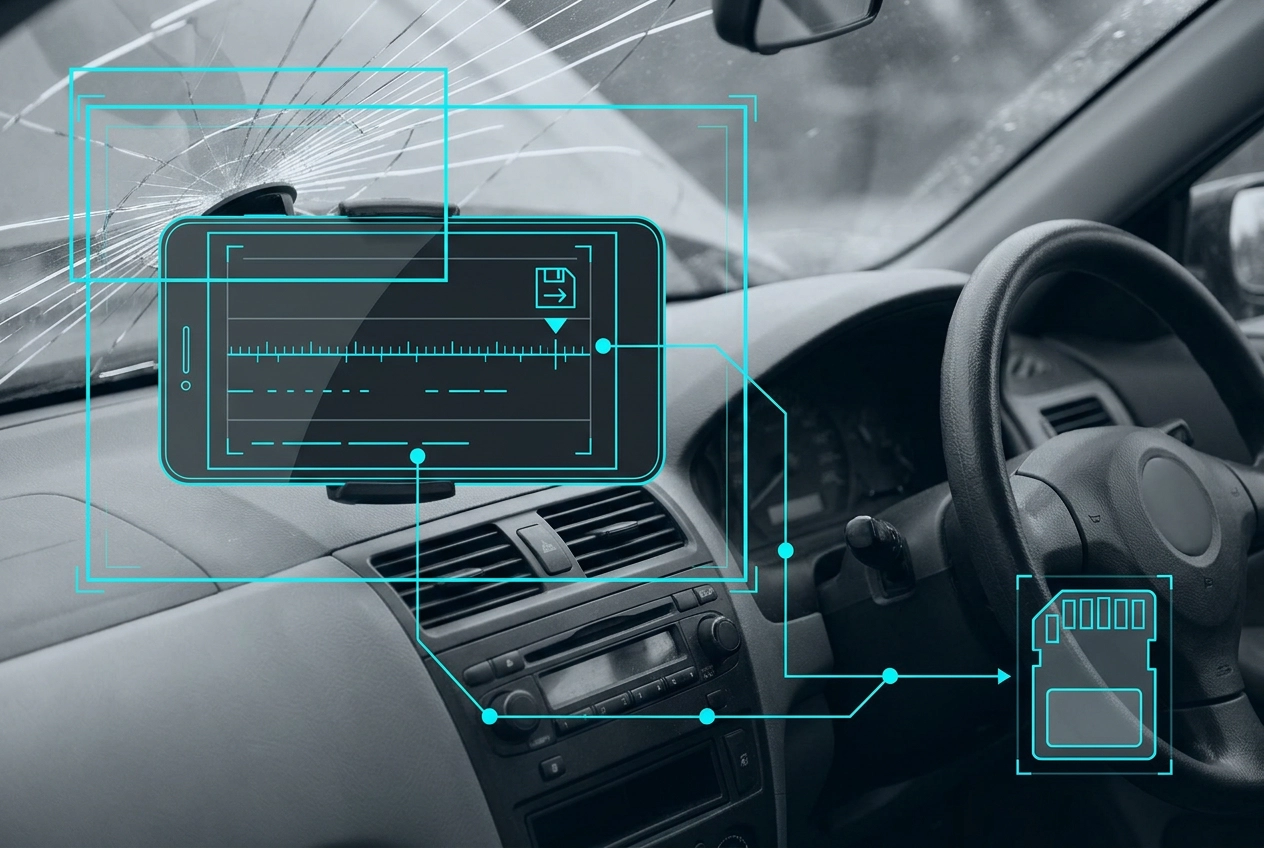
The moments after a collision are chaotic. Your priority is safety, but the clock is also ticking on your dashcam footage. Most systems record on a loop, meaning the clip of your crash could be overwritten in a matter of days. Footage that never leaves your phone is worthless in a claim.
This guide provides a clear, step-by-step workflow for the hour after a crash. We will walk you through the essential process of preserving your video evidence. You will learn how to locate the clip in loop storage, lock the original file, trim a separate copy to the relevant seconds, and export it with intact timestamps so it meets the standards an adjuster or officer will accept. We will also cover how to back up your files and securely hand them over to Canadian authorities or your insurer.
To ensure this process is seamless, it starts with the right setup. Using a reliable dashcam app for Android, like DriveSight, with its easy-to-use interface, simplifies this critical workflow. Our guide covers everything from the immediate steps to take, to the common mistakes that can destroy your evidence, and even a shortcut for tech-savvy drivers. By the end, you will have the checklist you need to handle your footage correctly and protect your claim.
Before You Start: What You Need and the One Rule That Protects You
Know the system you are working with before you touch anything.
Loop storage: a dashcam app saves fixed-length files of a set duration and overwrites the oldest when storage fills. Your crash may sit inside one file or straddle two.
A second destination: have a laptop and cable, a spare microSD card, or a cloud folder ready. One copy on one phone is not a backup.
Power: keep the phone plugged in. Reviewing and exporting drains battery fast.
Three facts: note the date, approximate time of impact, and your location now. You need all three to find and label the right file.
The one rule: never edit, crop, filter, re-encode or delete the original. In Ontario, admissibility turns on authenticity, so the untouched file is your evidence and every trimmed version is a working copy. Professional drivers can review what happens to dash cam footage after a crash in your truck.
Why Loop Recording Gives You Days, Not Weeks
The file you just protected is on a clock. Dashcam storage is finite, and most systems overwrite the oldest footage continuously. Harris and Hart note that dashcams often loop over old data every few days. That window is storage-dependent, not fixed: a large card at 1080p may hold more days than a small card at 4K. Assume you do not have many. Findlay Law advises preserving footage immediately after a collision, meaning the same hour, not next morning. Overwriting is silent: no warning, no prompt, no notification. Keep driving and you keep deleting. Every step that follows depends on the clip still existing. Secure the clip as soon as the scene is safe.
Step 1: Stop Recording and Find the Clip in Loop Storage
Once emergency needs are handled, stop the active recording. That closes the current file and makes it readable. Open your app and look for the clip library, gallery or file list; most sort clips by date and start time.
Find the file whose timestamp window contains the moment of impact. If the collision straddled a file boundary, you need two files, so check the clip immediately before the one showing impact. A dashcam app for Android with an on-screen file list and timeline lets you jump straight to the last recorded clip, far faster than opening files one at a time.
If your app writes to removable storage, note the folder path now so you can copy the raw file later rather than exporting only through the app interface.
Do this before you drive anywhere else, as every extra minute of recording adds storage pressure to the clip you just found.
Step 2: Lock or Copy the Original Before Anything Else
Lock the clip now. Use any lock, protect or favourite function the app offers; locked clips are excluded from loop overwrite and stay on the device until you remove them, buying you time to think.
Then copy the raw original off the phone, by cable to a laptop or straight to a cloud folder, so two independent copies exist before you touch anything else. Do not rename the file in a way that discards its original name and timestamp, and never trim, convert or re-record the original in place.
Record the file's original name, size and creation time, and photograph the phone screen showing the clip's on-screen timestamp. If your app stores clips in a proprietary container, export an untouched full-length copy first. Our frequently asked questions cover metadata handling in more detail. Work only on a duplicate afterwards.
Step 3: Trim a Separate Copy of the 20 to 40 Seconds That Matter
Every edit happens on a duplicate from this point on.
Trim the copy to the relevant seconds around impact (often 20–40 seconds is enough, but ask the receiving party). Start the trimmed copy several seconds before impact so the other vehicle's approach and your own speed are visible, not just the collision. Keep the audio unless asked to remove it; horns, braking and impact noise are part of the original record, not an addition.
If the crash sits inside a short file, send the whole thing. A 60 second clip needs no trimming, and a complete file ends any argument about what was cut.
Step 4: Export So the Timestamp and Metadata Arrive Intact
Your trimmed copy is only useful if it still carries proof of when and where it was recorded. Metadata is the hidden information attached to a file: date, time, duration, GPS coordinates and device details. It places the footage at a specific moment and location for an officer or adjuster.
Export a file from the app, or copy the raw file directly. Do not send footage through messaging apps, which compress video, strip metadata and can shrink the on-screen timestamp until it is unreadable. Open the exported file before sending: confirm the timestamp is visible and correct, and matches the date and time you wrote down at the scene.
Keep the untouched original beside the export and be ready to say clearly which file is which. If GPS data drops during export, put the location and time in your cover message.
Step 5: Back Up, Then Write Down Where Every Copy Lives
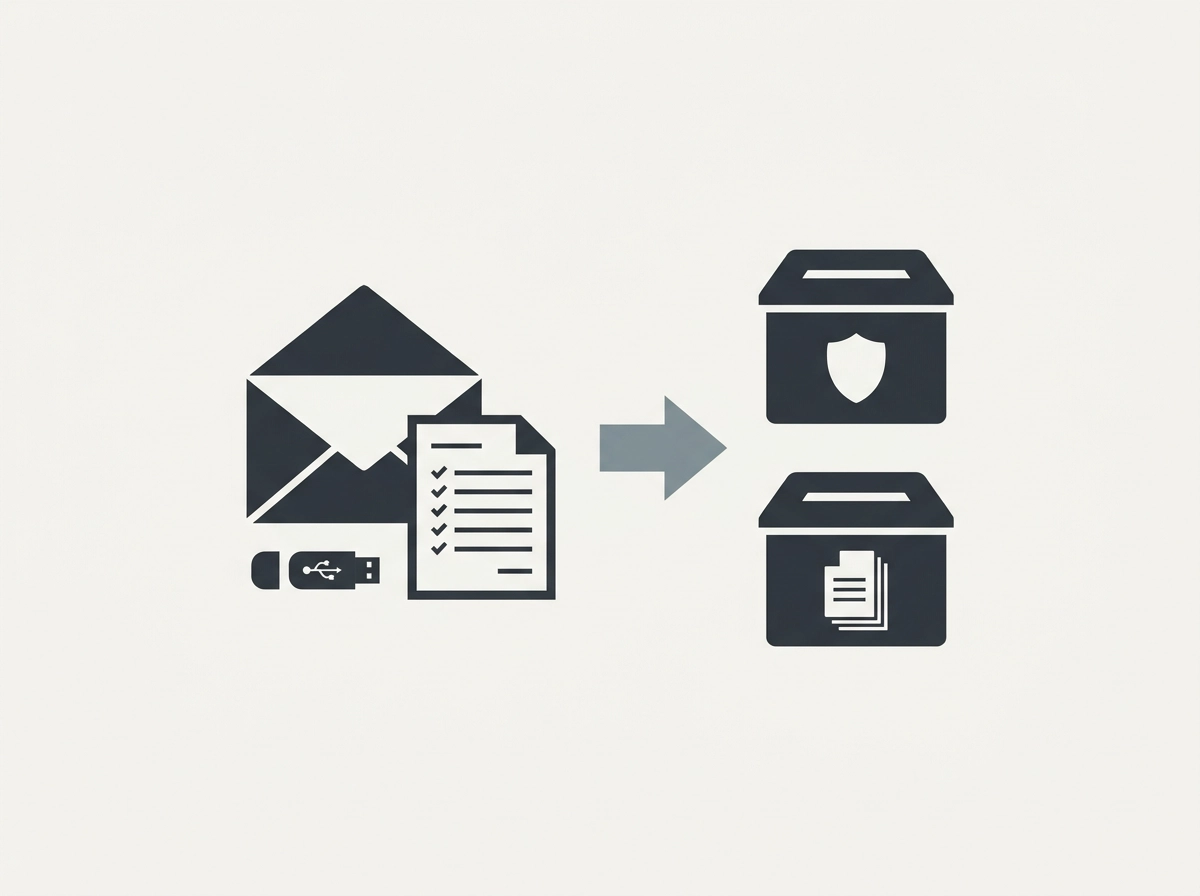
Your exported file is only safe once it exists in more than one place. Chain of custody is simply the record of who held the footage, when, and what happened to it. A short written note is enough: copy dates, devices used, and where each version lives.
Back up to at least two separate places, such as a laptop folder and a cloud drive. If the phone is lost, stolen or wiped, your claim should still have footage. Keep the phone intact and do not factory reset it, clear the app cache or delete clips until the claim or case is resolved.
Label files clearly, for example 2026-03-14 08-42, and keep the original filename inside each folder so renaming loses nothing. Store the note and copies where you can reach them within minutes. Adjusters and officers often ask while details are fresh.
Step 6: Hand the Footage to Police or Your Insurer in Canada
With copies logged, send the footage promptly and in writing. A short cover note is better than an attachment: your name, claim or report number, the date, time, location and the file's timestamp. Ask the officer or adjuster which formats and delivery methods they accept, and get that answer in writing; no national standard is documented. In Ontario, Findlay Law notes dashcam footage is admissible in civil proceedings under relevance, authenticity and disclosure rules. Other provinces may differ, so confirm locally. If the clip might show your own careless driving, have a lawyer review it before disclosing it to an insurer; Findlay warns it can incriminate the driver. Footage that does not clearly show the crash can still establish road, weather and traffic conditions, so do not withhold it.
The Two-Minute Shortcut for Drivers Who Already Know Their File System
If you have reviewed the clip already and know your app's storage behaviour, skip the gallery. Connect the phone by USB cable, open the app's storage folder, and copy the raw video files covering the incident straight to your laptop. Check that file modification times align with your memory of the crash before copying anything else, then lock or protect those clips inside the app as a second safeguard. Export the untouched originals first, verify they play with timestamps visible, and only then build trimmed copies from duplicates. Keep the phone plugged in and do not disconnect mid-copy; a partial file looks like tampering. This route is faster, but it assumes your app saves standard video files. If it does not, use the in-app export instead and accept the slower path.
Before the Crash: Set Up Your Android Dashcam So This Works Later
The shortcut works only if the setup happened months earlier: recording on by default, storage with room to spare, and a phone that survives a windshield mount without overheating.
DriveSight, built by Cyberlab Automation, is an Android dashcam app with on-screen alerts including live police location alerts, live police aircraft tracking and alerts, live severe weather alerts, and live speed camera locations and alerts.
Once a month, check any dashcam app for Android setup you rely on: confirm recording starts automatically, confirm loop storage is not full, and confirm the mount holds the phone with a clear road view. Hardware matters too. A hardwire kit keeps the phone powered on long drives, a magnetic mount holds the camera angle steady, and heat protection accessories reduce shutdowns in a hot cabin. Run the drill once: find your clip library, export a test file, and verify the timestamp is visible.
Mistakes That Quietly Destroy Dashcam Evidence
Your setup only matters if the footage survives the next hour. These five mistakes destroy evidence quietly, often before you realize it.
Editing or deleting anything from the original file invites a challenge to its reliability under s 31.1 of the Canada Evidence Act, work only on duplicates.
Waiting until the next day risks losing the clip entirely, loop recording runs silently and Findlay Law advises preserving footage immediately after a collision.
Sending footage only through a messaging app means the receiving party gets a compressed file with stripped metadata, not the evidential record you secured.
Posting the clip to social media first. A public post complicates disclosure and privacy, and it is no substitute for handing the file to the right party.
Relying on the phone as your only copy. Lose, wipe or replace that device and the footage is gone, even if the claim is still open.
Treat the phone as a source, not an archive.
FAQ: Overwritten Clips, Phone Video and Other Loose Ends
Even careful drivers face these loose ends.
My dashcam already overwrote the clip. Now what? Check locked or favourite clips, then recycle bin or cloud backup. Tell the officer or adjuster plainly if the clip was overwritten.
Will police accept a phone video? Ask the receiving officer. Formats and delivery vary by service and case; no national standard applies. Send an intact timestamp and a clear cover note.
Must I give footage to the other driver's insurer? Get legal advice first if the footage may show careless driving. Findlay Law recommends a lawyer's review before sharing with insurers.
Does this apply outside Ontario? These admissibility points come from Ontario sources. Other provinces may differ; confirm with a local lawyer or the receiving party.
How much footage should I send? Ask. If nobody specifies, send the untouched original plus a short, trimmed copy around the moment of impact, clearly labelled.
The Next Hour: Your Post-Crash Footage Checklist
Keep this list saved on your phone. In the hour after a collision, the sequence matters more than the speed.
Secure the original. Lock the clip and copy the untouched file off the phone before anything else.
Trim a duplicate, never the master. Keep a short, trimmed copy around the moment of impact, starting several seconds before it.
Export as a file, not a message. Confirm the timestamp survived the export.
Back up twice. Write down what you copied, when, and where each copy lives now.
Hand it over with a short cover note. Ask the receiving party what format they want, and get legal review before disclosing footage that might show your own driving.
Conclusion
A crash is stressful enough without worrying about lost footage. The one-hour workflow is the same every time: protect, duplicate, export, back up, hand over. Confirm that the timestamp and metadata survive the export, and keep a written record of where every copy lives. The DriveSight dash cam app for Android makes the setup side easier with its simple interface and on-screen alerts for live police locations, police aircraft, severe weather, and speed cameras, so you are ready before anything happens. Download DriveSight today and set up your phone so the next hour after a collision is about recovery, not evidence rescue.